Workflow Forms
Forms let you collect data from users and start a workflow when a form is submitted.
Build forms using a visual editor, then use the submitted data throughout your workflow to generate documents, apply logic, send emails, and more.
Use a trigger form to collect the details that start a new run. Use a mid-workflow form when a running workflow needs another person's response before it can continue.
Designing Forms
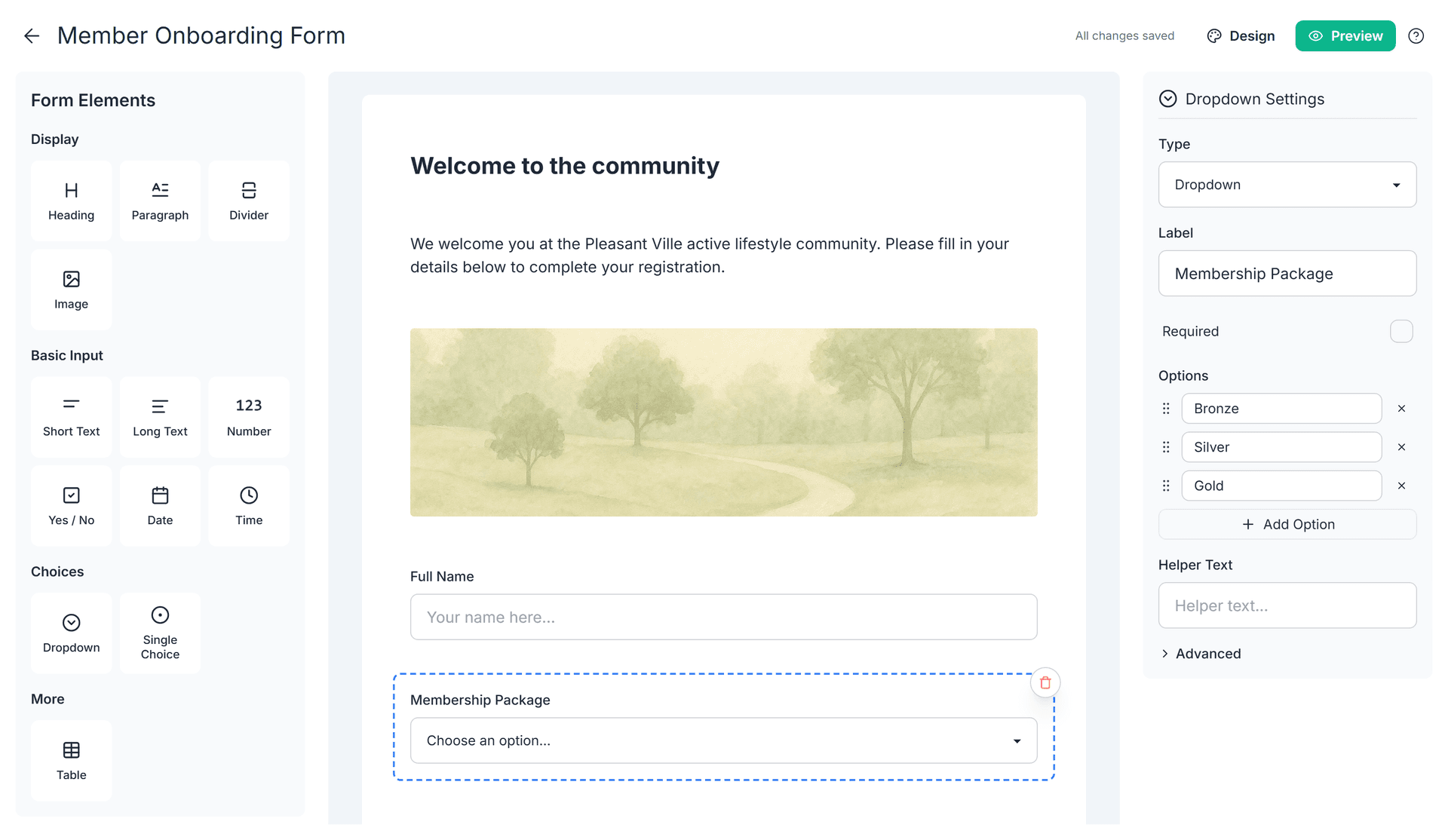
Forms are created using a drag-and-drop, visual editor.
You can:
- Add text, number, date, and choice fields
- Add table fields to collect multiple rows of data
- Reorder fields visually
- Configure labels, helper text, and validation
- Preview the form as users will see it
No code or technical knowledge is required.
Using Form Data in Workflows
A form can start a workflow, or be sent in the middle of a workflow. Either way, the submitted answers are available to every step that follows, and you can use them to:
- Generate documents from templates
- Apply conditions and calculations
- Personalize emails
- Send data to other systems
Trigger Forms
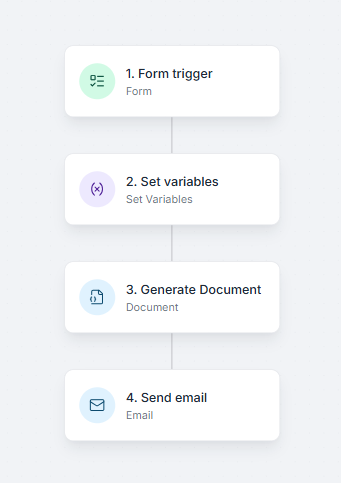
A Form Trigger starts a new workflow run each time it's submitted. For example, a form can collect customer and order details, generate an order confirmation document, and email it to the customer automatically.

Mid-Workflow Forms
A Form Step sends a form in the middle of a workflow - it emails a form link to one or more recipients and pauses the run until the form is submitted, which is useful for approvals, sign-offs, or collecting missing details from a client or a teammate.
With a Form Step, you can:
- Prefill the form with values from earlier steps, so recipients only review or complete what's missing
- Set how many days recipients have to submit (7 days by default, up to 90)
- Choose what happens if the form expires: stop the workflow (the default), or continue and handle it in later steps
Styling Forms
Forms are fully customizable: pick a theme, adjust colors and fonts, add your logo and a background image, and remove the TemplateDocs branding - so the form looks like a natural part of your brand.
See Styling & Branding for details.
Sharing and Embedding Forms
Published forms are available at a public URL that anyone can use - no TemplateDocs account needed. You can share the link directly, or embed the form in your own website with a small HTML snippet.
See Sharing & Embedding for details.
Credits
Each run started by a trigger form costs 1 credit. Each mid-workflow Form step that runs costs 1 credit. The first 3 credits after the trigger are included in every run. See Credits.
Next Steps
- Style forms to match your brand with Styling & Branding
- Put forms in front of users with Sharing & Embedding
- Learn how to generate workflow documents
- Start a workflow for every spreadsheet row with Bulk Generation
- Explore formulas for calculations and transformations
