 Generate Documents from viaSocket
TemplateDocs can be used together with viaSocket to automate document generation. This page includes a step by step guide to walk you through the process.
Overview
To illustrate this process, we will use a "Member Onboarding" scenario:
- New member's information is added to a Google Sheet
- viaSocket automatically triggers TemplateDocs to generate a customized welcome document
- TemplateDocs creates the document in DOCX or PDF format and emails it directly to the member
See how it works:
Step 1: Add the Member Onboarding template
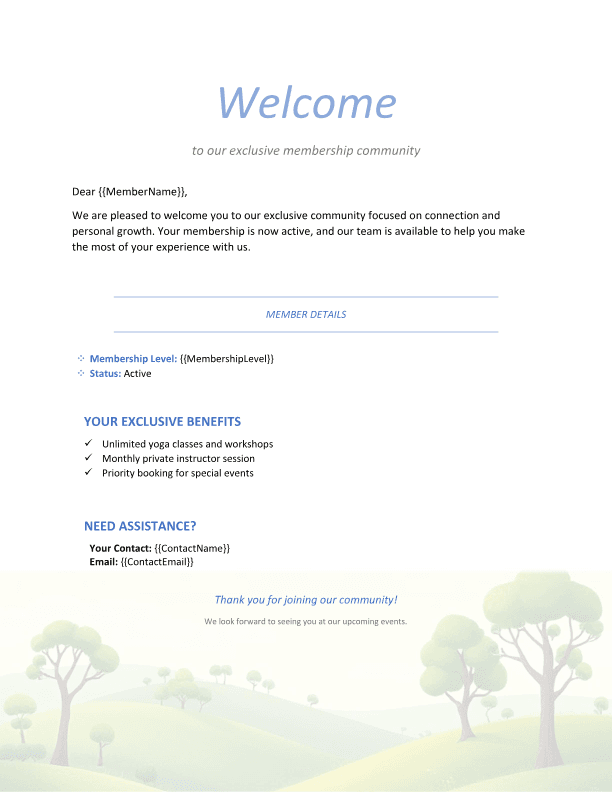
Download the Member Onboarding template and upload it to your TemplateDocs account.
Step 2: Set up your Google Sheet
Create a Google Sheet to store new member information. Include columns that correspond to the placeholders in the template:
- Member Full Name
- Member Email Address
- Membership Level
- Contact Person
- Contact Email

Make sure to include headers in the first row of your sheet.
Step 3: Create your flow in viaSocket
A. Create a new flow
Log in to viaSocket, click the + Create new flow button
B. Set up your Trigger
- Click Select Trigger and search for Google Sheets
- Select Google Sheets and then New or Updated Spreadsheet Row
- Connect your Google account if not already connected
- Select your Google Sheet and the specific worksheet
C. Set up your Step
- Click Add Step and search for TemplateDocs
- Select TemplateDocs and then Generate Document From Template
- Connect your TemplateDocs account
- You will be asked to provide your TemplateDocs API key. You can find it in the API Keys page.
D. Configure the Step
General settings:
- Select your Member Onboarding template
- Click on Template Data, Output Format and ... and expand the section
Template Data fields:
- MemberName: Map to the Member Full Name column from your Google Sheet
- MembershipLevel: Map to the Membership Level column from your Google Sheet
- ContactPerson: Map to the Contact Person column from your Google Sheet
- ContactEmail: Map to the Contact Email column from your Google Sheet
Output Format:
- Set the desired output format (PDF / DOCX)
Email fields (optional):
- Send via Email: Check this option to automatically email the generated document
- Email To: Map to the Member Email Address column from your Google Sheet
Step 4: Publish your flow
- Click on Go Live to publish your flow
- Add a test row to your Google Sheet (it might take a few minutes for viaSocket to detect the new row)
- Review the generated welcome document
The Final Result
When a new member's information is added to the Google Sheet, a personalized welcome document is automatically created and emailed directly to them. The document includes:
- Their name and membership details
- Information about their membership benefits
- Contact information for support
This automation saves your team time, ensures consistency in your onboarding process, and provides new members with immediate confirmation of their membership. The built-in email delivery means you don't need to set up additional email services - TemplateDocs handles everything for you.
Additional Tips
- Add your organization's branding, colors, and logos to the template
- Include links to important resources or next steps for new members
- Add more viaSocket steps to update your CRM or marketing tools
- For configuring custom SMTP settings, check out our email delivery documentation