Email Delivery
TemplateDocs allows you to automatically email generated documents to recipients, making it easy to distribute documents without manual intervention. You can also brand these emails with your own logo and sender name.
Email Providers
TemplateDocs offers two ways to send emails:
System Default
- No configuration required - works out of the box
- Basic customization of sender name
- Built-in protection against spam and abuse
- Perfect for most users who want reliable email delivery
Custom SMTP
- Use your own email server for maximum control
- Full customization of sender addresses and domains
- No sending limits for higher volume sending
- Configure SMTP settings in your organization settings
For more details about branding and customization, see the Email Branding section below.
Delivery Policy
When using the System Default provider, TemplateDocs has some guidelines in place to ensure reliable email delivery:
- Up to 5 recipients per email (including TO, CC, and BCC)
- Up to 1,000 emails per day per account on paid plans
- Free accounts can only send to organization members
- All emails are automatically checked to ensure they don't contain spam or malicious content
These limits don't apply when using Custom SMTP, giving you the flexibility to set your own sending policies when doing so.
Custom SMTP Settings
To opt in to use custom SMTP settings, navigate to your organization settings:
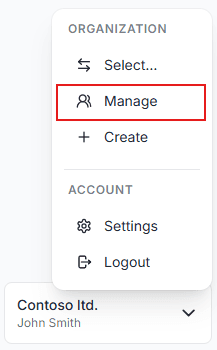
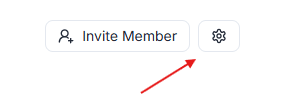
Then select the SMTP configuration option:
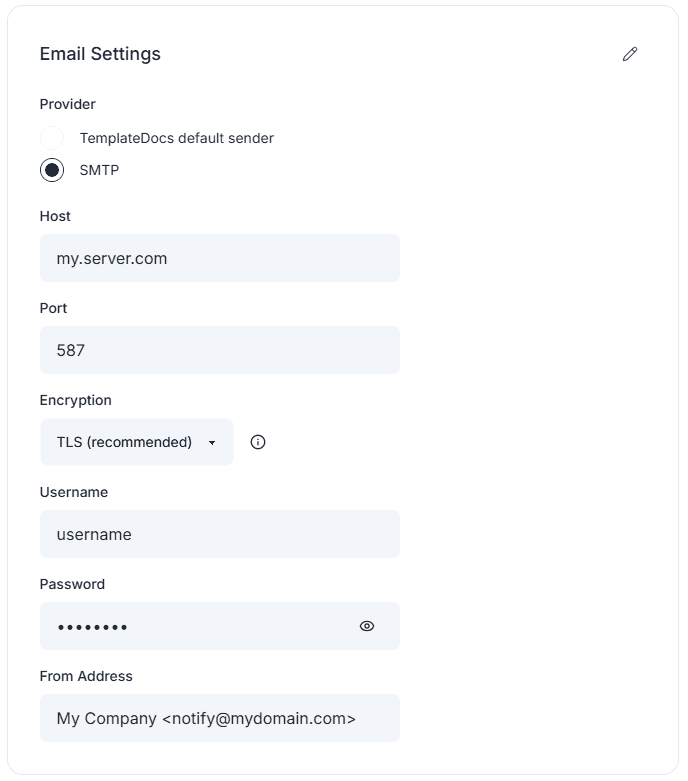
Need help finding your SMTP settings? Here are the official guides from popular email providers:
- Google Workspace SMTP settings
- Microsoft Outlook.com SMTP settings
- Amazon SES SMTP credentials
- SendGrid SMTP configuration
- Resend SMTP credentials
- Zoho Mail SMTP settings
Each provider has specific server addresses, ports, and authentication requirements. Make sure to enable SMTP authentication and use the correct security settings (usually TLS and port 587, note that TLS may also appear as STARTTLS).
Email Branding
Email branding lets you make the emails TemplateDocs sends on your behalf look like they come from your business. Branding is available on paid plans and applies to your whole organization.
Branding is applied to all emails sent to your recipients:
- Workflow Email steps
- Generated documents delivered by email (for example, via the REST API)
- Form invitations
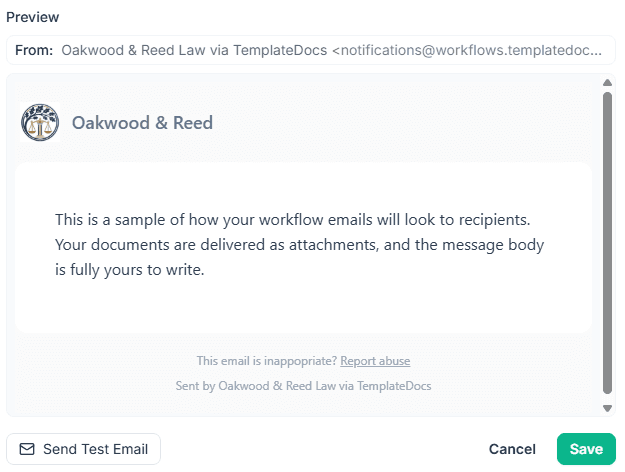
The settings dialog shows a live preview as you edit. Use Send Test Email to send a sample email to yourself through your configured email provider, so you see exactly what your recipients will get.
Branding Settings
To configure branding, open your organization settings and under Email Settings --> Branding, click Customize. You can also open the settings from any workflow Email step, using the "email branding" link below the email body input field.
| Setting | Description |
|---|---|
| Enable branding | Turns branding on or off without losing your settings. |
| Sender name | The name recipients see as the email sender (part of the "From" address). |
| Logo | An image shown in the email header (JPEG, PNG, GIF or BMP). |
| Header text | A short title shown at the top of the email, next to your logo. |
| Show "Powered by" footer | Controls whether the "Powered by TemplateDocs" footer is shown. |
Some settings behave differently depending on the provider you use - the System Default provider or Custom SMTP:
- The "Powered by TemplateDocs" footer can only be removed when using custom SMTP. Emails sent with the system default provider always include a minimal attribution footer.
- With the system default provider, emails are sent as "Your Sender Name via TemplateDocs". With custom SMTP, the sender address comes from the "From" address in your SMTP settings and is fully customizable by you.
