Attio
The Attio steps connect your workflows to your Attio workspace. They work with any object in the workspace, such as People, Companies, Deals and your custom objects.
Use them to start a workflow when a deal changes stage, keep records up to date, look up CRM data for your documents, and save generated documents to a record.
Use Trigger to start from a record event, Write record to save data, Find records to read it, or Add activity to leave a note or task.
Example
A consulting firm tracks deals in Attio. The workflow:
- Starts with the Attio trigger when a deal's Deal stage changes to Won.
- Generates a statement of work with a Document step, using the deal's attributes.
- Uses an Attio - Write record step to update the deal and save the document to its files.
- Uses an Attio - Add activity step to add a task for the account manager: "Send the kickoff email", due in 2 days.
Connect your account
- Add an Attio step and click Sign in under Workspace.
- Click Continue to Attio and approve the requested access.
- You return to the workflow editor with the workspace selected.
Attio may show a notice that TemplateDocs has not been approved yet. This is expected.
Only organization owners and admins can add or reconnect accounts. You can manage all connected accounts in your Organization Settings.
Trigger
The Attio trigger starts a workflow when a record is created or changes.
- Workspace and Object - The workspace and the object to listen to.
- Start when - One of:
- Record created - A record is added to the object.
- Attribute changed - The selected Attribute of a record changes.
- Status changed - The selected Status attribute (a status or single select attribute) changes. Use Changed to to start only for one option, or keep Any option.
The trigger only listens while the workflow is published. Each event starts one run with the record's latest values. To try the workflow before publishing, click Test in the workflow editor and pick a record.
Output variables: Record (the Record ID, Record URL and every attribute), Event Type, Event Time, Changed Attribute and Object Name.
Write record
Creates or updates a record, and can save documents to it.
- Workspace and Object - Where to write.
- Action - Create record or Update record.
- Record to update - For updates, the conditions that find the record. Exactly one record must match. If more than one matches, the step fails.
- If no record matches - Fail the step, Create the record or Skip the step. A created record also gets the values from your "is" conditions.
- Attribute values - Every attribute you can set is listed. Enter a value,
a variable (type
@) or a formula. When updating, empty attributes are left unchanged, and multi-select values are replaced. - Documents - Documents generated earlier in the workflow. They are uploaded to the record's files, up to 50 MB each.
Hints under each field show the expected format. For example:
- Name - First and last name, such as
Ada Lovelace. - Phone number - Starting with
+and the country code. - Domain - Such as
acme.com. - Record reference - A record ID, for example from a Find records step. People can also be given by email, and companies by domain.
- Multi-select - Several values separated by commas.
Attio rejects invalid values, such as a duplicate unique value, and the step fails with Attio's message.
Output variables: Record ID, Record URL, Object Name and
Operation (Created, Updated or Skipped).
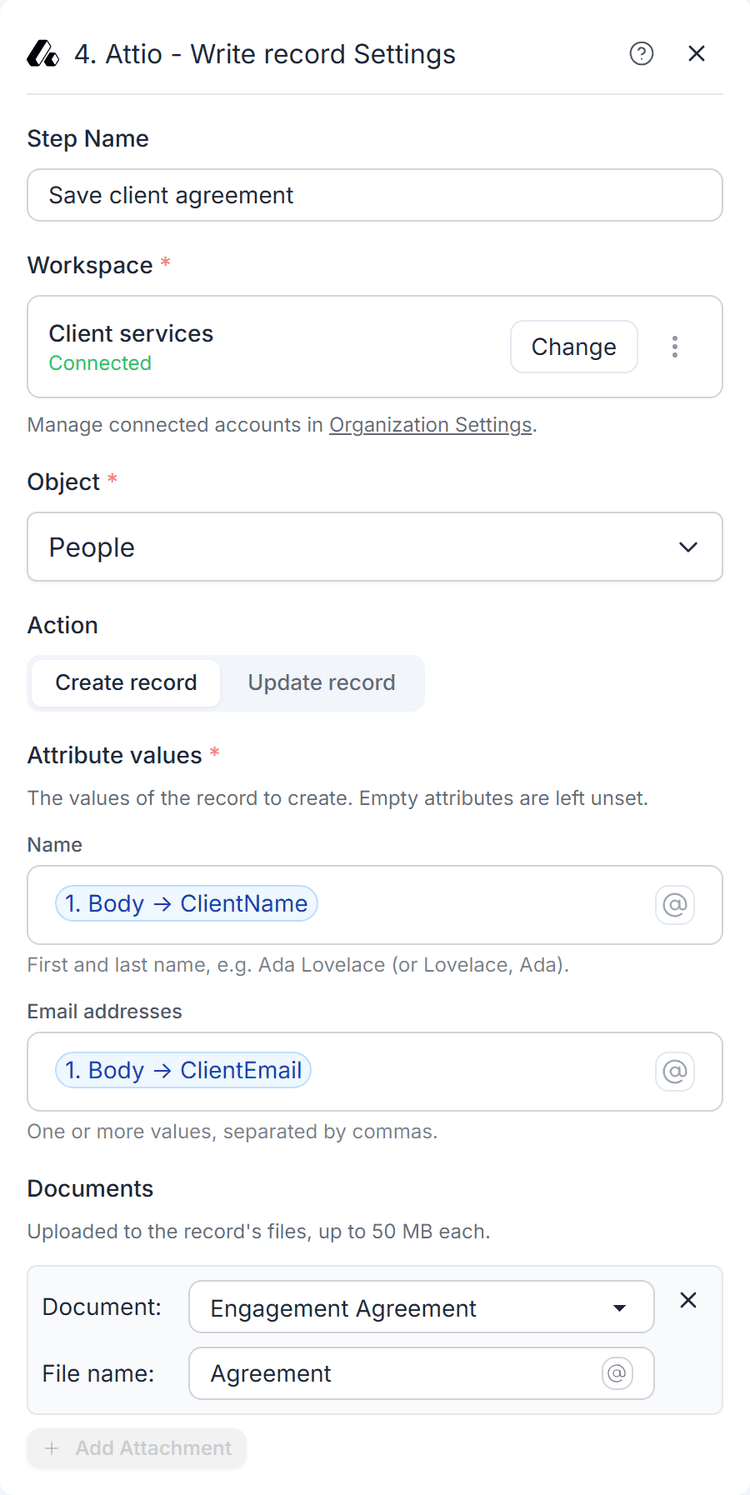
Example: create a person with their name and email, and attach an engagement agreement generated earlier in the workflow.
Find records
Finds the records that match your conditions.
- Workspace and Object - Where to search.
- Conditions - Choose All conditions or Any condition, then click Add condition. With no conditions, every record matches.
- Sorting - Click Add sort to order the results.
- Maximum records - Up to 1000 records. The default is 100.
- When more records match - Fail the step, or Return the first matching records.
If nothing matches, the step succeeds with an empty list.
Output variables: Records (a list with the Record ID, Record URL and every attribute of each record), Record Count, Has More and Object Name.
Map the Records list to a document loop to build a table, such as all the people at a company.
Add activity
Adds a note or a task to a record.
- Workspace and Object - Where the record is.
- Activity - Note or Task.
- Record - The conditions that find the record. Exactly one record must match.
- If no record matches - Fail the step or Skip the step.
For a Note:
- Title - Required.
- Content - The note text. Type
@to insert variables. Basic formatting, such as bold and italic, is kept.
For a Task:
- Content - Required, up to 2000 characters.
- Deadline - A date or date and time. Empty means no deadline.
- Assigned to - Workspace members' names or emails, separated by commas.
Output variables: Activity ID, Activity Type, Record ID,
Record URL, Object Name and Operation (Added or Skipped).
Credits
Each run started by the Attio trigger costs 1 credit. Each Attio action step that runs (Write record, Find records or Add activity) costs 1 credit. The first 3 credits after the trigger are included in every run. See Credits.
