Google Drive
The Google Drive step uploads a document generated by your workflow to a folder in Google Drive.
Use it to file contracts, invoices and reports automatically, for example in one subfolder per client.
Example
An accounting firm collects new client details with a form. The workflow:
- Generates an engagement letter with a Document step.
- Uses a Google Drive step to upload it to a "Clients" folder with the subfolder "Client Name/Engagement" and the file name "Engagement Letter - Client Name".
- Emails the partner the Web View Link from the step output.
Every client gets their own folder, created on the first run.
Connect your account
- Add a Google Drive step and click Sign in under Account.
- Sign in with Google and allow access.
- Back in the workflow editor, the Manage Google Access window opens. Click Add folders and pick folders from My Drive, Shared with Me or Shared Drives.
TemplateDocs can only upload to the folders you approve here. Approved folders are available to all workflows in your organization.
To approve more folders later, open the account menu (the three dots next to the account) and choose Manage Access. Only the person who connected the Google account can add folders.
Only organization owners and admins can add or reconnect accounts. You can manage all connected accounts in your Organization Settings.
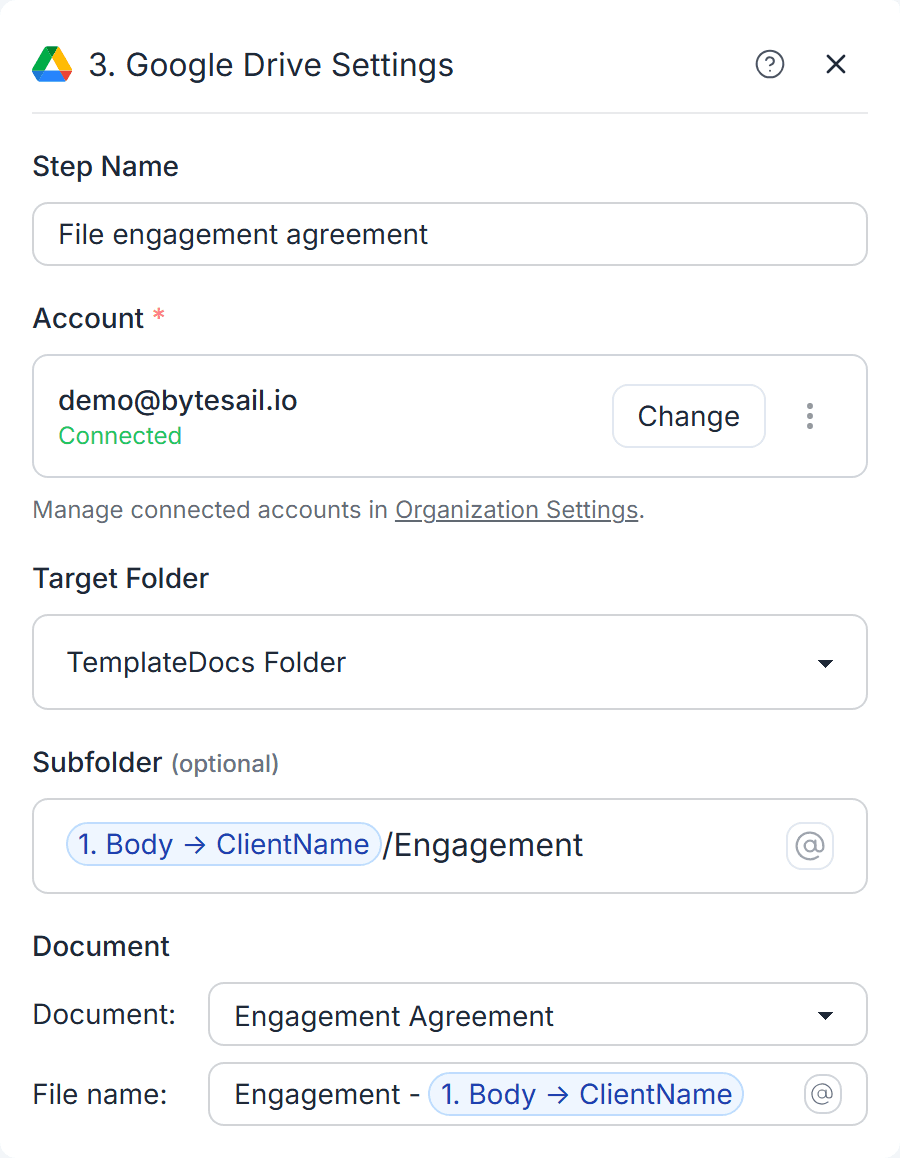
Upload document
Settings
- Account - The Google account to upload with.
- Target Folder - One of the approved folders. If none are approved yet, click Add folder.
- Subfolder (optional) - A folder path inside the target folder, such as
Clients/2026. Type@to insert variables, for example "Clients/Client Name". Missing folders are created automatically. - Document - The document to upload. Pick any document generated earlier in the workflow.
- File name - The name of the uploaded file. It can include variables and
formulas. The file extension (such as
.pdfor.docx) is added for you.
Behavior
- Each run uploads a new file.
- If a file with the same name already exists in the folder, Google Drive keeps both files.
- The step fails if the target folder was deleted or is no longer accessible.
Output variables
- File ID - The ID of the uploaded file.
- File Name - The final file name, including the extension.
- Folder ID - The ID of the folder the file was uploaded to.
- Folder Name - The name of that folder.
- Folder Path - The subfolder path, when a subfolder is used.
- Web View Link - A link that opens the file in Google Drive.
Use the Web View Link in a later Email step to send your team a direct link to the new file.
Credits
Each Google Drive upload costs 1 credit. The first 3 credits after the trigger are included in every run. See Credits.
