OneDrive
The OneDrive step uploads a document generated by your workflow to a folder in Microsoft OneDrive.
Use it to keep contracts, quotes and reports in your team's OneDrive folders without moving files by hand.
Example
A law firm uses an intake form for new matters. The workflow:
- Generates an engagement agreement with a Document step.
- Uses a OneDrive step to upload it to a "Matters" folder with the subfolder "Client Name/Matter Number" and the file name "Engagement Agreement - Client Name".
- Emails the responsible lawyer the Web View Link from the step output.
Connect your account
- Add a OneDrive step and click Sign in under Account.
- Sign in with your Microsoft account and allow access.
- You return to the workflow editor with the account selected.
The step uploads to the OneDrive of the Microsoft account you sign in with.
Only organization owners and admins can add or reconnect accounts. You can manage all connected accounts in your Organization Settings.
Upload document
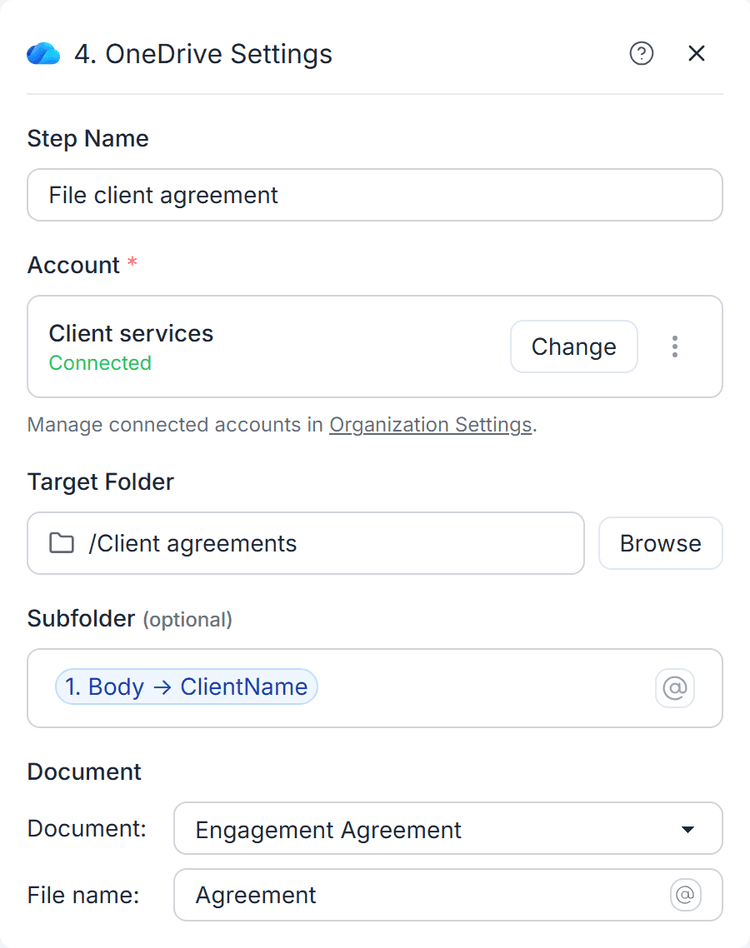
Settings
- Account - The Microsoft account to upload with.
- Target Folder - Click Browse to pick a folder. You can also pick the OneDrive root.
- Subfolder (optional) - A folder path inside the target folder, such as
"Clients/2026". Type
@to insert variables, for example "Clients/Client Name". Missing folders are created automatically. - Document - The document to upload. Pick any document generated earlier in the workflow.
- File name - The name of the uploaded file. It can include variables and
formulas. The file extension (such as
.pdfor.docx) is added for you.
Behavior
- Each run uploads a new file. Existing files are never overwritten.
- If a file with the same name already exists in the folder, OneDrive renames the new file automatically (for example, by adding a number).
- The step fails if the target folder was deleted or is no longer accessible.
Output variables
- File ID - The ID of the uploaded file.
- File Name - The final file name, including any automatic renaming.
- Folder Name - The name of the folder the file was uploaded to.
- Folder Path - The path of that folder in OneDrive.
- Web View Link - A link that opens the file in OneDrive.
Use the Web View Link in a later Email step to send a direct link to the new file.
Example: save a generated agreement in a client subfolder, using the client's name from earlier workflow data.
Credits
Each OneDrive upload costs 1 credit. The first 3 credits after the trigger are included in every run. See Credits.
