Set Variables
The Set Variables step creates your own variables. Each variable gets its value from a formula, and later steps can use it like any other workflow variable.
Use it to calculate a value once and reuse it in many places. For example, a total with tax, a client's full name, or a due date 30 days from today.
Example
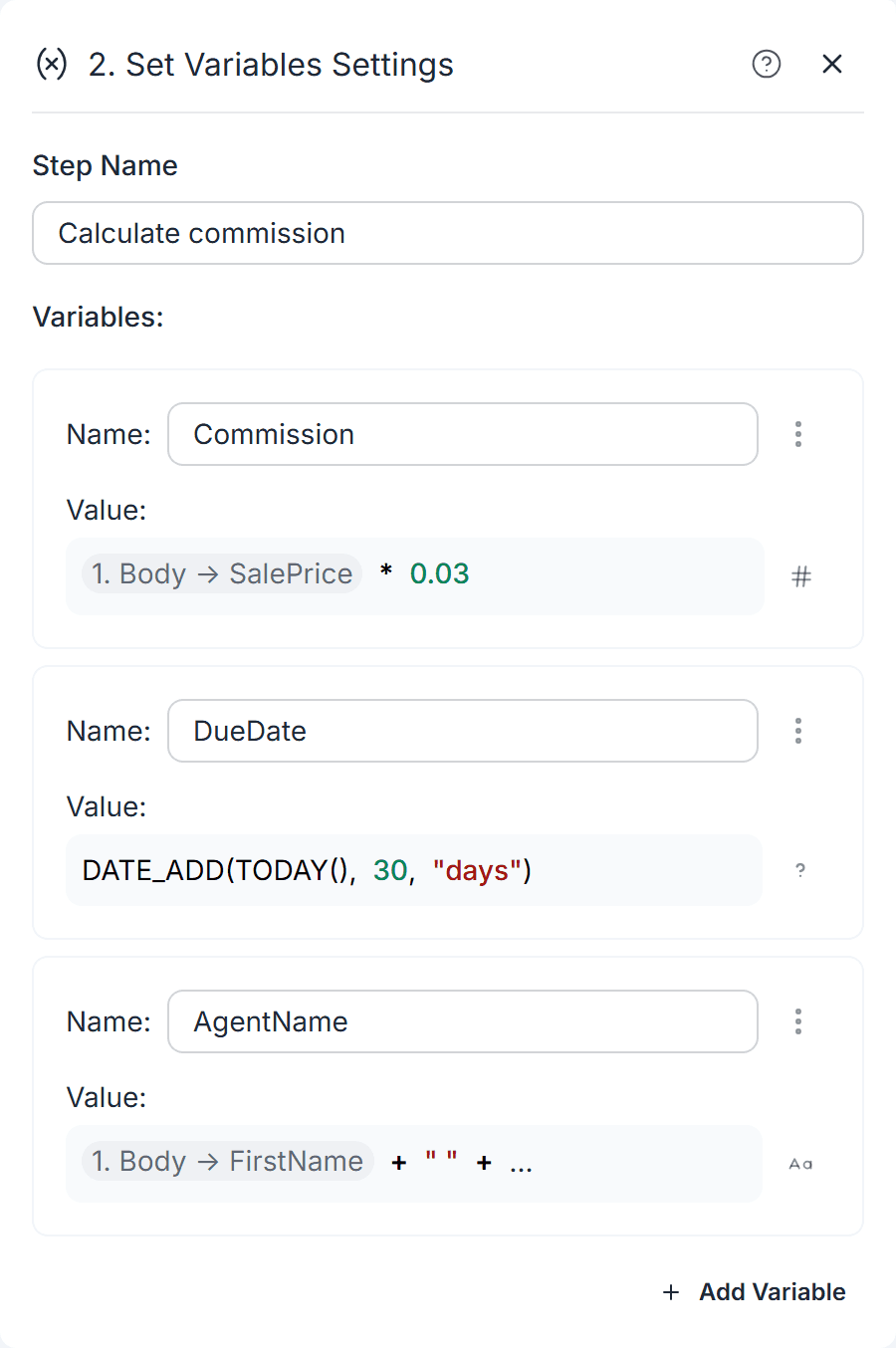
A real estate agency generates a commission statement after each sale. A Set Variables step calculates:
| Name | Value |
|---|---|
Commission | Sale Price * 0.03 |
DueDate | DATE_ADD(TODAY(), 30, "days") |
AgentName | First Name + " " + Last Name |
A Document step then uses these three variables in the statement template.
Adding the Step
Add a Set Variables step to your workflow. It starts with one sample variable. For each variable, set:
- Name - the variable name that later steps will see.
- Value - the formula that calculates the value. Click it to open the formula editor. The icon next to it shows the type of the result (text, number, date, etc.).
Use Add Variable to add more, up to 20 per step. To remove a variable, open its menu and click Remove Variable.
Naming Rules
- Names must start with a letter or an underscore.
- Names can only contain letters, digits and underscores. No spaces.
- Each name must be unique within the step.
- Formula keywords (such as
IF,ANDorTRUE) cannot be used as names.
How It Works
- The formulas run when the workflow reaches the step, using the data from the steps before it.
- If a formula fails, the step fails and the run stops. The run history shows which variable failed.
A variable cannot use another variable from the same step. If one value depends on another, put them in two Set Variables steps, one after the other.
Output
Each variable you define becomes a workflow variable with the same name. Use it in later steps, for example in document tags, email text, branch conditions or other formulas.
Credits
The Set Variables step is free (0 credits). See Credits.
