Flow Control
The Flow control step splits your workflow into branches that can run in parallel. Each branch can run every time or only when a condition is met. After all branches finish, the paths join back together and the workflow continues.
Use it to handle different cases in one workflow. For example, send large orders to a manager for review, or generate a different contract for each client type.
Example
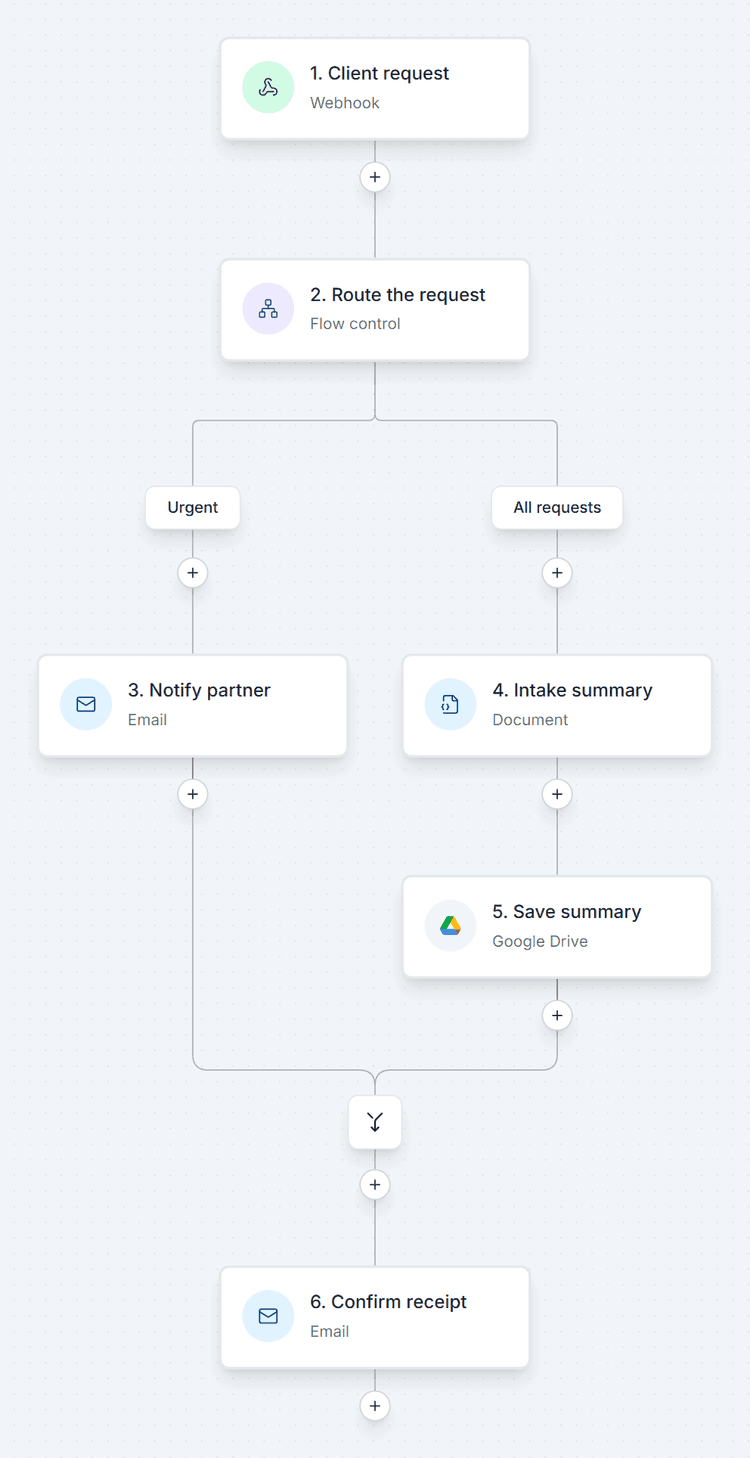
A law firm receives new client requests from another app through a webhook. A Flow control step has two branches:
- Urgent - runs when Priority Equals to "Urgent". It emails the on-call partner right away.
- All requests - set to Always. It generates an intake summary and saves it to Google Drive.
After the join, the workflow sends the client a confirmation email.
Run forms in parallel
Set each branch to Always to run several branches without conditions. For example, put a Form step on each branch to send a form to the client, their manager, and the finance team at the same time. Each branch waits for its own form to be submitted. Once all forms are submitted and the branches finish, a Document step after the join can use all their answers to generate one document.
Adding the Step
Add a Flow control step to your workflow. It starts with two branches, A and B, that both run every time. Add steps under each branch on the canvas.
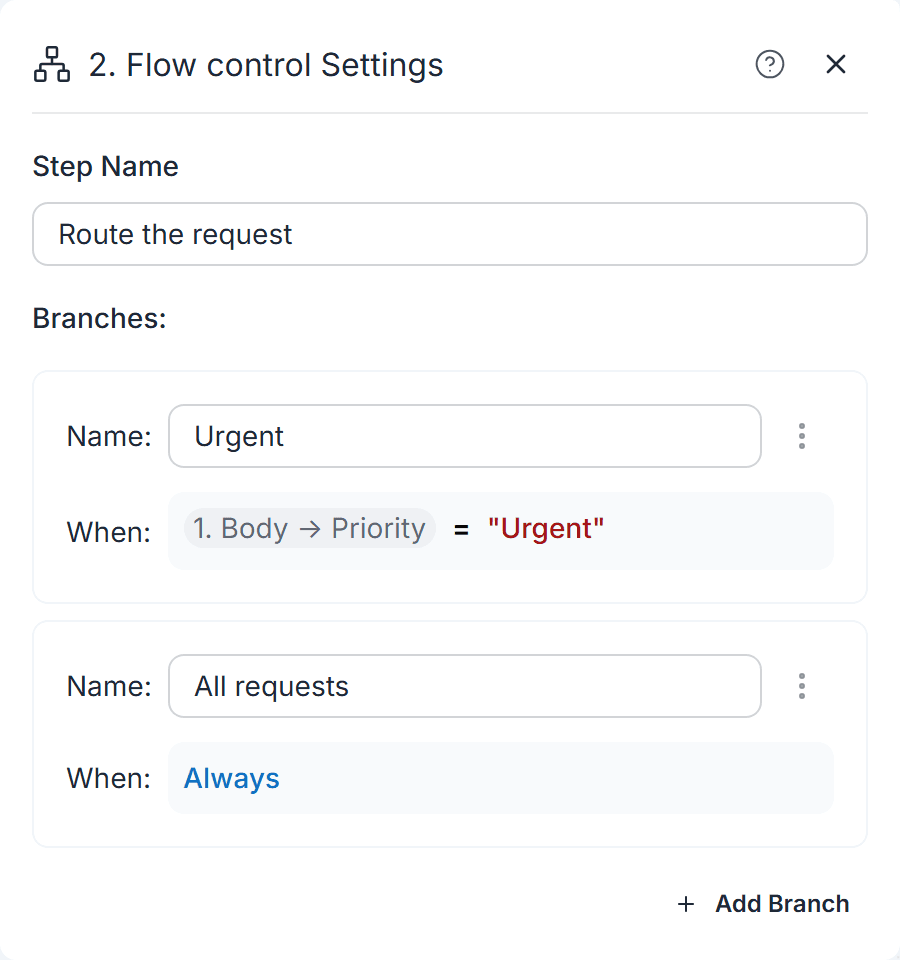
In the step settings, each branch has:
- Name - a label for the branch, shown on the canvas.
- When - the branch condition. Click it to edit.
Use Add Branch to add more branches, up to 10. To remove a branch, open its menu and click Remove Branch. Every Flow control step needs at least one branch.
Branch Conditions
The Branch Condition dialog offers four modes under Run this branch:
| Mode | When the branch runs |
|---|---|
| Always | Every time the workflow reaches it. |
| Never | Never. Useful to turn off a branch without deleting it. |
| When a condition is met | When the conditions you build match. Pick a variable, a comparison (such as Equals to, Contains or Greater than) and a value. |
| Advanced | When a formula you write evaluates to true. |
In When a condition is met mode, use AND to add a condition to a group. All conditions in a group must match. Use OR to add another group. The branch runs when at least one group matches.
For the same check in Advanced mode, use a formula such as Priority = "Urgent". The formula must return true or false.
How It Works
- Every branch is checked. This is not "if / else". Each branch checks its own condition, so more than one branch can run in the same run.
- The join waits. The steps after the join run once all branches are done.
- No match, no continue. If no branch condition is met, the steps after the join do not run either.
- Errors fail the run. If a condition cannot be evaluated (for example, the formula has an error), the run fails.
If you want the workflow to always continue after the join, add a branch set to Always.
Output
Each branch creates one variable that later steps can use:
| Variable | Description |
|---|---|
| <Branch name> - Result | True if the branch condition was met, false if not. |
Credits
Flow control is free (0 credits), including its branches and the join. You only pay for the steps that actually run. See Credits.
Related
- Workflows overview
- Formulas - write advanced conditions
- Set Variables - prepare values to use in conditions
- Template conditions - show or hide content inside a document
- Credits
