Airtable
The Airtable steps connect your workflows to your Airtable bases:
- Airtable - Write record creates a new record or updates an existing one. It can also attach generated documents to the record.
- Airtable - Find records reads the records that match your conditions.
Use them to log every deal or client in a table, update a status when a document is ready, or pull records into your documents.
Example
A real estate agency tracks listings in Airtable. When an agent submits a listing form, the workflow:
- Generates a listing agreement with a Document step.
- Uses an Airtable - Write record step to update the listing's status and attach the agreement. If the listing is new, the step creates a record for it.
Connect your account
- Add an Airtable step and click Sign in under Account.
- Sign in to Airtable. Choose the bases TemplateDocs may access and allow access.
- You return to the workflow editor with the account selected.
Only the bases you allow appear in the Base list. To add more bases later, open the account menu (the three dots next to the account) and choose Reconnect.
Only organization owners and admins can add or reconnect accounts. You can manage all connected accounts in your Organization Settings.
Write record
Settings
- Account, Base and Table - Where to write.
- Action - Create record adds a new record. Update record changes an existing record.
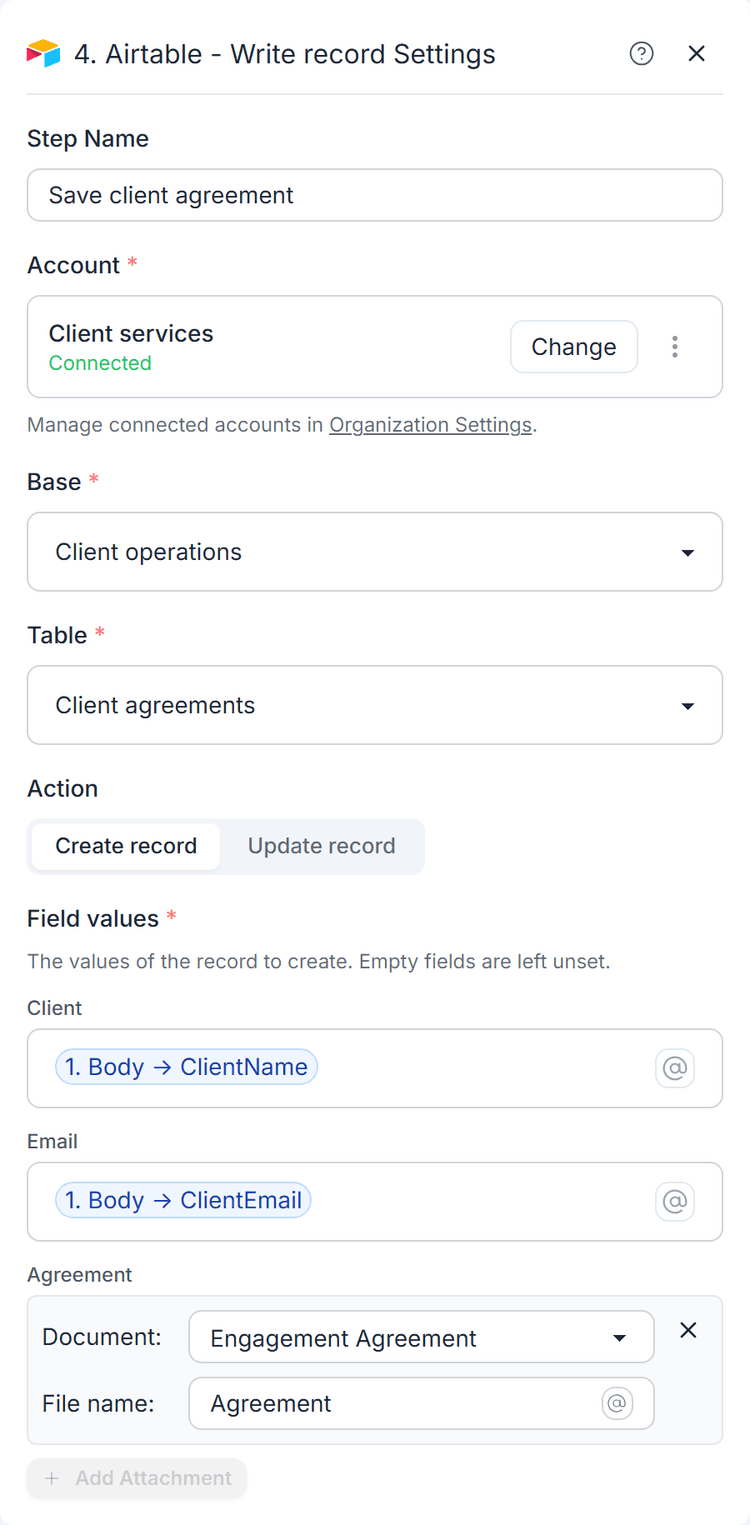
- Field values - A value for each field you want to set. Type
@to insert variables or formulas. Date fields also let you pick a date or a date relative to today. Empty fields are left as they are.
The step can write text, number, currency, percent, rating, duration, checkbox, select, date, email, URL and phone fields. Computed fields (such as formulas, rollups and lookups) and linked records cannot be written.
Attachment fields show an Add Attachment button instead of a value. Pick a document generated earlier in the workflow and set its file name. You can add several documents to one field. New attachments are added next to the existing ones.
Updating a record
With Update record, you also set:
- Record to update - Conditions that find the record, for example "Deal ID is Deal ID". Exactly one record must match. If more than one record matches, the step fails.
- If no record matches - Fail the step, Create the record, or
Skip the step. A created record also gets the values from your
isconditions, unless you set those fields yourself.
Output variables
- Record ID - The ID of the record.
- Record URL - A link that opens the record in Airtable.
- Base Name / Table Name - Where the record was written.
- Operation -
Created,UpdatedorSkipped.
Example: create a record in a client agreements table, with the client's name, email and generated agreement.
Find records
Settings
- Account, Base and Table - Where to search.
- Conditions - Click Add condition and choose a field, a comparison (such as is, contains, is empty or is after) and a value. Choose All conditions or Any condition. With no conditions, every record is returned.
- Sorting - Click Add sort to order the records by one or more fields.
- Maximum records - Up to 1,000 records. The default is 100.
- When more records match - Fail the step or Return the first matching records.
If no records match, the step still succeeds and returns an empty list.
Output variables
- Records - The matching records. Each record has a Record ID, a Record URL and one value per field.
- Record Count - The number of records returned.
- Has More -
trueif more records matched than the maximum. - Base Name / Table Name - The base and table that were searched.
- Table URL - A link that opens the table in Airtable.
Map Records to a template loop to list Airtable data in a table in your document.
Credits
Each Airtable step that runs (Write record or Find records) costs 1 credit. The first 3 credits after the trigger are included in every run. See Credits.
