Form Styling and Branding
Customize your forms to match your brand. Change colors, fonts, backgrounds, and logos, so every shared or embedded form feels like a natural part of your website.
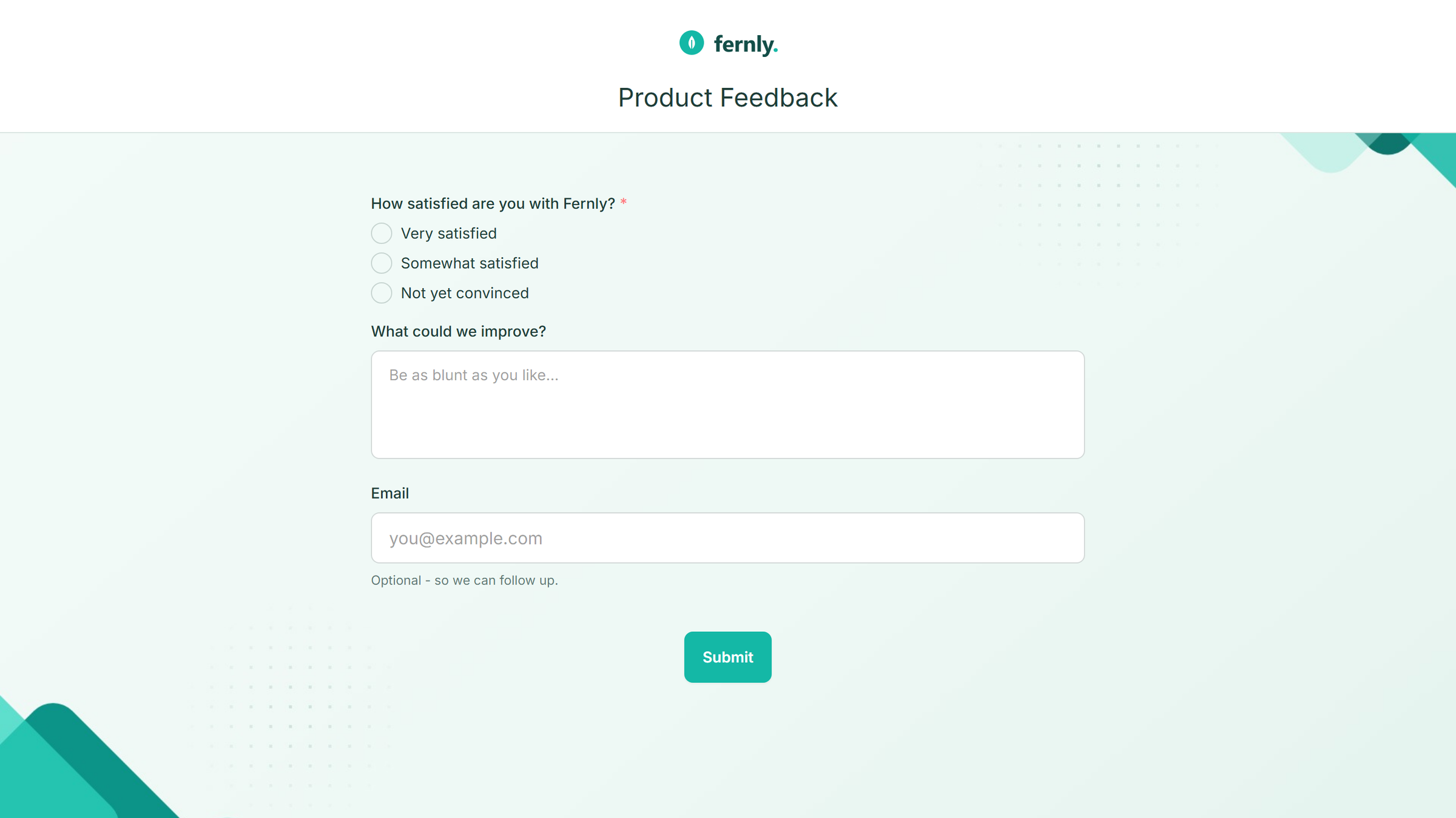
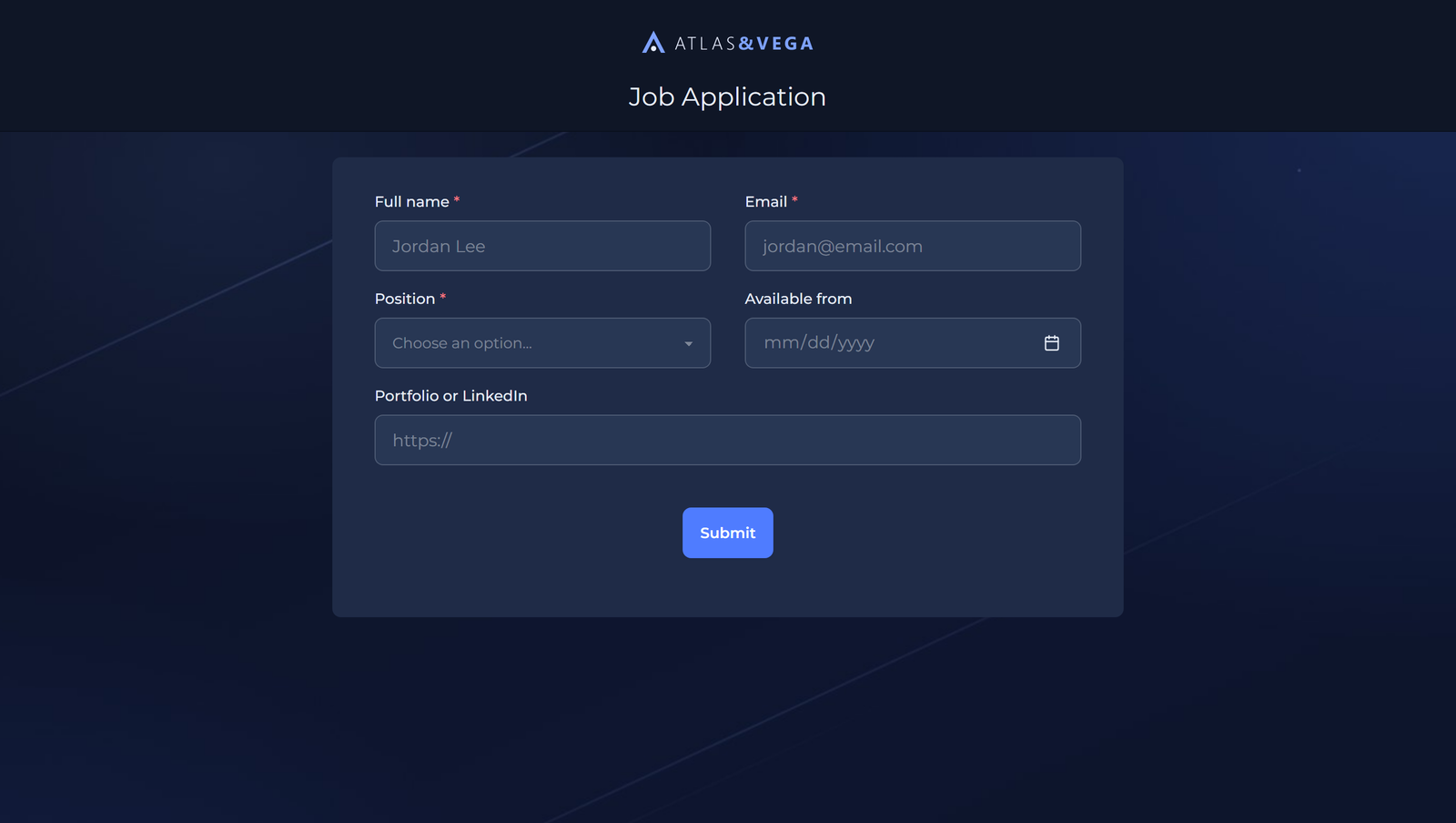
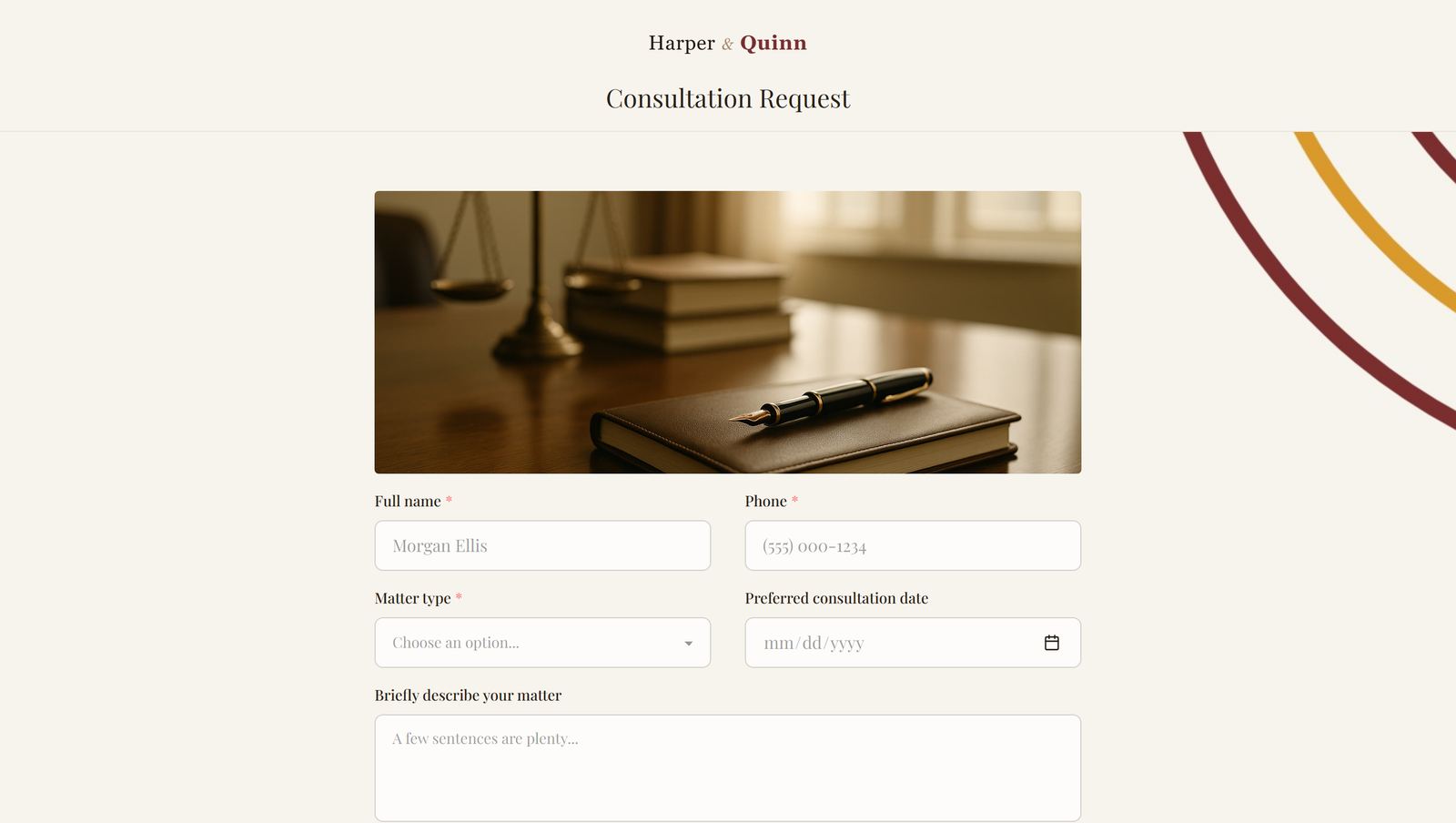
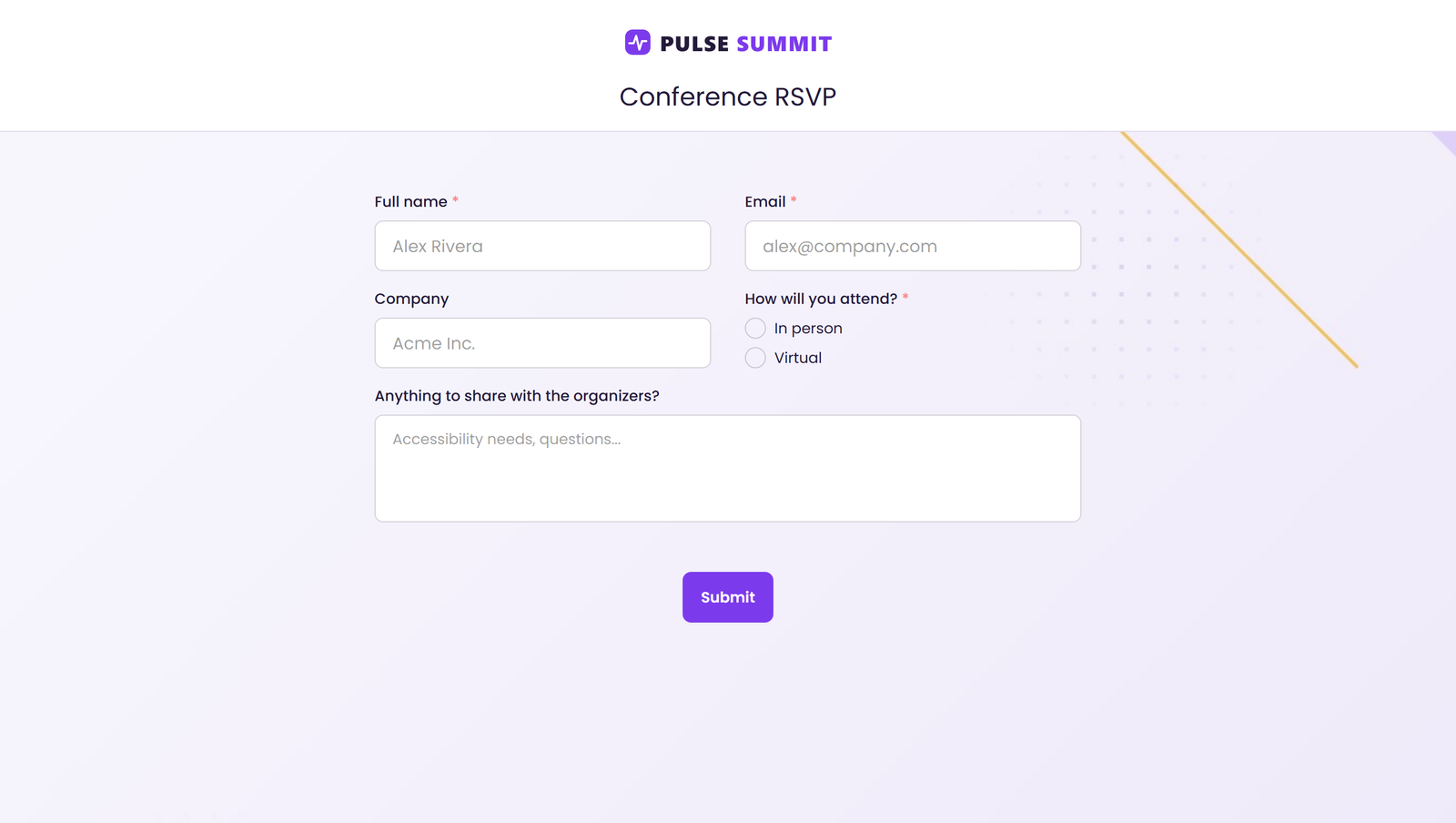
To style a form, open it in the form designer and click Design. Changes are shown live on the form canvas as you make them.
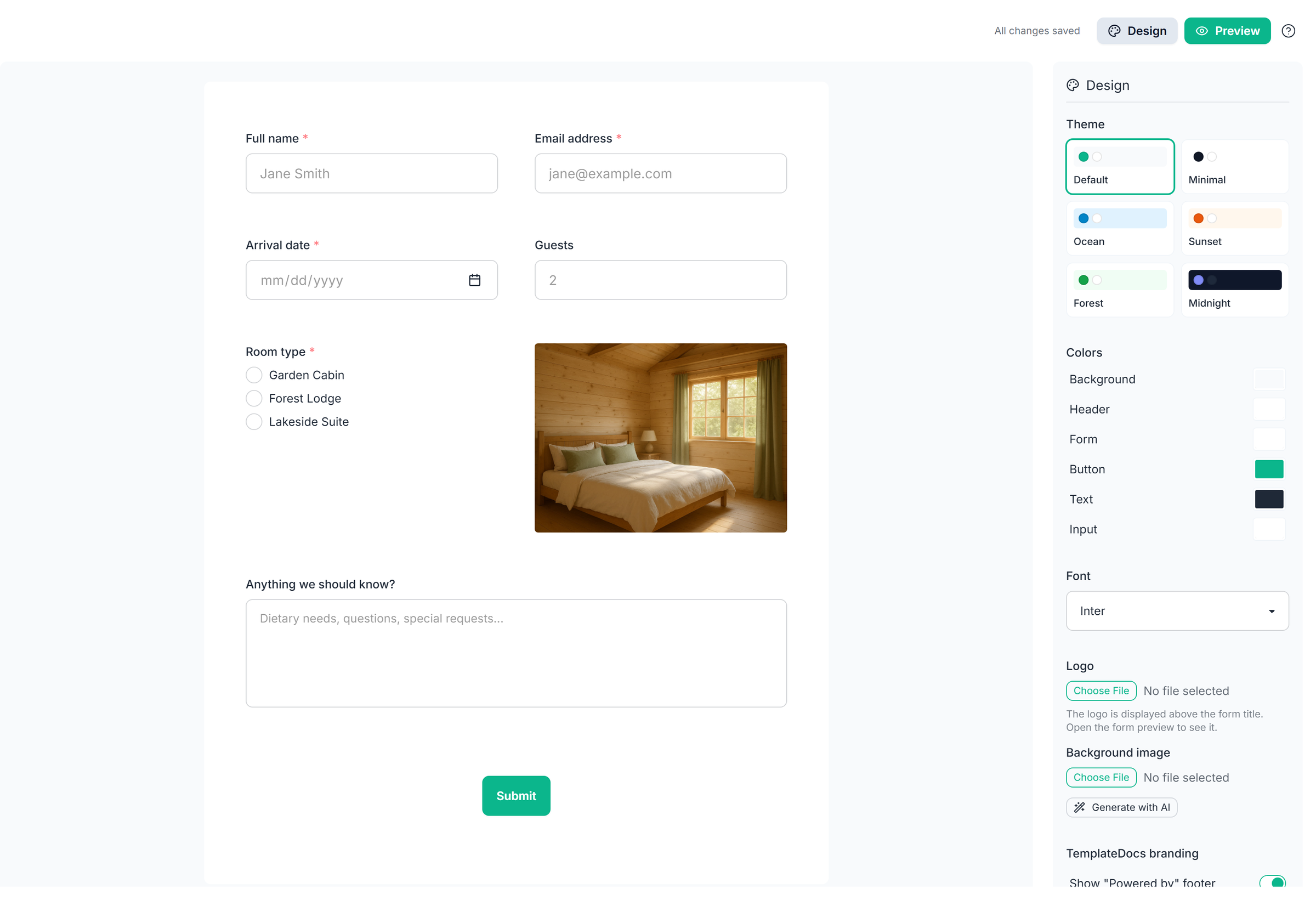
Themes
Themes provide a quick starting point for your form's design. Pick one to instantly apply a coordinated color palette and font, then customize it to match your brand.
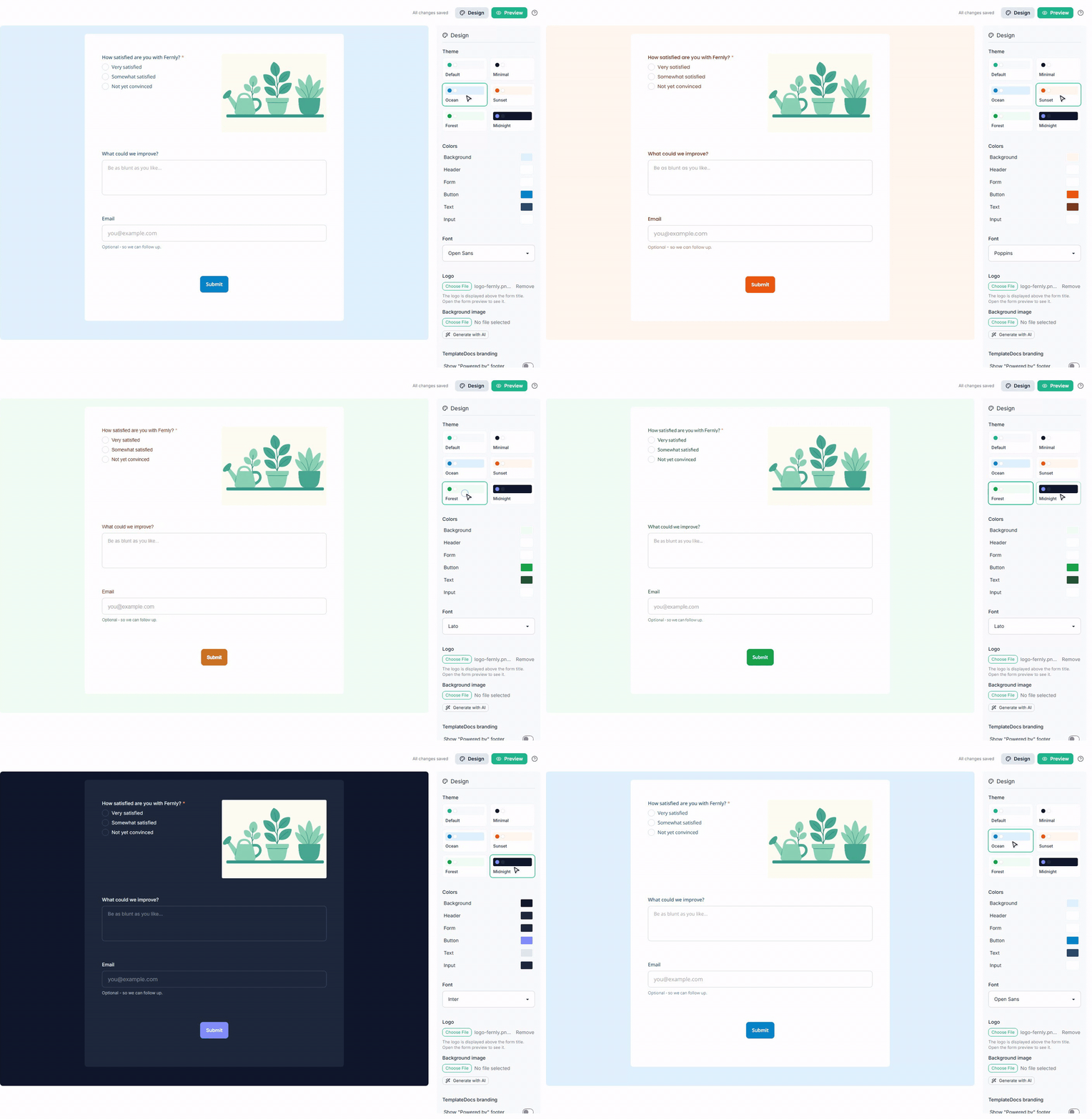
Selecting a theme resets your color and font overrides, while uploaded images and are kept.
Colors and Fonts
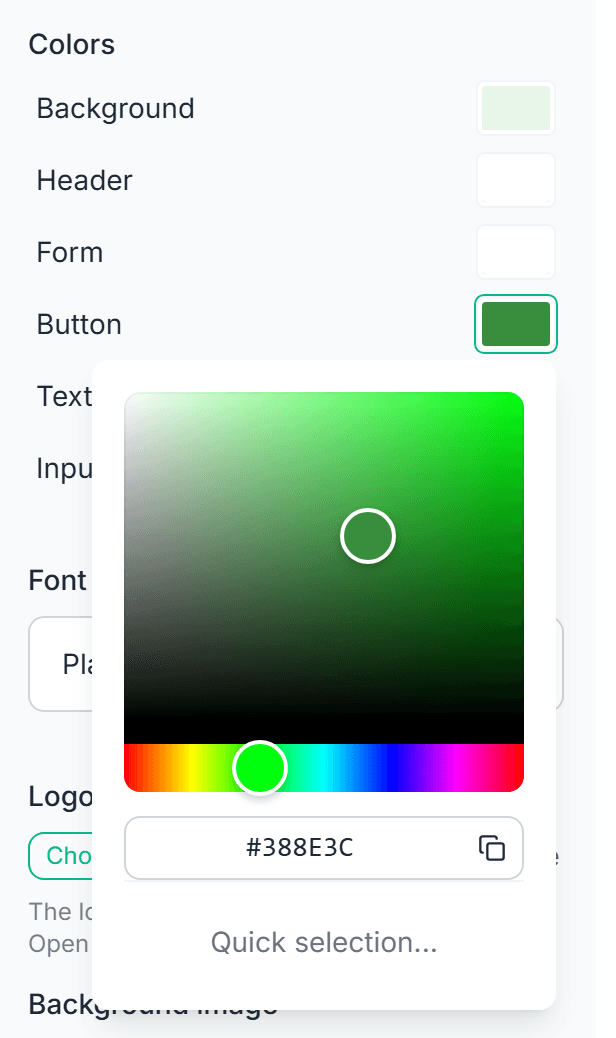
Beyond themes, every color used by the form can be customized individually:
- Background - the page behind the form
- Header - the area above the form fields
- Form - the form card itself
- Button - the submit button and accents
- Text - labels and content
- Input - the field backgrounds
Most colors support transparency, and setting the Form color to fully transparent removes the card look entirely, so fields sit directly on the page background.
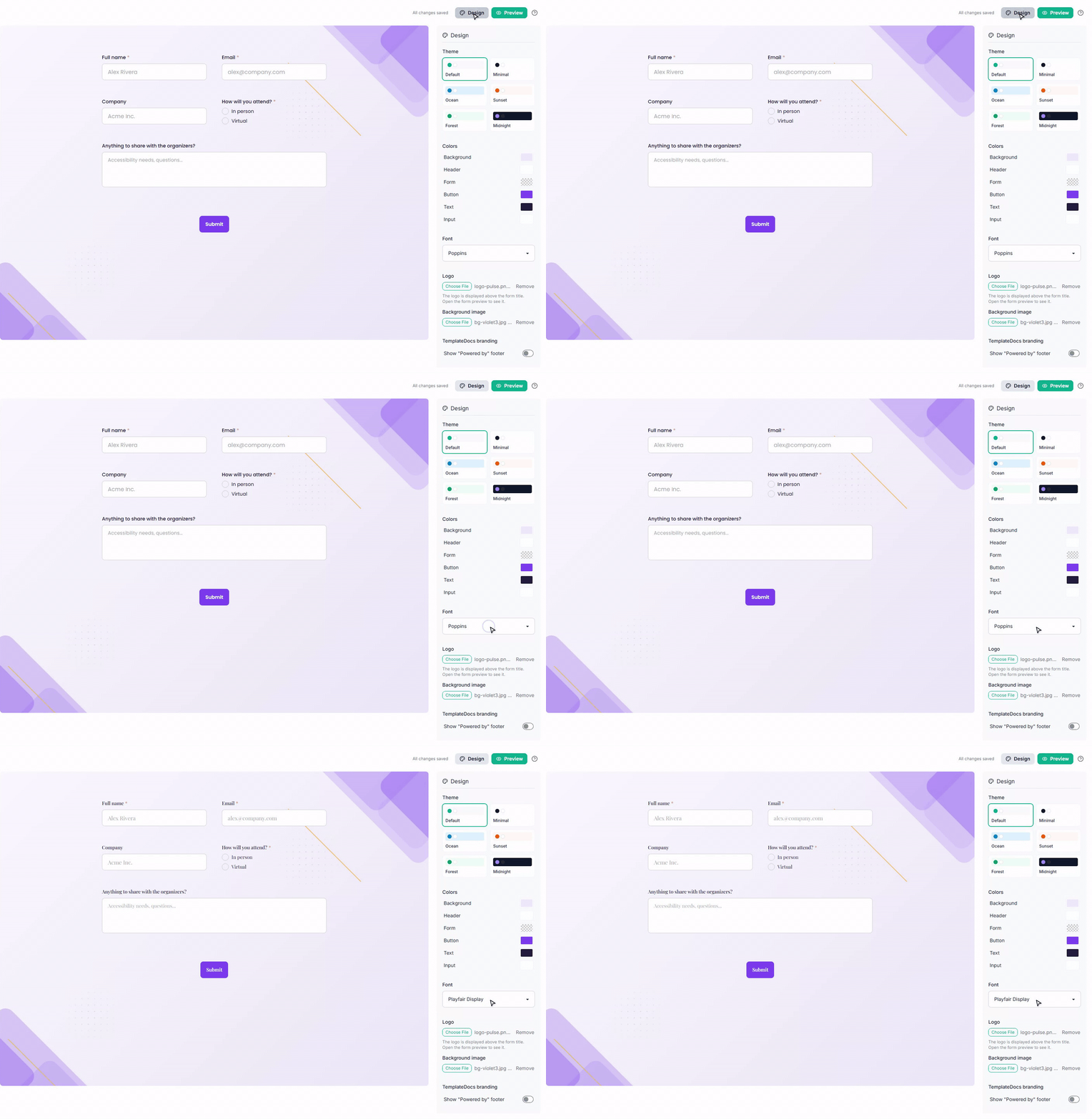
You can also choose the form's font from a set of popular web fonts, including Inter, Roboto, Open Sans, Lato, Montserrat, Poppins, Merriweather, and Playfair Display.
Logo and Background Image
You can upload two images to complete the form's look:
- Logo - displayed above the form title
- Background image - displayed behind the form, covering the page
Supported formats are JPEG, PNG, GIF, and BMP.
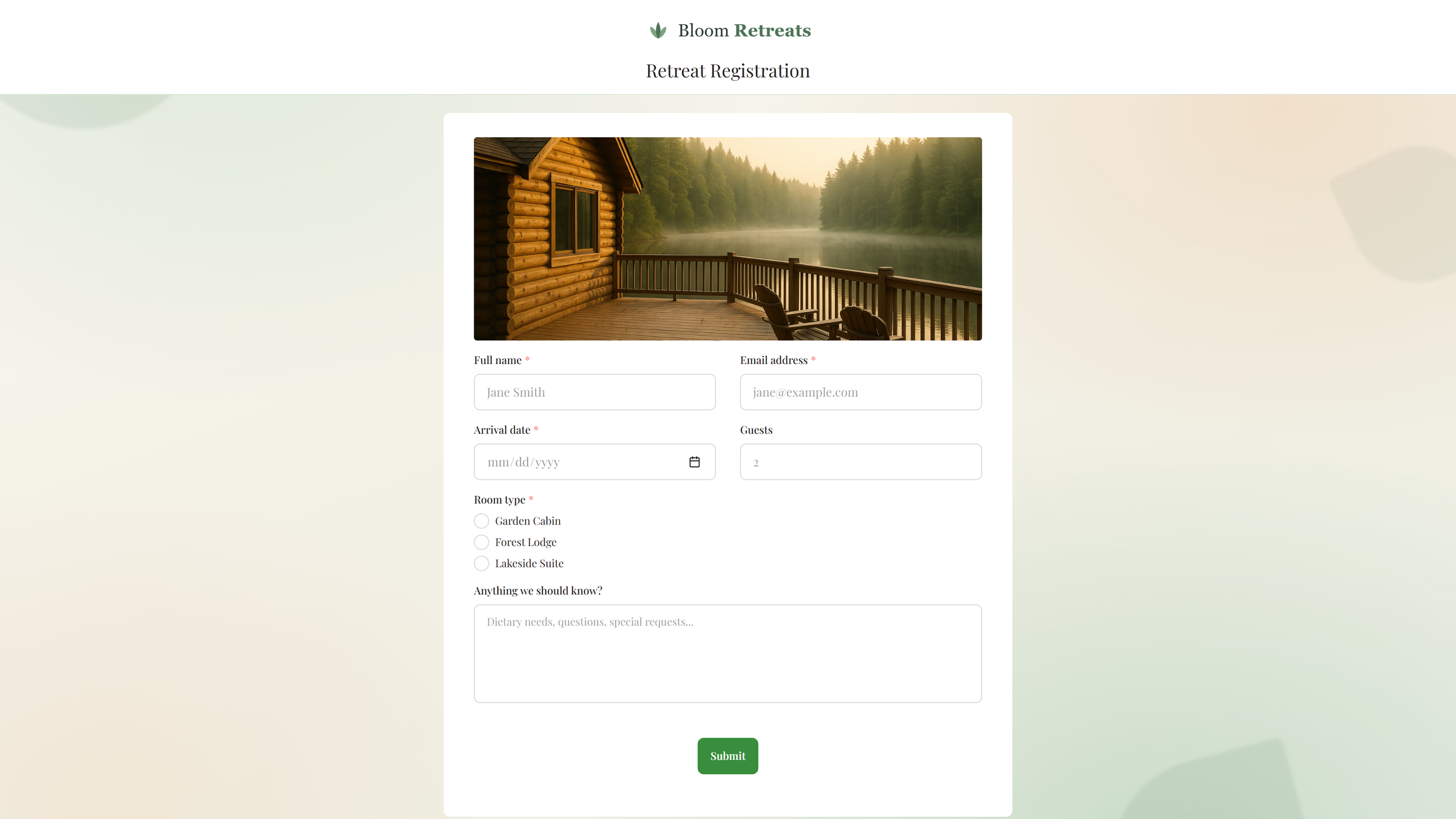
Here is a form with a custom logo, background image, colors, and font:
Removing TemplateDocs Branding
By default, public forms show a small "Powered by TemplateDocs" footer. You can turn it off in the Design panel to make the form fully white-label.
Basic styling - themes, colors, and fonts - is available on all plans. Custom images and branding removal require a paid plan.
Publishing Style Changes
Like any form change, style changes are saved to the workflow draft and go live when the workflow is published. Publish the workflow again to update the form your visitors see.
Next Steps
- Put your styled form in front of users with Sharing & Embedding
- Learn the basics in the Forms overview
- Learn how to generate workflow documents
