Create a template with AI
Turn an existing document into a template, or describe the document you need and let AI draft it.
Adding tags by hand works well for short documents, but for a long contract or a report with dozens of fields it takes time. Create with AI does the work for you in one of two ways:
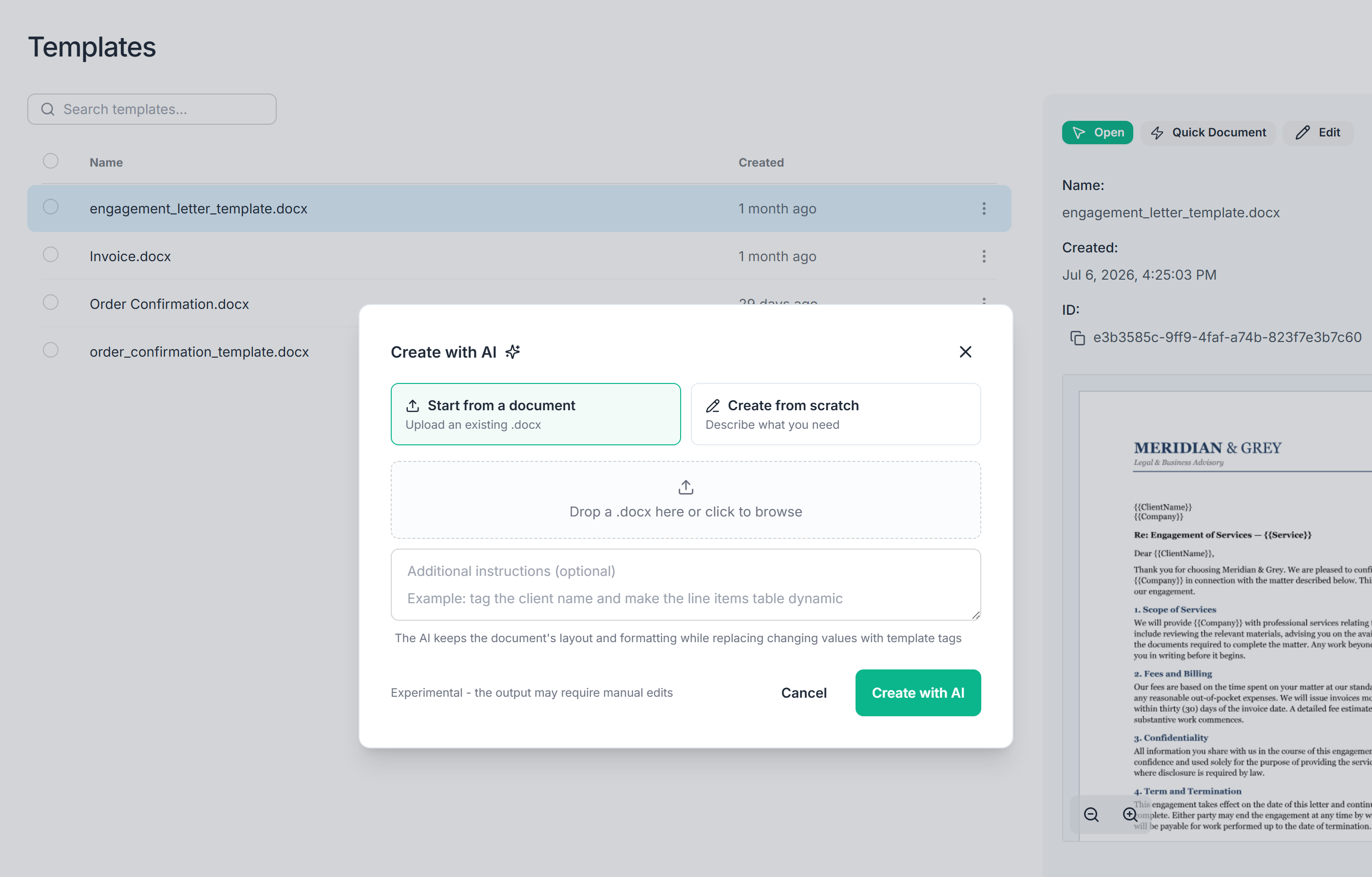
- Start from a document - upload an existing Word document to trun it into a reusable template. The AI replaces the variable parts, such as names, dates, amounts and addresses, with tags.
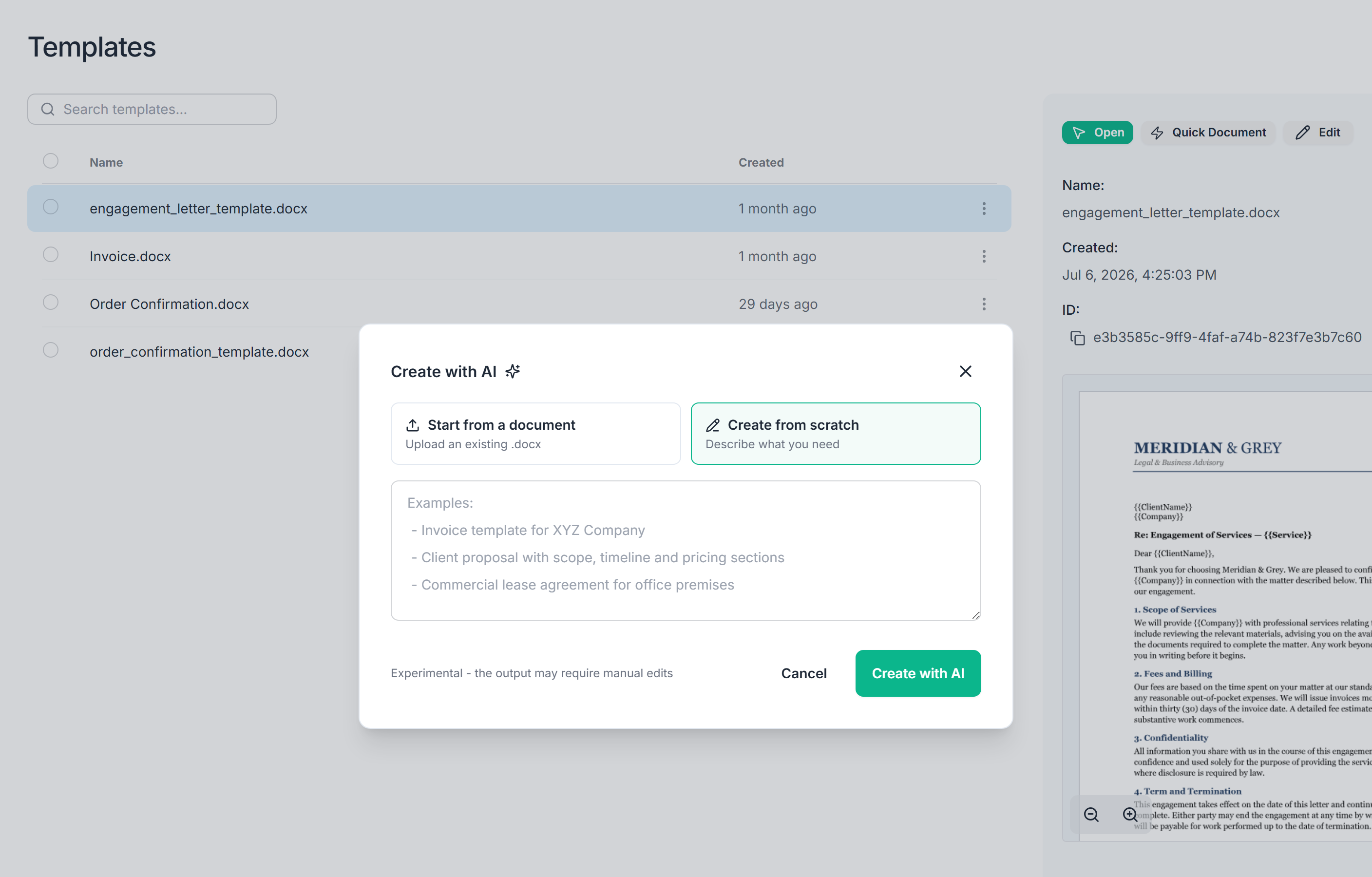
- Create from scratch - explain in plain language what the document should contain and AI drafts a complete template, tags included.
Open the Templates page to begin. If your library is empty, click Create with AI. Otherwise, click New Template then choose Create with AI.
Start from an existing document
- Keep Start from a document selected.
- Drop a .docx file into the dialog, or click to choose one.
- Optionally, add guidance in the text box. For example: "Only the client details and the payment terms should change. Keep the company details fixed."
- Click Create with AI.
AI reads the document, decides which parts should become tags and creates the template. The original layout and formatting are kept.
Without guidance, AI makes its own call about what is variable. If it tags too much or too little, add a sentence of guidance and try again, or fix the result in the editor.
Create from scratch
- Select Create from scratch.
- Describe the document in a few sentences: what it is, which sections it has,
and which information changes for every document.
For example: "A one-page quote for landscaping services with our company header, the client's name and address, a table of line items with quantity and price, a total, and a validity date." - Click Create with AI.
AI drafts the whole document - text, structure and tags - so you get a starting point you can refine instead of a blank page.
Review the result
The new template opens like any other template. Take a moment to:
- Check that the expected fields are present, their names make sense, and the document looks right.
- If anything needs attention, open the Edit tab to rename, add or remove tags.
- If you prefer to edit the template back in Word, choose Template Actions > Download, then Re-upload it from the same menu when you're done.
- When you are happy with the template, generate a test document from the Quick Document tab to see the result.
Next Steps
- Learn how to refine and edit your template.
- Explore additional template features like loops, links, QR codes and images.
- Automate document generation with your first workflow.
