QR Codes
It's easy to add QR codes to your documents with TemplateDocs. The QR code tag syntax is the same as a simple text tag:
Provide the QR code details in your JSON data using the QR code object structure shown below:
This will create a QR code that encodes "https://templatedocs.io" with default settings (black on white, 4px margin, auto-sized).
Using Image Placeholders
QR codes can also be inserted using image placeholders. This allows you to replace existing images in your template with generated QR codes. To mark an image as a placeholder, insert a tag in its alt text. Then use the same JSON data as you would for a regular QR code tag. For example:
QR Code Properties
| Property | Type | Description |
|---|---|---|
_type | string | Must be set to "qrcode" |
data | string | Required. Text to encode in the QR code |
size | number | Optional. Width and height of the QR code in pixels (QR codes are always square) |
color | string | Optional. Foreground color in hex format (e.g. "#000000"). Default is black |
background | string | Optional. Background color in hex format (e.g. "#ffffff"). Default is white |
margin | number | Optional. Margin around the QR code in pixels. Default is 4 |
QR codes are square - the size property sets both width and height
Examples
Simple QR Code
This creates a QR code with default settings (black on white, 4px margin, auto-sized).
Custom Styled QR Code
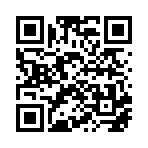
This creates a blue QR code on a light gray background with custom size and margin.

Common Use Cases
Email links
This creates a QR code that allows users to send an email when scanned.
Phone Numbers
This creates a QR code that allows users to call the number when scanned.
SMS links
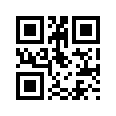
This creates a QR code that allows users to send an SMS message when scanned.
WiFi credentials
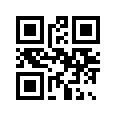
This creates a QR code that allows users to automatically connect to a WiFi network when scanned.
Google Maps
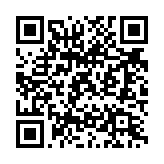
This creates a QR code that allows users to view a Google Maps location when scanned.
Contact information
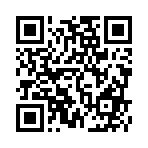
This creates a QR code that allows users to save contact information when scanned.