Images
To insert images in your template, you have two options:
- Use an image placeholder.
- Use an image text tag.
Image Placeholder
Image placeholders allow you to replace existing images in your template while preserving their size, position, and styling.
Consider the following template:

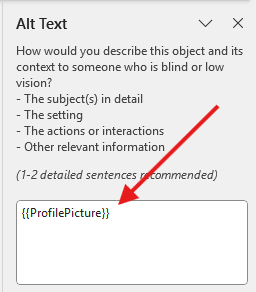
To let TemplateDocs know you want to replace the placeholder image, insert a tag in its alt text:
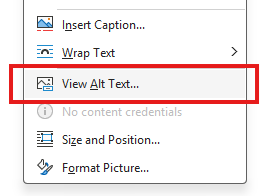
- Right-click the placeholder image.
- Select "View Alt Text...".
- Insert the tag in the alt text (
{{ProfilePicture}}in this example).
Provide the image details using the image data structure shown below:
The resulting document will look like this:

Image Text Tag
If you prefer, you can still use standard template tags to insert images into the document. Simply place the tag where you want the image to appear. For example:
When you generate a document from the template, the tag will be replaced with the actual image.
Consider the following data for the tag:
The resulting document will look like this:

Image Properties
| Property | Type | Description |
|---|---|---|
_type | string | Must be set to "image" |
source | string | Required. URL or Base64 encoded image data |
format | string | Required. One of: image/png, image/jpeg, image/bmp, or image/gif |
width | number | Image width in pixels. Required when using text tags, optional when using image placeholders |
height | number | Image height in pixels. Required when using text tags, optional when using image placeholders |
altText | string | Optional. Alternative text for accessibility |
transparencyPercent | number | Optional. Transparency level from 0 (opaque) to 100 (transparent) |
Image files are limited to 4MB in size
