History
The History is a timeline of everything that happened in your organization: workflow runs, form submissions and webhook requests, generated documents, and signature requests. Use it to check what ran, find a document, or follow up on a signature request.
The Timeline
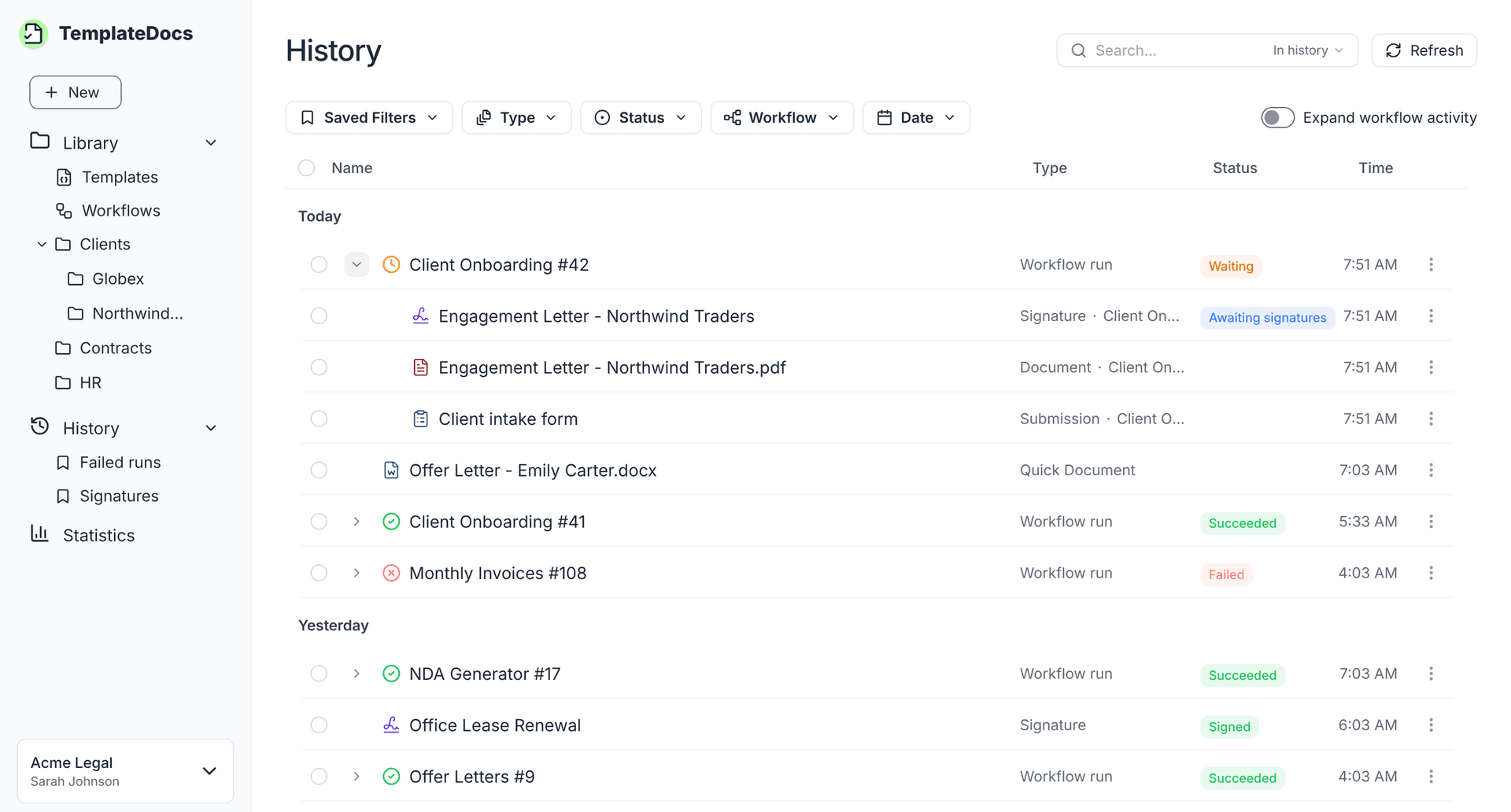
Items are grouped by day and ordered by their latest activity. Each item appears once and shows its current status. For example, a run that was waiting for a signature moves to the top when the document is signed.
Workflow Activity
By default, the timeline shows workflow runs, as well as items created outside of workflows. To see a run's submissions, documents, and signature requests, expand it using the arrow next to it.
Turn on Expand workflow activity to expand all the runs at once.
To see everything related to a specific run, select View related activity from the item's menu.
Filters
Narrow down the timeline with the filters above it:
- Type - workflow runs, submissions, workflow documents, Quick Documents or signatures
- Status - for example, failed runs or signature requests that are still waiting for signatures
- Workflow - the activity of specific workflows
- Date - choose the date range you want to view
Saved Filters
Save frequently used filters for quick access. Click Save filter to save the current filters under a name. Saved filters appear in the Saved Filters dropdown and under History in the side navigation.
Saved filters are personal and aren't visible to other members of your organization.
Search
The search bar at the top of the page searches by name:
- In history searches the timeline, with the current filters.
- Anywhere searches the whole History and the Library.
Working with Items
- Click an item to see its details in a side panel, with a preview of documents.
- Double-click a run to open its run details page, with all its steps.
- Use the item's menu to download it, open its run, workflow or template, save it to the Library, or delete it.
Selecting Several Items
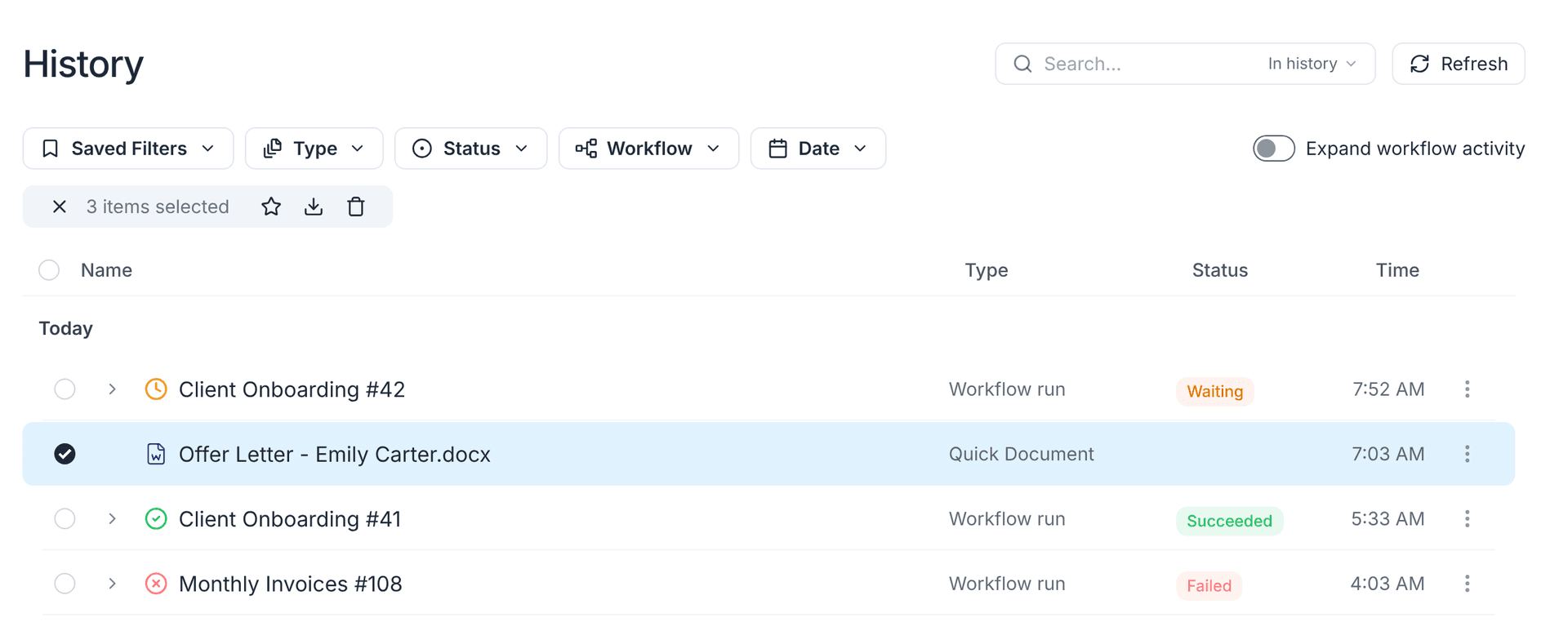
Select items with the checkboxes to act on all of them at once: save them to the Library, download them, cancel runs, or delete them.
Cancelling Runs
Runs that are still running or waiting can be cancelled with Cancel Run in their menu or side panel. Steps that are waiting to execute stop immediately, steps that are already executing finish their work, and the run is marked as Cancelled.
Deleting Items
Deleting is permanent and cannot be undone.
- Deleting a run also deletes its documents and submissions, including those saved to the Library.
- Signed documents are kept separately. Deleting their run does not delete them. To remove them, click on the Signature line and select Delete.
- Deleting a run does not undo actions already completed in other services, such as sending emails or saving files to Google Drive.
- Runs that are still running must be cancelled before they can be deleted.
How Long History Is Kept
History items are automatically deleted according to your organization's data retention settings. Signature requests and their signed documents are excluded from automatic deletion, even after their run is deleted.
To keep other items beyond your retention period, save them to the Library. Saving any item from a run also preserves the entire run from automatic deletion.
Next Steps
- Organize your work in folders in the Library
- Choose how long your history is kept in Data Retention
- Learn more about Workflows
- Send documents for signature with the Sign step
