Library
The Library is where you organize your work into folders. Keep the templates, workflows, documents, submissions, signature requests and runs that belong together in one place - for example, a folder per client, per project or per department.
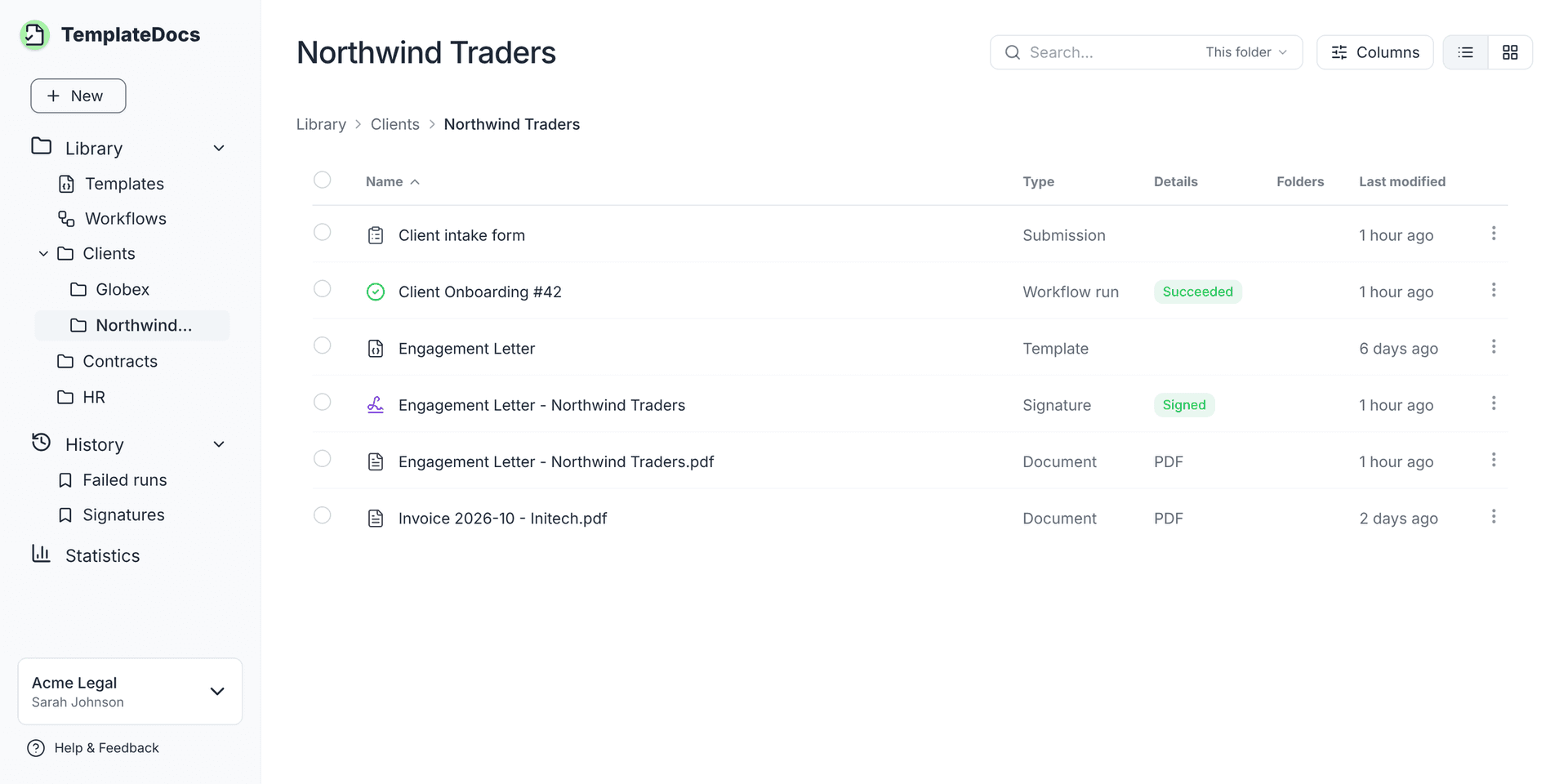
How the Library Works
Items in a folder are references, not copies. A document saved to a folder still lives in the run that created it, and a template saved to a folder is the same template you edit everywhere else. This means:
- An item can be saved to several folders at once.
- Renaming a template or a workflow renames it in every folder.
- Removing an item from a folder does not delete it.
The Folders column shows the other folders an item is saved in.
Templates and Workflows
Templates and Workflows are always listed at the top of the Library navigation. They show all the templates and all the workflows of your organization, whether or not they are saved to a folder.
Folders
- Create a folder: click New in the side navigation and choose Folder. The folder is created in the folder you have open.
- Rename, move or delete a folder: use the folder's menu.
- Folders can contain subfolders. Click the arrow next to a folder in the side navigation to show or hide its subfolders.
Deleting a folder also deletes its subfolders. The items inside are removed from the Library, but they are not deleted.
Saving Items to the Library
You can save these items to a folder:
- Templates and workflows
- Documents, including Quick Documents
- Form submissions and webhook requests
- Signature requests
- Workflow runs
To save an item, open its menu (in the History, in a side panel, or in a workflow's run history) and click Save to Library.... Then pick a folder, or create a new one.
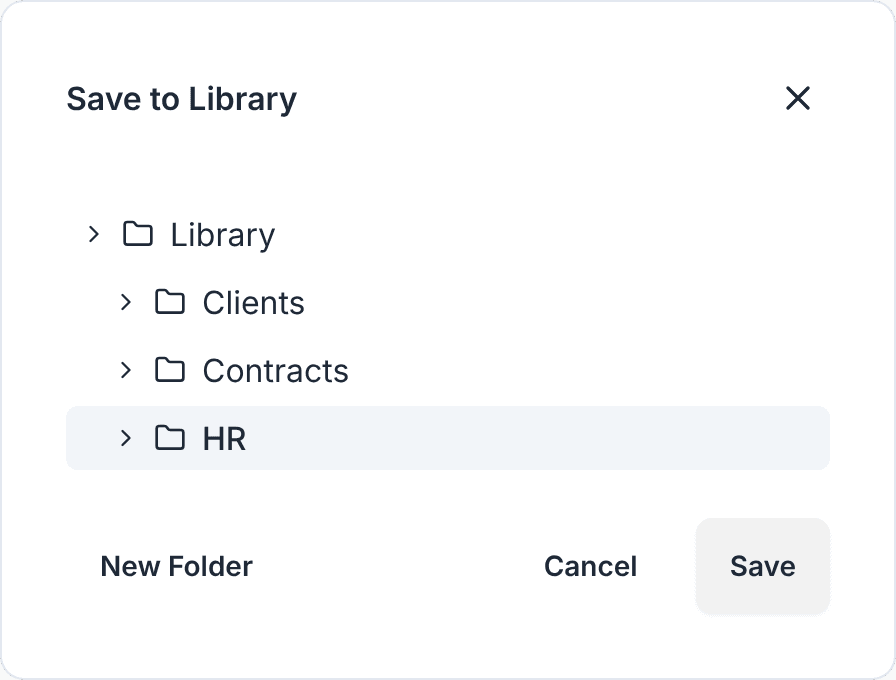
In the Templates and Workflows views, use Add to folder... to save a template or a workflow to a folder. In a folder, use Move to folder... to move an item to another folder.
Items saved to the Library are kept until you delete them, regardless of your data retention settings. Saving a document, submission or signature request from a run also excludes the entire run from data retention.
Removing and Deleting Items
- Remove from folder takes the item out of the folder. The item itself is not deleted, and remains in its other folders and in the History.
- Delete permanently deletes the item. This cannot be undone.
You can delete templates, workflows, runs, documents and signature requests directly from the Library using the item's menu. Submissions cannot be deleted individually; they are deleted with their run.
Once an item is no longer saved in any folder, your data retention settings apply again. Removing an item does not restart its retention period. If the item is already past its retention period, it will be deleted shortly after.
Search
The search bar at the top of the page searches by name:
- This folder searches the open folder and its subfolders.
- Anywhere searches the whole Library and the History.
Results show as you type. Press Enter to see all the results.
Click the Show in folder button on a search result to open the folder it is saved in.
Next Steps
- See everything that happened in your organization in the History
- Choose how long your history is kept in Data Retention
