Email Step
The Email step sends an email when the workflow reaches it. You can fill the recipients, subject and body with workflow data, and attach the documents the workflow generated.
Use it to send documents to clients, notify your team, or confirm that a request was received.
Example
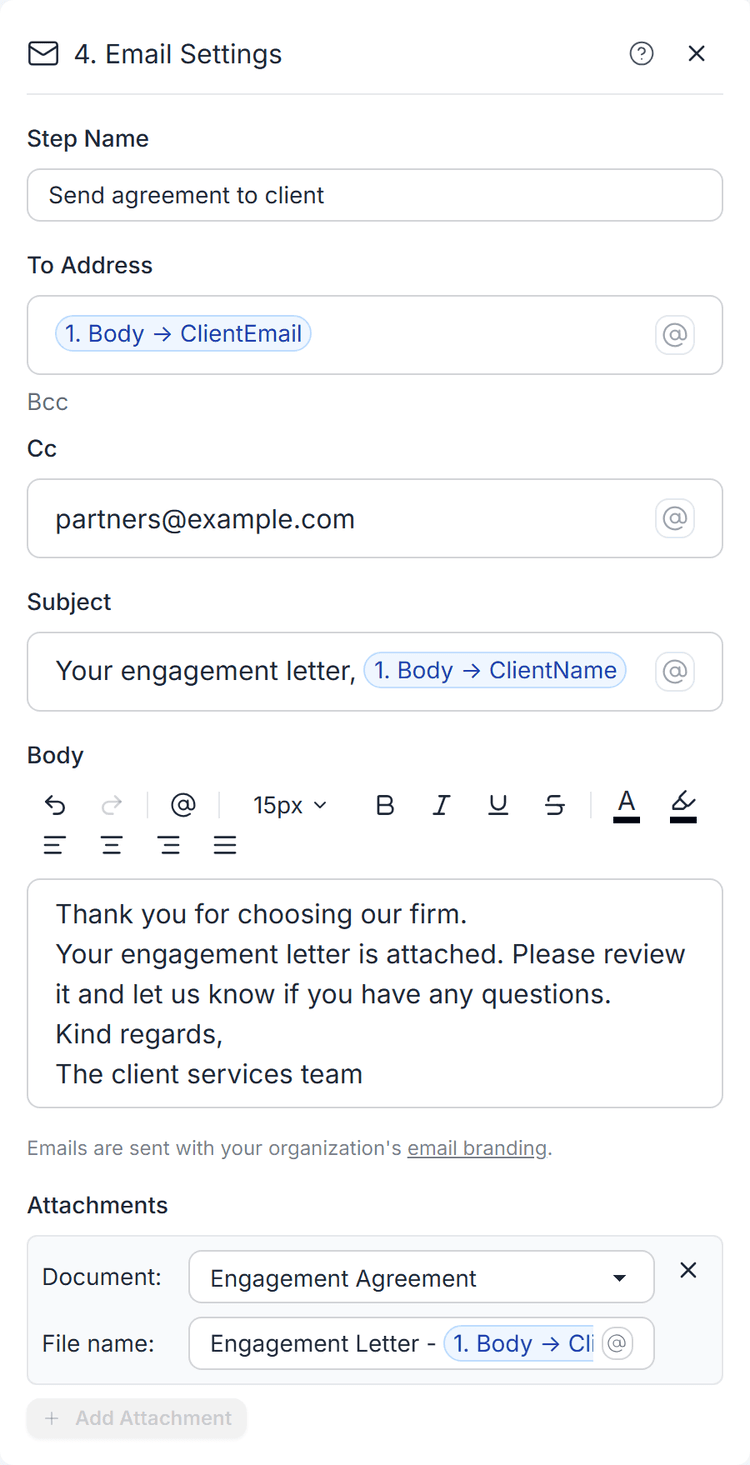
An accounting firm collects new client details with a form. The workflow generates an engagement letter as a PDF, then an Email step sends it:
- To Address: the ClientEmail from the form
- Cc:
partners@yourfirm.com - Subject: "Your engagement letter, ClientName"
- Attachments: the engagement letter, named "Engagement Letter - ClientName"
Adding the Step
Add an Email step to your workflow. The To Address starts with your own email address, so you can test right away.
| Setting | Description |
|---|---|
| To Address | One or more recipients, separated by commas. Required. |
| Cc / Bcc | Optional. Click Cc or Bcc under the To Address to show these fields. |
| Subject | The email subject. Required. |
| Body | The email text. Supports formatting such as fonts, bold, colors and alignment. |
| Attachments | Documents generated by Document steps in this workflow. Click Add Attachment, pick a document and set its file name. |
In any of these fields, type @ to insert workflow variables, such as a form
answer or a value from Set Variables.
The To Address, Cc and Bcc fields all support multiple addresses
separated by commas, for example alex@example.com, sam@example.com.
Semicolons also work.
How It Works
- Sender and branding. Emails are sent with your organization's email settings: the default provider or your own SMTP server, and your email branding. Click the email branding link in the step settings to change it.
- Limits. The default provider limits the number of recipients and daily emails, and free accounts can only email members of the organization. See Delivery Policy.
- Errors. If an address is not valid, an attachment cannot be found, or the email cannot be sent, the step fails and the run stops. The run history shows the reason.
Each attachment needs a file name, and file names must be unique within the step.
Output
| Variable | Description |
|---|---|
| To | The recipients the email was sent to. |
| Cc | The Cc recipients, if any. |
| Bcc | The Bcc recipients, if any. |
| Subject | The subject that was sent. |
| Attachments | The files attached to the email. |
Credits
Each email sent costs 1 credit. The first 3 credits after the trigger are included in every run. See Credits.
Related
- Email Delivery - SMTP, branding and sending limits
- Document Step
- Forms
- Workflows overview
- Credits
