HTTP Step
The HTTP step sends a request to any web address (API) when the workflow reaches it. You can send workflow data or a generated document, and use the response in later steps.
Use it to connect systems that do not have a built-in integration. For example, create a record in your CRM, upload a document to your practice management software, or look up data in another system.
The HTTP step is available on paid plans only.
Example
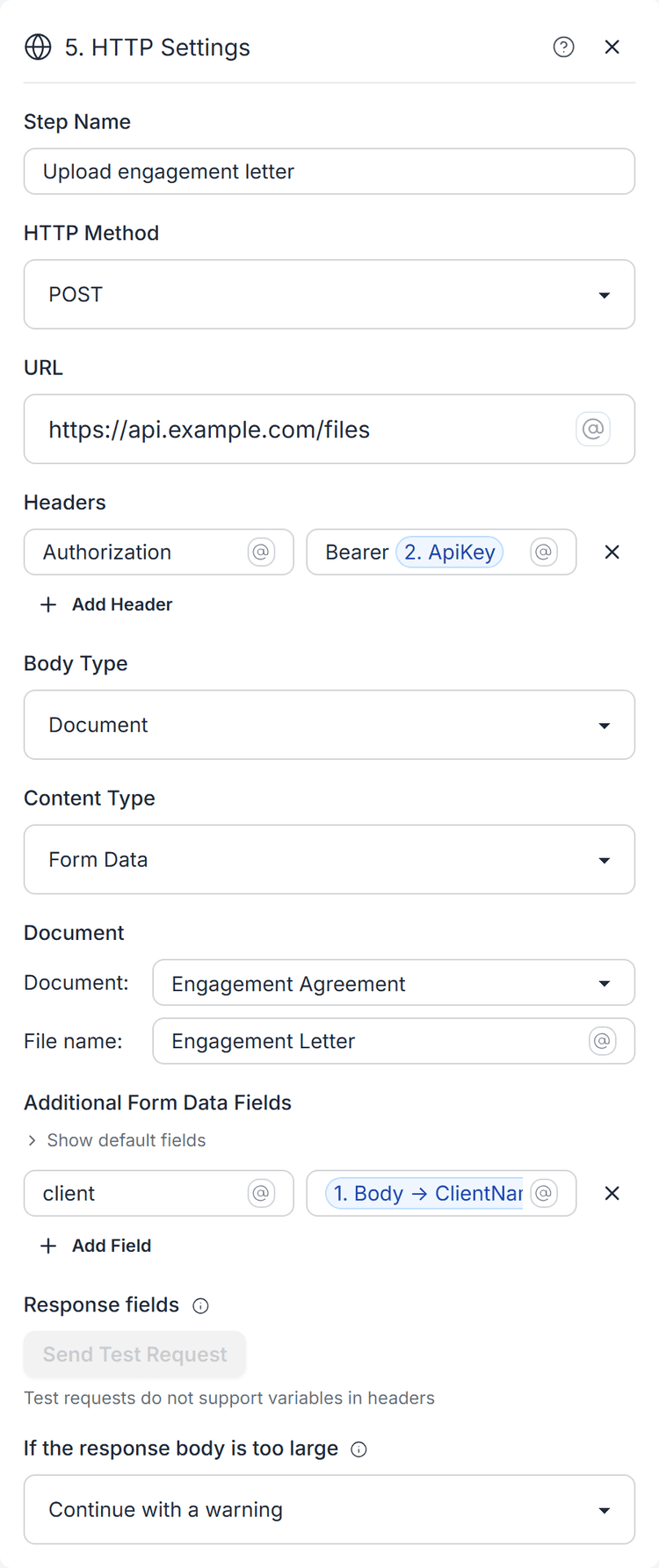
A law firm stores client files in a document management system with an API. After a new client fills in the intake form, the workflow generates an engagement letter. A Set Variables step stores the API key in an ApiKey variable. An HTTP step then uploads the letter:
- HTTP Method:
POST - URL:
https://api.example.com/files(replace this with your API's upload address) - Headers:
Authorizationset to "Bearer ApiKey" - Body Type: Document, with Content Type set to Form Data
- Additional Form Data Fields:
clientset to the client name from the form
A later Email step uses the file link from the JSON response to tell the team the letter is filed.
Adding the Step
Add an HTTP step to your workflow and fill in the request:
| Setting | Description |
|---|---|
| HTTP Method | GET, POST, PUT, PATCH, DELETE, HEAD or OPTIONS. Defaults to GET. |
| URL | The address to call. Must start with https://. |
| Headers | Optional key and value pairs, such as Authorization or Content-Type. Click Add Header to add one. |
| Body Type | None, Text or Document. |
Type @ in the URL, headers, file name or form data fields to insert workflow
variables.
Body
- Text - Type the request body, for example JSON or XML. Remember to add a
matching
Content-Typeheader, such asapplication/json. - Document - Send a document generated earlier in the workflow. Choose the
Content Type:
- Form Data - Sends the file as a form upload, with its name, extension and content type. Use Additional Form Data Fields to add your own fields. Expand Show default fields to see the fields sent by default.
- Binary - Sends the raw file as the body.
Response Fields
Capturing response fields is optional. To make fields from a JSON response available as individual variables in later steps, click Send test request. TemplateDocs sends the request once and captures the response schema. The different fields of the response then appear as variables in later steps, under the JSON output. Use Clear fields to remove them.
When the JSON output is available, you can also read fields with the GET formula function, for example GET(HTTP - JSON, "file.url"). The JSON output requires captured response fields; Body is the raw response text.
Noice: The Send test request button sends a test request to the URL with the values exactly as typed. Variables in the URL, headers, or body are not supported at this stage. Once tested you can use variables in the fields that support them.
The test request is a real request. A test POST to a live system will create
real data, so test against a sandbox when you can.
If the response body is too large
Responses larger than 256 KB are not stored in the step output. Under If the response body is too large you can choose what to do: Continue with a warning (default), Fail the step, or Continue silently.
Responses over 5 MB fail the step, regardless of the If the response body is too large setting.
How It Works
- Errors - If the server responds with a status of 400 or higher, the step fails and the run stops. The step also fails if the server cannot be reached or does not answer within 30 seconds.
- No redirects - Redirect responses are not followed and fail the step. Use the final address in the URL.
- Response check - If you captured response fields and a later response does not match them, the step continues with a warning.
- Limits
- Request text body up to 1 MB.
- Request document body up to 10 MB.
- Response body:
- Up to 256 KB can be stored in the step output.
- Responses larger than 5 MB fail the step.
- Up to 50 headers.
- Rate limits apply.
Output
| Variable | Description |
|---|---|
| URL | The address that was called. |
| Method | The HTTP method that was used. |
| Status | The response status code, such as 200. |
| Status Text | The response status text, such as OK. |
| Content Type | The response content type. |
| Content Length | The response size in bytes. |
| Body | The response body as text. Empty if it was too large. |
| Body Too Large | True if the body was too large to store. |
| JSON | The parsed JSON response body. Present when a response schema is configured and the body parsed as JSON. Empty if it was too large. |
Credits
Each HTTP request sent costs 1 credit, even if the server responds with an error. The first 3 credits after the trigger are included in every run. See Credits.
Related
- Webhooks - let other systems start your workflow
- Document Step
- Formulas
- Workflows overview
- Credits
