Schedule Trigger
The Schedule trigger runs a workflow automatically at the times you choose. For example, every Monday at 09:00, or on the last day of every month.
Use it for recurring work: weekly reports, monthly invoices, daily reminders, or regular checks of another system.
Example
A property management company sends each owner a monthly statement. The workflow runs Monthly on the Last day at 17:00. It finds the owners' rows with a Google Sheets - Find rows step, generates a statement with a Document step, and emails it with an Email step.
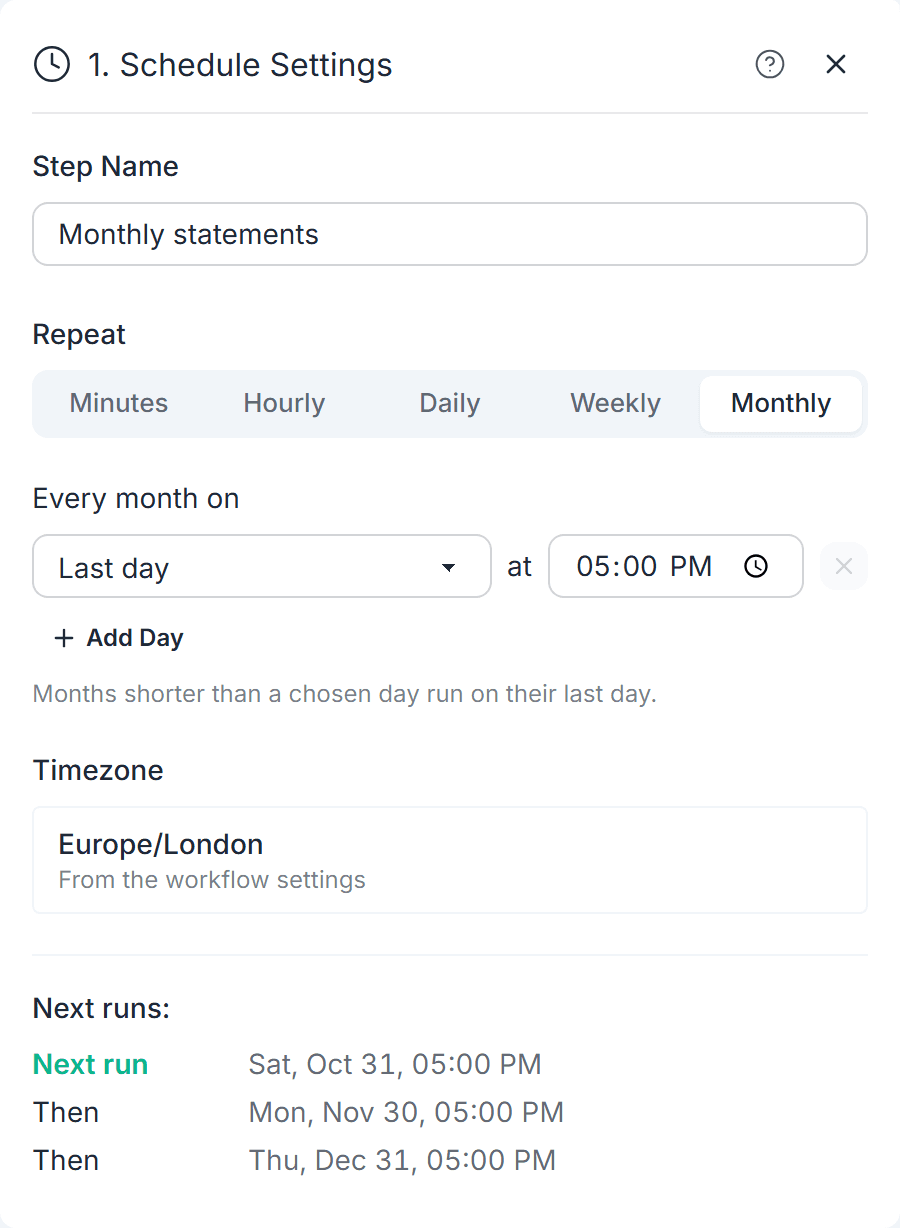
Adding the Trigger
When you create a workflow, select Schedule as the trigger type in the workflow designer. New schedules start as Daily at 09:00.
Choose how often the workflow runs under Repeat:
| Repeat | Settings |
|---|---|
| Minutes | Every 15 or 30 minutes. Runs at fixed points of the hour (for example :00, :15, :30 and :45). Paid plans only. |
| Hourly | Every 1, 2, 3, 4, 6, 8 or 12 hours, at minute :00, :15, :30 or :45. |
| Daily | Every day, at one or more times. Use Add time to add more. |
| Weekly | On the weekdays you select, at one or more times. |
| Monthly | On one or more days of the month, each with its own time. Use Add day to add more. Pick Last day for the end of the month. |
If you pick a day that a month does not have (for example day 31), the workflow runs on the last day of that month.
Timezone
All times use the workflow's timezone. The Timezone box shows the current one. Click it to change it in the workflow settings.
Next Runs
The settings panel lists the next three run times, so you can check the schedule before you publish. Hover over a time to see it in UTC as well.
How It Works
- Publish to start. The schedule only runs once the workflow is published. If you publish changes later, the new schedule applies from then on.
- Run it by hand. Click Test in the designer to run your draft once, or Start to run the published version right away.
- Minimum interval. On the free plan, runs must be at least an hour apart. On paid plans, they must be at least 15 minutes apart. You cannot publish a schedule that runs more often.
- Needs an action. The workflow must include at least one step that does something, such as generating a document or sending an email. A schedule with only logic steps cannot be published.
- Skipped runs. If a run cannot start when it is due (for example, you are out of credits), it is skipped. The schedule continues with its next time. Missed runs are not made up later.
A run may start a short time after its scheduled time. Use the Scheduled Time variable (see below) when you need the exact time.
Output
| Variable | Description |
|---|---|
| Scheduled Time | The date and time the run was scheduled for. For a test run, this is the time the run started. |
You can use Scheduled Time with date formulas to name files or filter data by period. For example,
"Report for " + FORMAT_DATE(Scheduled Time, "MMMM YYYY")creates a name such as "Report for March 2026".
Credits
The Schedule trigger is free (0 credits). Steps after it are charged as usual, and the first 3 credits after the trigger are included in every run. See Credits.
Related
- Workflows overview
- On demand trigger - start the workflow by hand instead
- Flow control - run different steps on different days
- Date functions
- Credits
