E-Signature
Send the documents you generate with TemplateDocs for electronic signature. Signers get an email with a link, review the documents and sign them in their browser, on a computer, a tablet or a phone. You get the signed documents back, with a signature certificate, without a separate e-signature tool.
Use it for contracts, engagement letters, leases, consent forms, and any other document that needs a signature.
E-signature is available on paid plans only.
Sending Documents for Signature
Documents are sent for signature from a workflow:
- Prepare the template. Add a tag wherever a signer should sign, add their initials or fill something in. See signature tags.
- Generate the document. A Document step generates it as a PDF, filled with data from a form, a webhook or another step.
- Send it. A Sign step sends it to the signers, and the workflow continues once everyone has signed.
What Signers See
Signers do not need an account or an app. The signing page works in any modern browser, on a computer, a tablet or a phone.
- Invitation. Each signer gets an email with their own signing link. The emails are sent with your organization's email settings and branding.
- Verification. The signer confirms their email address with a one-time code sent to the same address.
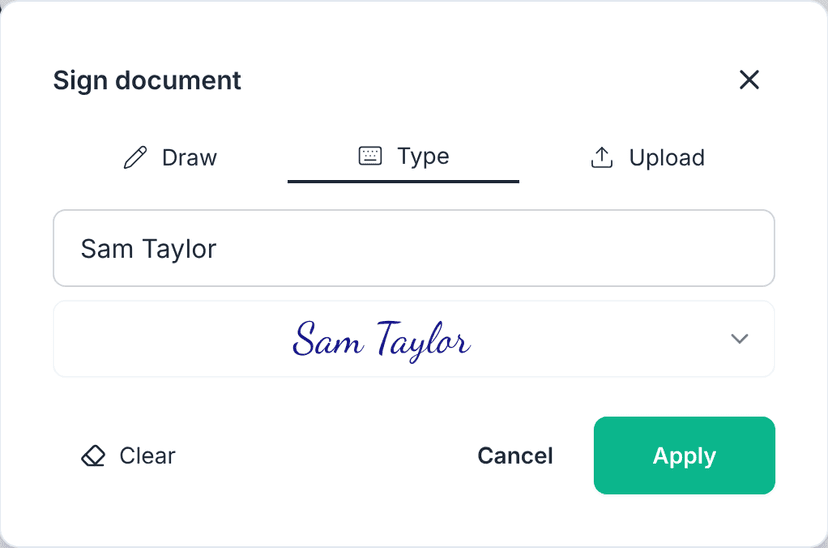
- Review and sign. The signer reads the documents and fills in their fields. They can draw their signature, type it, or upload an existing image of it.
- Submit. The signer agrees to sign electronically and submits.
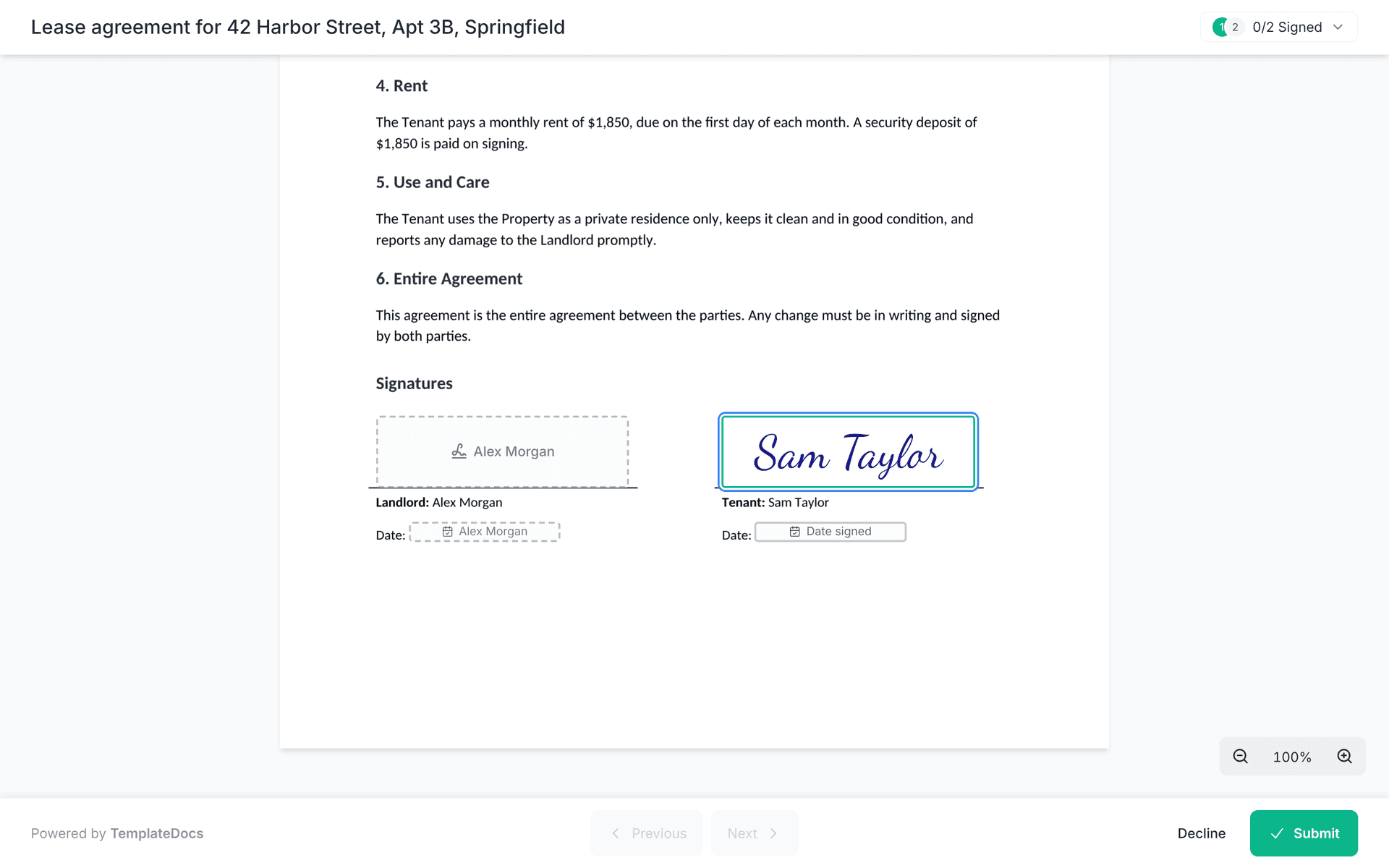
When there are several signers, each one sees the others' fields and how many have signed so far. You can control the signing order, so signers can sign all at the same time, or in turn.
Signed Documents
When the last signer signs:
- The signed documents are created with every signature and value in place, and a signature certificate is added to each document.
- Every signer gets a copy of the signed documents by email.
- The workflow continues, with the signed documents available to the next steps.
Follow signing requests and download the signed documents from the History, or organize them in the Library.
When a Document Is Not Signed
A signing request ends without signed documents when:
- A signer declines. The other signers can no longer sign.
- The link expires. Signers have 7 days to sign by default. You can set up to 90 days.
- The run is cancelled. Cancelling the workflow run in the History withdraws the signing request.
By default, the workflow stops there. You can also let it continue, for example to notify your team. See When a Document Is Not Signed.
Credits
Each signing request costs 1 credit when the documents are sent. See Credits.
Next Steps
- Prepare your template with signature tags
- Set up the signers and the fields in the Sign step
- Learn about the e-signature compliance
