Barcodes
It's easy to add barcodes to your documents with TemplateDocs. The barcode tag syntax is the same as a simple text tag:
Provide the barcode details in your JSON data using the barcode object structure shown below:
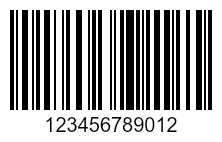
This will create a barcode that encodes "123456789012" with default settings (CODE128 format, black on white, auto-sized).
Using Image Placeholders
Barcodes can also be inserted using image placeholders. This allows you to replace existing images in your template with generated barcodes. To mark an image as a placeholder, insert a tag in its alt text. Then use the same JSON data as you would for a regular barcode tag. For example:
Barcode Properties
| Property | Type | Description |
|---|---|---|
_type | string | Must be set to "barcode" |
data | string | Required. Text to encode in the barcode |
format | string | Optional. Barcode format (e.g. "CODE128", "EAN13", "UPC"). Default is "CODE128" |
color | string | Optional. Foreground color in hex format (e.g. "#000000"). Default is black |
background | string | Optional. Background color in hex format (e.g. "#ffffff"). Default is white |
barWidth | number | Optional. Width of the barcode bars in pixels. Default is 2 |
barHeight | number | Optional. Height of the barcode bars in pixels. Default is 100 |
margin | number | Optional. Margin around the barcode in pixels. Default is 10 |
showText | boolean | Optional. Whether to display the data text below the barcode. Default is true |
textDistance | number | Optional. Distance between barcode and text. Default is 1 |
fontSize | number | Optional. Font size for the display text. Default is 23 |
Examples
Simple Barcode
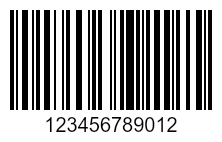
This creates a barcode with default settings (CODE128 format, black on white, auto-sized).
Custom Styled Barcode
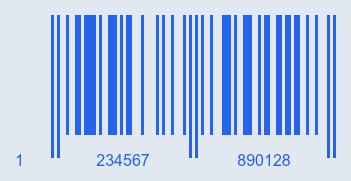
This creates a blue barcode on a light gray background with custom bar dimensions and styling.
Supported Barcode Formats
| Barcode Type | Format Code | Typical Use Case | Charset | Popularity |
|---|---|---|---|---|
| Code 128 (auto) | CODE128 | General-purpose, logistics, shipping labels | Full ASCII | Very High |
| Code 128 A | CODE128A | Industrial, system codes | Control + upper-case ASCII | Medium |
| Code 128 B | CODE128B | General-purpose text | Upper + lower-case ASCII | Medium |
| Code 128 C | CODE128C | High-density numbers (shipping, logistics) | Numeric pairs | High |
| UPC-A | UPC | Retail in US/Canada | 12 digits | Very High |
| UPC-E | UPCE | Small-pack retail (US/Canada) | 6 digits (compressed) | High |
| EAN-13 | EAN13 | Retail worldwide | 13 digits | Very High |
| EAN-8 | EAN8 | Small-pack retail worldwide | 8 digits | High |
| Code 39 | CODE39 | Industrial, automotive, defense | Alphanumeric | High |
| ITF-14 | ITF14 | Carton / packaging (GS1 standard) | 14 digits (numeric only) | High |
| ITF (generic) | ITF | Legacy warehouse / internal logistics | Numeric only | Low |
| Code 93 | CODE93 | Canada Post, niche industrial | Full ASCII (compact) | Low |
| MSI-10 | MSI10 | Legacy retail/warehouse (mod 10 check) | Numeric only | Medium |
| MSI-1010 | MSI1010 | Legacy retail/warehouse (double mod 10) | Numeric only | Low-Medium |
| MSI-11 | MSI11 | Legacy (mod 11 check) | Numeric only | Rare |
| MSI-1110 | MSI1110 | Legacy (mod 11 + mod 10) | Numeric only | Rare |
| Codabar | codabar | Libraries, blood banks, older healthcare | Digits + A/B/C/D | Rare |
| Pharmacode | pharmacode | Pharmaceutical packaging | Numeric only (1–6 digits) | Rare |
Different barcode formats have different requirements for the data length and character set. Make sure you use the correct format for your data.
The format property accepts both display names (like "Code 128 A") and format codes (like "CODE128A").
