Follow Up Boss
The Follow Up Boss steps connect your workflows to your Follow Up Boss account:
- The Follow Up Boss trigger starts a workflow when a person or a deal is added or changes, or when a new event arrives.
- Follow Up Boss - Write record creates a new person or deal, or updates an existing one. It can also attach generated documents to the record.
- Follow Up Boss - Find records reads the people, deals or events that match your conditions.
- Follow Up Boss - Add activity adds a note or a task to a person.
Use them to generate a document when a lead goes under contract, follow up on a property inquiry, keep people and deals up to date, or leave tasks for your agents.
Example
A real estate team tracks buyers in Follow Up Boss. When a buyer goes under contract, the workflow:
- Starts with the Follow Up Boss trigger. It runs when a person's stage changes to Under Contract.
- Generates a buyer agreement with a Document step. The agreement uses the person's name, email and address.
- Creates a deal for the person in the Buyers pipeline with a Write record step.
- Adds a task for the person's agent with an Add activity step: "Send the agreement for signature", due tomorrow.
Connect your account
- Add a Follow Up Boss step and click Sign in under Account.
- Sign in to Follow Up Boss and approve the requested access.
- You return to the workflow editor with the account selected.
The steps act as the Follow Up Boss user who connected the account. They see what this user sees. For example, an agent sees only their own people, and a broker or owner sees everyone.
To start workflows with the Trigger, connect the account with the Follow Up Boss owner user. Other users can only use the action steps.
Only organization owners and admins can add or reconnect accounts. You can manage your connected accounts in Organization Settings.
People, deals and events
The steps work with People and Deals, including your custom fields, and with Events.
An event is a lead's activity, such as a property inquiry, an open house visit or a saved property. Your lead sources send events to Follow Up Boss. Each event includes the property (address, MLS number, price, bedrooms...) or the lead's property search. You can find events and start workflows from them, but you cannot create or update them.
Trigger
Starts a workflow when a person or a deal is added or changes, or when a new event arrives.
| Setting | Description |
|---|---|
| Account and Object | The account, and People, Deals or Events. |
| Start when | One of:
|
| Records must match (optional) | The conditions a record must match to start a run. For example, a stage of Under Contract, or an event Type of Property Inquiry. With no conditions, every record starts a run. |
| Linked Records (optional) | Related records to include. For example, a deal can include its People. An event can include its person (Person ID). A person can include their Events. Each link includes up to 25 records. |
The trigger works only while the workflow is published. Each change starts one run with the record's latest values. A change to several people at once, such as a tag added to many people, starts one run per person.
To try the workflow before you publish it, click Test in the workflow editor and select a record.
Some ideas for events:
- Start on a Property Inquiry event to send the lead a flyer for the home they asked about.
- Start on a Visited Open House event to follow up after the showing.
A workflow can start itself again if it updates the records its trigger listens to. To prevent this, add a condition that the updated record no longer matches. For example, match the stage that the workflow moves the record out of.
Follow Up Boss limits each trigger, such as Record created for People, to two connections of the same Follow Up Boss account.
Output variables
- Record - The record that started the run. It includes the Record ID, the Record URL, every field and the selected linked records. For an event, the Record URL opens the event's person. To use the person's fields, select Person ID under Linked Records.
- Event Type - Whether the record was added, changed or moved to a new stage.
- Event Time - When it happened.
- Object Name - People, Deals or Events.
- Object URL - A link to the object's list in Follow Up Boss.
Write record
Creates or updates a person or a deal. It can also attach documents to the record.
| Setting | Description |
|---|---|
| Account and Object | Where to write. |
| Action | Create record or Update record. |
| Record to update | The conditions that find the record to update. For example, the Record ID from a trigger or a find step. Exactly one record must match, or the step fails. |
| If no record matches | Fail the step, Create the record or Skip the step. A new record also gets the values from your "is" conditions. |
| Field values | Enter a value, a variable (type @) or a formula. When you update a record, empty fields keep their current values. |
| Documents | Documents generated earlier in the workflow. They are added to the record as links. Only members of your organization can open these links, after they sign in to TemplateDocs. |
Some fields work differently:
| Setting | Description |
|---|---|
| Email and Phone | Set the person's primary email and phone. The person's other emails and phones stay. |
| Street, City, State, Zip Code, Country | Update the person's first address. |
| Source | Works only for new people. Follow Up Boss ignores it in updates. |
| Tags | Tags separated by commas. In updates, they replace the current tags. |
| Stage (deals) | The stage name. A new deal needs a Name and a Stage. If more than one pipeline has a stage with this name, also set the Pipeline. |
| People (deals) | Person IDs separated by commas. For example, the Record ID from a find step. |
If a value is not valid, such as a stage that does not exist, the step fails with the error from Follow Up Boss.
Output variables
- Record ID - The ID of the record.
- Record URL - A link to the record in Follow Up Boss.
- Object Name - People or Deals.
- Operation -
Created,UpdatedorSkipped.
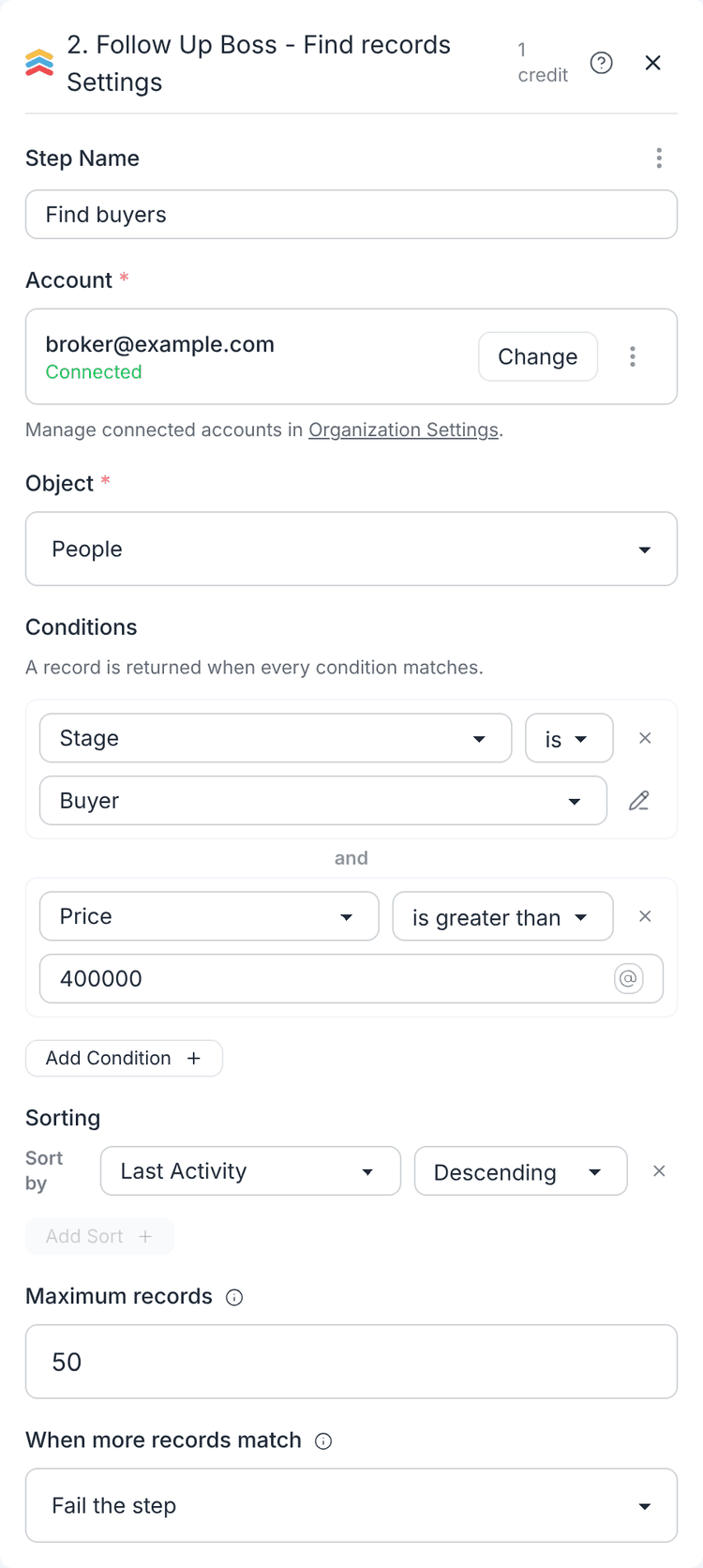
Find records
Finds the people, deals or events that match your conditions.
| Setting | Description |
|---|---|
| Account and Object | Where to search. |
| Conditions | Click Add condition. A record must match all the conditions. With no conditions, every record matches. |
| Sorting | People only. Click Add sort to sort the results by a field. |
| Maximum records | Up to 1000 records. The default is 100. |
| When more records match | Fail the step or Return the first matching records. |
Follow Up Boss supports search on some fields only, so each field shows only the conditions it supports. For example:
- People - Record ID, Email, Stage, Source, Tags, a Price range and words in the Name.
- Deals - Status, Pipeline and the creation date.
- Events - Person ID, Type, Has Property and words in the Property Street.
If no record matches, the step succeeds with an empty list.
To build a table in a document, such as all the deals in a pipeline, map the Records list to a document loop.
Output variables
- Records - The matching records. Each record includes the Record ID, the Record URL and every field.
- Record Count - The number of records returned.
- Has More -
trueif more records matched than the maximum. - Object Name - People, Deals or Events.
- Object URL - A link to the object's list in Follow Up Boss.
Add activity
Adds a note or a task to a person.
| Setting | Description |
|---|---|
| Account | The Follow Up Boss account. |
| Person | The conditions that find the person. For example, the Record ID from a trigger. Exactly one person must match. |
| If no person matches | Fail the step or Skip the step. |
| Activity | Note or Task. |
For a Note, set a subject, content or both:
| Setting | Description |
|---|---|
| Subject | The note title. |
| Content | The note text. Type @ to insert variables. Basic formatting, such as bold, italic, links and lists, is kept. |
For a Task:
| Setting | Description |
|---|---|
| Name | The task name. Required. |
| Type | For example, Follow Up, Call or Showing. |
| Due date | A date, or a date and time. Leave it empty for no due date. |
| Assigned to | The agent's full name. Leave it empty to assign the person's agent. |
Output variables
- Activity ID - The ID of the note or task.
- Activity Type -
noteortask. - Record ID - The ID of the person.
- Record URL - A link to the person in Follow Up Boss.
- Object Name - People.
- Operation -
AddedorSkipped.
Form data sources
A form data source of People can include each person's events under Linked Records (up to 25). This way, a form can use the properties a lead asked about or visited.
Credits
The Follow Up Boss trigger is free. Each action step that runs (Write record, Find records or Add activity) costs 1 credit. See Credits.
Related
- Workflow overview - how triggers and steps fit together
- Document Step - generate DOCX or PDF files from workflow data
- Form Data Sources - prefill forms with Follow Up Boss people or deals
- Formulas - calculate and transform values before mapping them
- Array formulas - filter, sort and pick fields from the records the find step returns
