Form Data Sources
Data sources let members of your organization select records from connected apps and automatically prefill form fields with their data. For example, select a HubSpot deal to fill in customer details, or choose an item from monday.com to populate a form.
Set Up a Data Source
Data sources work only on forms that members of your organization submit. In the form trigger settings, set Who Can Submit to Members of your organization. Submitters then need to sign in to TemplateDocs.
- Open the form in the form designer and click Data Sources in the toolbar.
- Click Add Data Source.
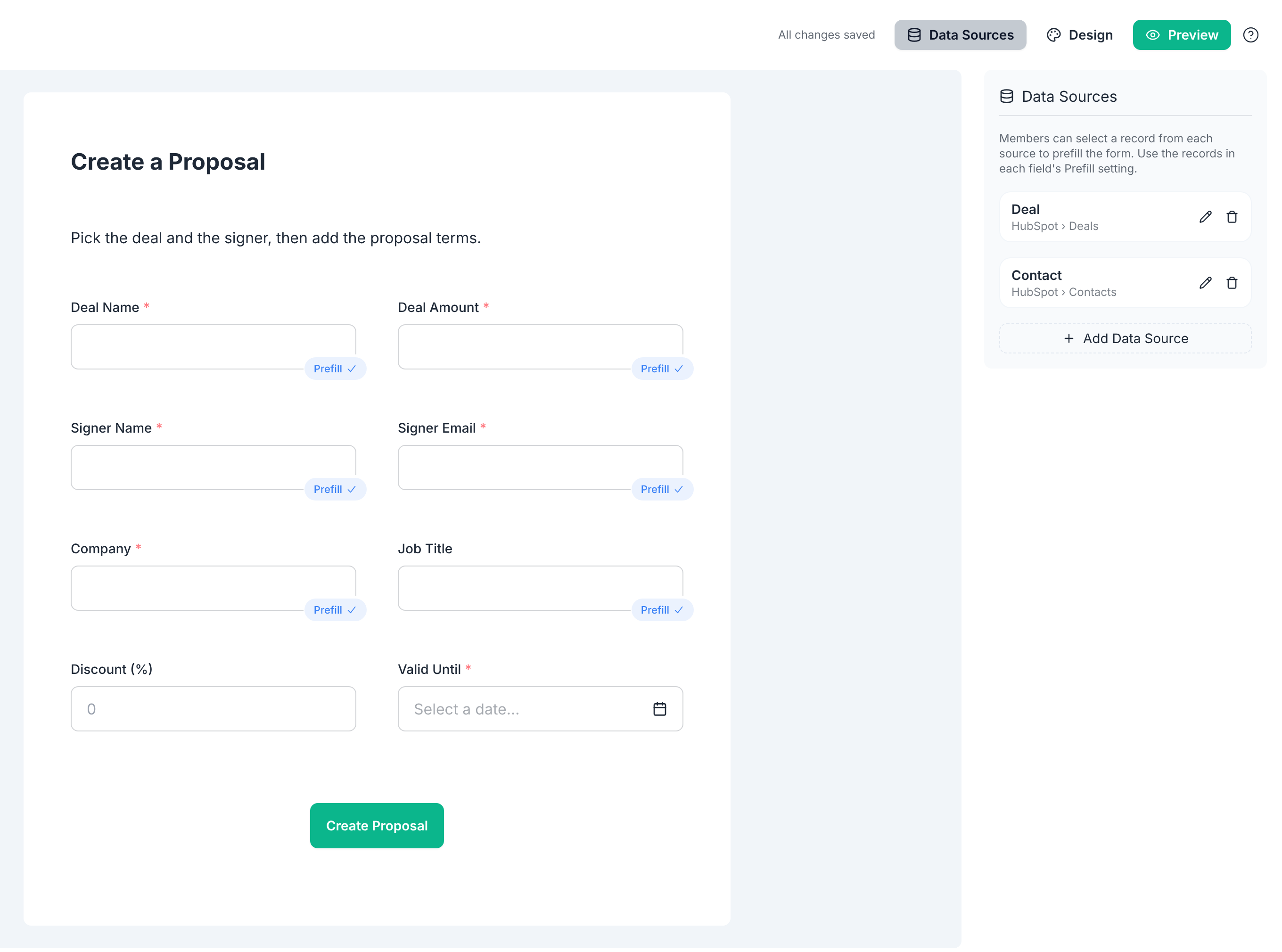
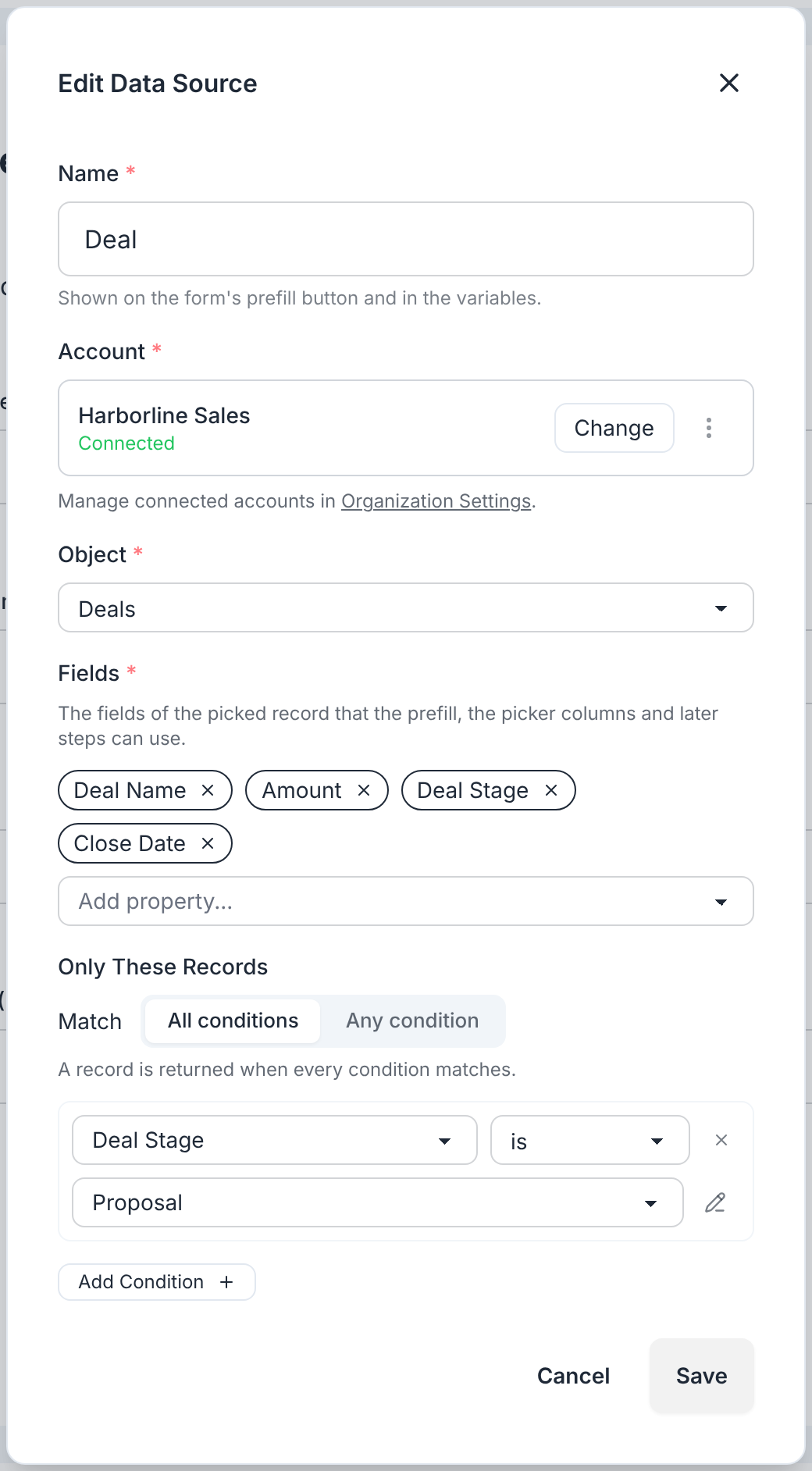
- Give the source a name, choose the service, and configure its settings (see below). Click Save.
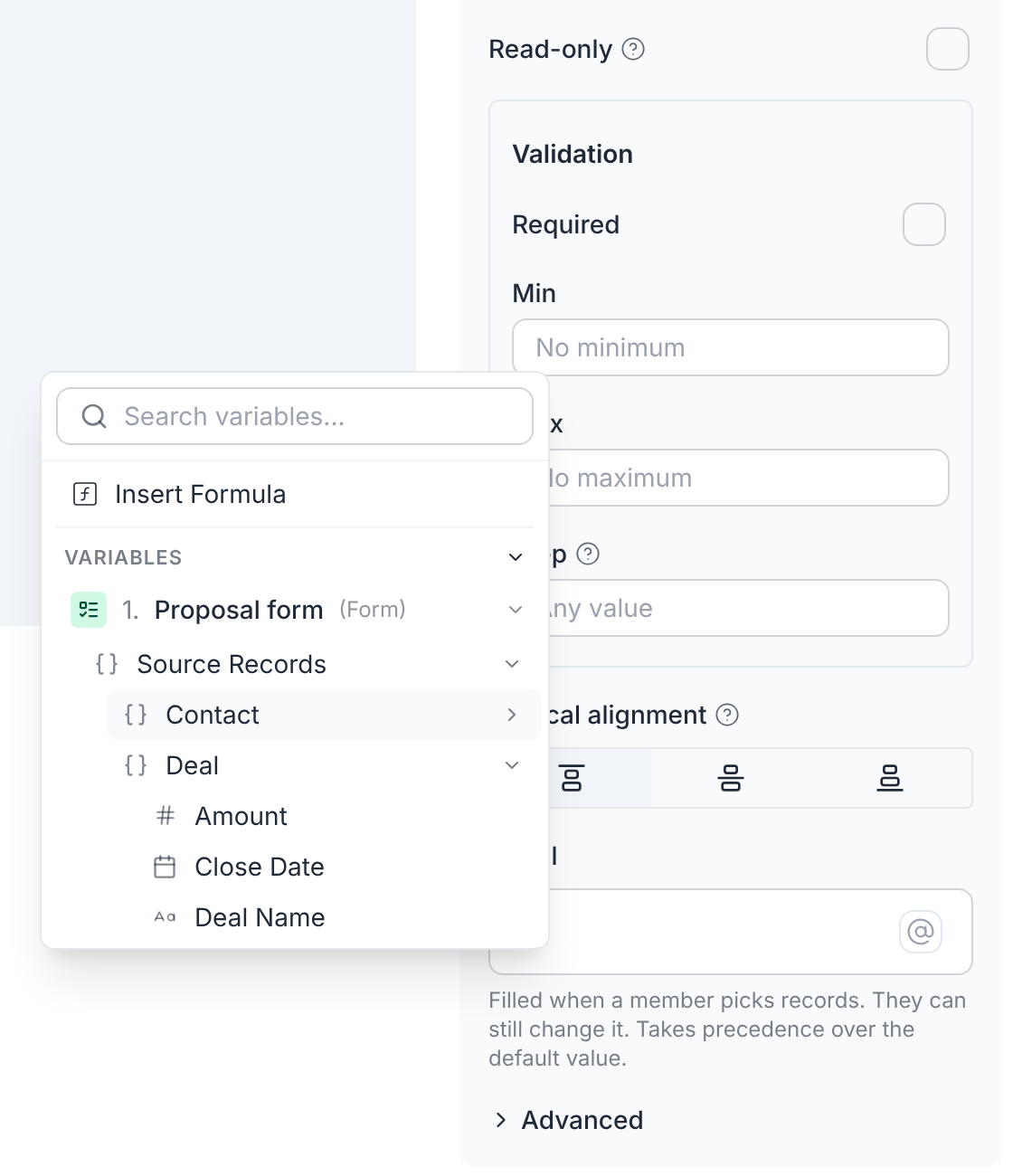
- Select a form field. In its Prefill setting, type
@and insert a field of the selected record. - A single data source can prefill any number of fields - repeat step 4 for any field you want to prefill.
Data Source Settings
| Setting | Description |
|---|---|
| Name | A short name for the kind of record, for example Deal. It will help you identify the source in the form designer and in the variables menu. |
| Provider | The service to read the records from. You set this once - when you first add the source. If you need to change it later, simply add a new source. |
| Account | The connected account to use. |
| Linked Records (optional) | Include related records from your data source. For example, when creating a sales proposal, you can select a deal from your CRM and automatically include its associated contacts and company. Up to 25 linked records are retrieved per linked field (so a single Deal record can link to up to 25 Contacts and 25 Companies). |
| Only These Records (optional) | Limit which records members can select by specifying a condition. Leave empty to allow all records available through the connected account. |
Additional settings are available depending on the provider you choose.
Members can access records available through the connected account, regardless of their individual permissions in the source app. Use Only These Records to limit which records they can select.
Field Prefill Settings
A field's Prefill value can mix text, formulas and fields of the selected records. For example, a Signer Name field can combine a contact's First Name and Last Name.
To insert a record field, type @ to open the variable picker. The
record fields are under Source Records, grouped by data source.
- A prefilled value replaces the field's default value. Members can still change it before submitting.
- For choice fields, turn on Ignore case to match an option regardless of letter case.
- For table fields, insert a list. Each list item becomes a row, and the item fields are matched to the columns by name.
- If a member doesn't select a record from a source, the fields that use it stay empty.
Filling In the Form
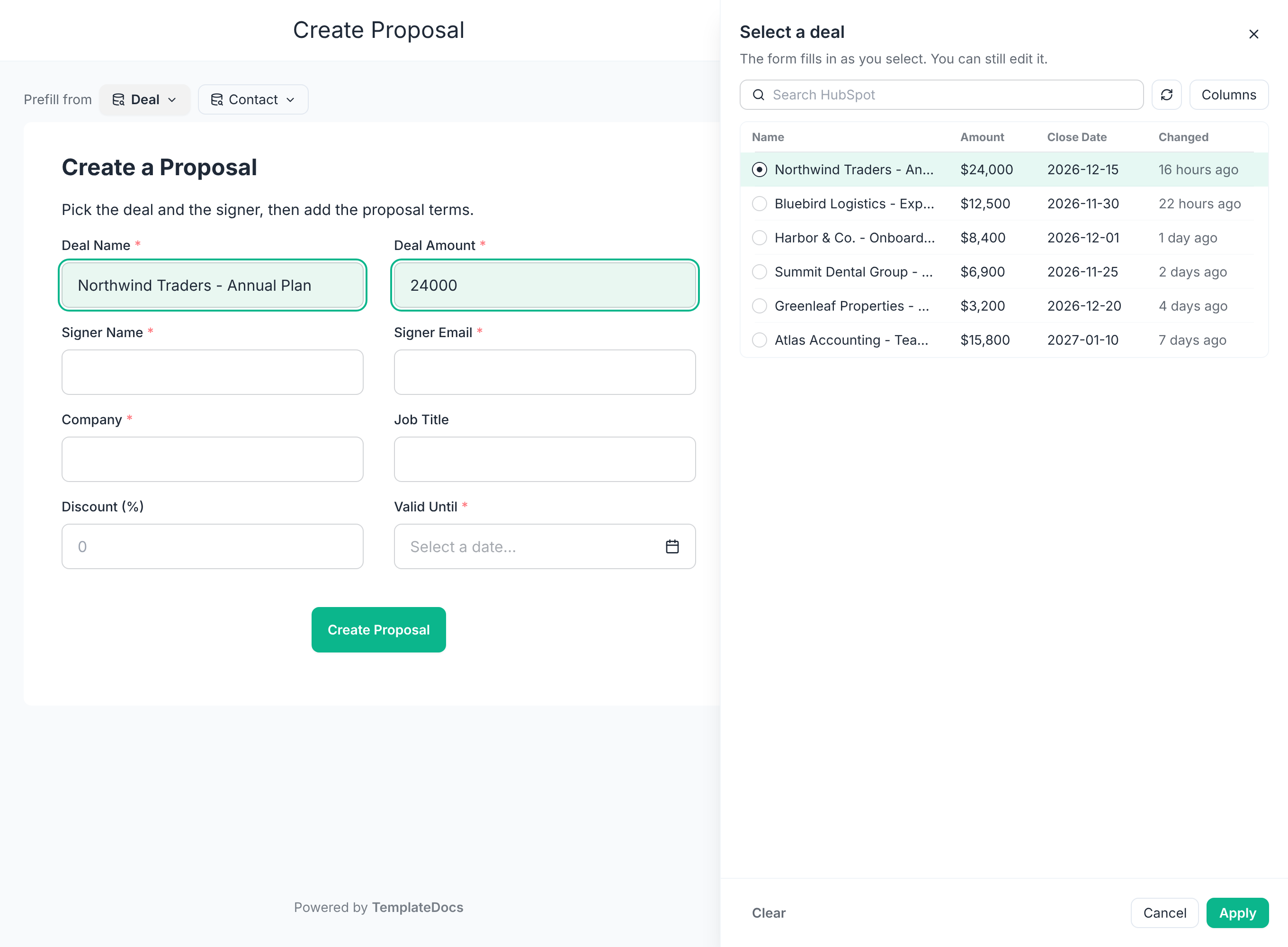
When a member opens the form, a button for each data source appears next to Prefill from. Clicking it opens a list of records:
- Search - find a record in the service.
- Columns - choose which record fields to show in the list.
- Refresh - reload the records from the service.
Selecting a record highlights the fields that will be updated. Click Apply to keep the values, or Cancel to put the form back as it was. Clear removes the record selected from the source.
Using Records in the Workflow
Records selected in the form are available to all subsequent workflow steps under Source Records in the variable picker.
Use them to:
- Fill templates with record fields that aren't on the form
- Update the record or attach documents to it later in the workflow
- Send emails to an address stored on the record
- Anything else you can do with variables
Workflows use the records as they were when the member selected them. Use a "Find records" step to retrieve the latest values.
Related
- Forms overview - design forms and start workflows from them
- Workflow steps - the services you can connect to
- Formulas - combine and transform values in the prefill
- How to auto-populate a proposal template from your CRM - a step-by-step example
- How to generate lease agreements from your CRM - a real-world example that prefills a form from HubSpot deals
