How to auto-populate a proposal template from your CRM
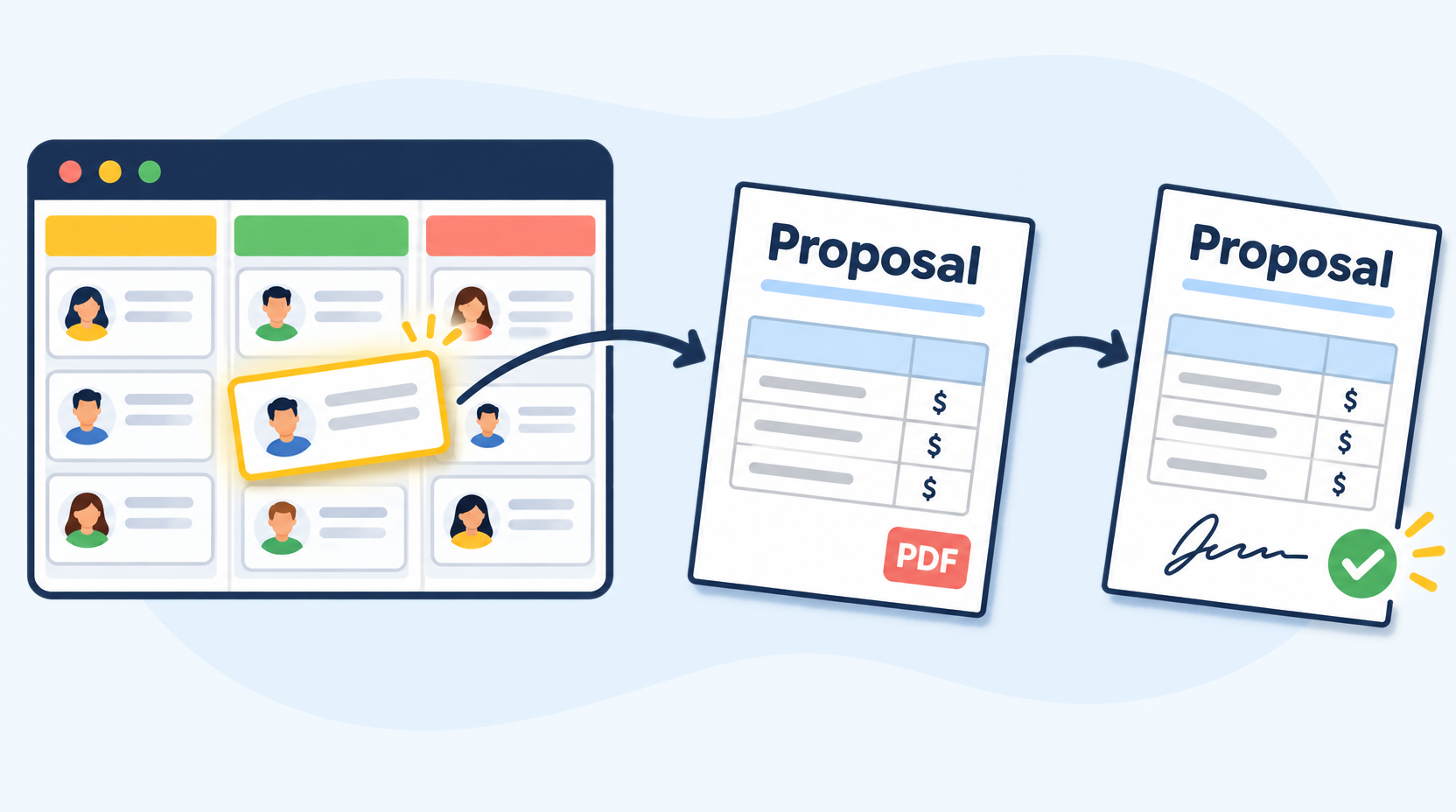
Automate the business proposal process: use CRM data to generate personalized PDFs from templates and send them to clients for e-signature.
To create business proposals from a template, design your proposal once in
Microsoft Word with placeholders like {{ ClientName }} and {{ Amount }},
connect your CRM, and let proposal software fill in each deal's details and
save the result as a PDF. With TemplateDocs you can select a deal from Attio,
HubSpot and many other CRMs to auto-populate the proposal, or generate it
automatically when a deal reaches a specific stage. The client then gets the PDF to
e-sign, and the signed copy is saved back to the deal.
This guide uses Attio as the example CRM. HubSpot, monday.com, Airtable and the other CRMs work the same way.
In this article:
- What to look for when generating proposals from your CRM
- Step 1: Turn your proposal into a template
- Step 2: Choose how to generate
- Other CRMs
- Frequently asked questions
What to look for when generating proposals from your CRM
To send every client a polished proposal without copying data by hand, check that your tool can:
- Read from your CRM. Fill in the client, company and deal details straight from the deal, not from a spreadsheet export.
- Keep your own design. Use your existing Word proposal, with its fonts, logo and layout, instead of a limited set of built-in templates.
- Generate Word and PDF files. Create editable Word documents for further refinement or polished PDFs ready to send to clients.
- Collect the signature. Let the client e-sign the proposal, without a separate e-signature tool.
- Close the loop. Save the signed proposal to the deal, so your team sees it where they work.
TemplateDocs is a document automation platform that covers all of these. The steps below show how.
Step 1: Turn your proposal into a template
Start from your own proposal in Word, or download the sample template below. Replace every detail that changes per deal with a tag in double curly braces, and add a tag where the client signs:
| In the proposal | Tag |
|---|---|
| Client's name | {{ ClientName }} |
| Client's company | {{ CompanyName }} |
| Project or deal name | {{ ProjectName }} |
| Deliverables, one bullet each | {{>> Deliverables }}{{ Title }}: {{ Description }}{{<<}} |
| Total price | {{ Amount }} |
| Payments, derived from the total | {{ DepositAmount }}{{ MidpointAmount }}{{ FinalAmount }} |
| Client's signature | {{ ClientSignature }} |
| Date signed | {{ DateSigned }} |
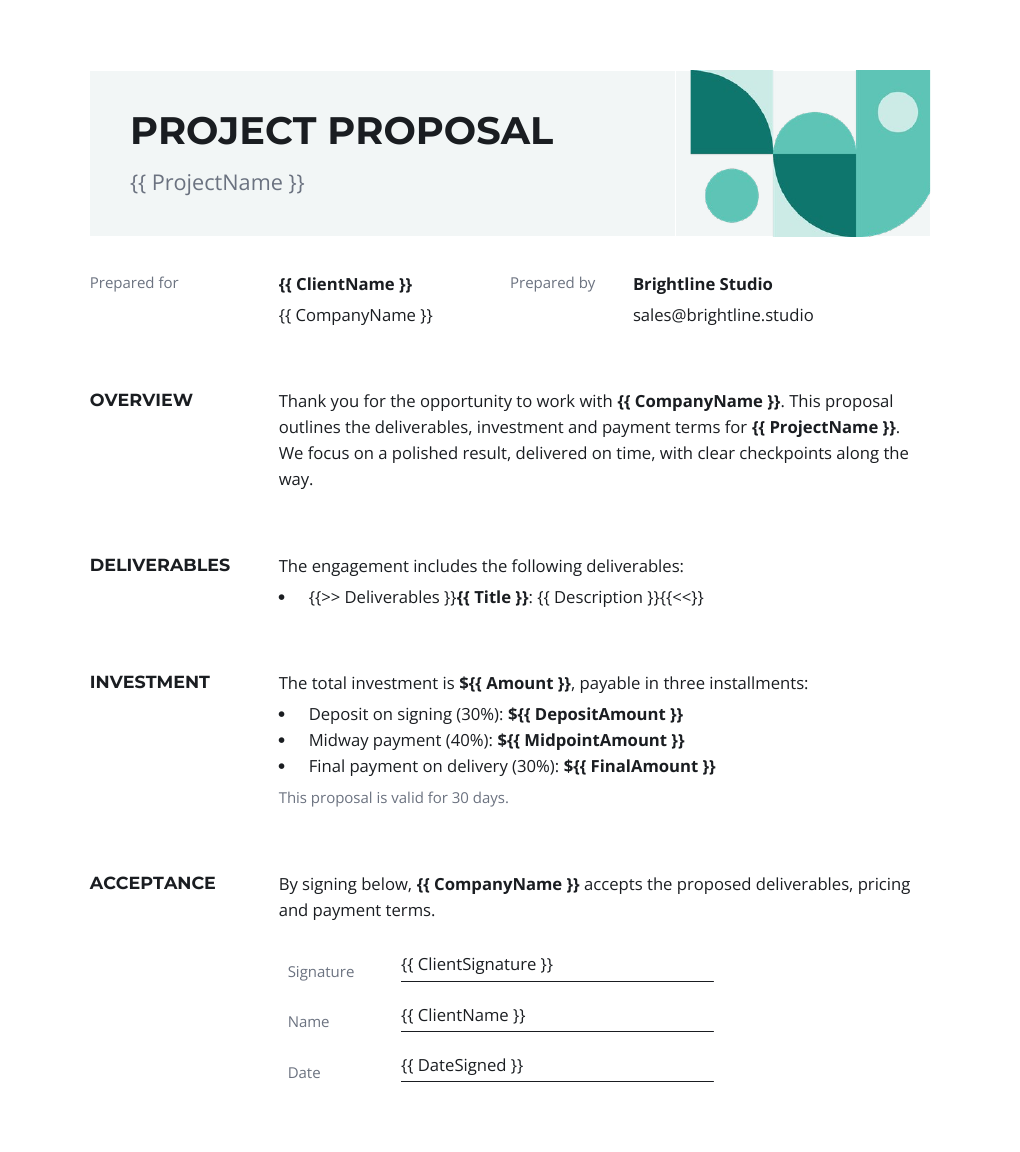
Click the proposal to download it as a Word template.
A few tips for preparing your template:
- Use descriptive signature tags. Tags like
ClientSignatureandDateSignedare automatically recognized as signature fields, so TemplateDocs sets up the e-signature for you. See Signature Tags. - Use loops for repeatable content. The
Deliverablestag is a loop. The single line in the template will be repeated for every deliverable, so each proposal lists exactly what the client gets. - Format your tags. The generated document preserves the font and style of each tag, so format it the way you want the resulting value to appear.
Instead of adding tags manually, you can create a template with AI. Upload your existing Word proposal and let AI identify the details that change from deal to deal and replace them with tags.
Step 2: Choose how to generate
There are two ways to generate proposals from your CRM. Both create a PDF, send it to the client to e-sign and can save the signed copy to the deal.
| Option A: Deal you select | Option B: Deal stage | |
|---|---|---|
| How it starts | A team member selects a deal through an online form | A deal moves to a specific stage in your CRM |
| Review before sending | Yes, any value can be changed in the form | Optional, the workflow starts automatically and you can choose to review before sending |
| Best for | Proposals that need a personal touch, such as custom pricing | Standard offers and high volume |
Option A: Generate a proposal from a deal you select
A team member opens a form, selects the deal from Attio, and the form fills itself in with the client, company and deal details. They check the values, change anything they need, and submit. The proposal is then generated as a PDF and sent to the client to sign.
1. Create the workflow from the template
- Open the proposal template. On the Overview tab, choose Collect with a form.
- Choose Start from a record and click Continue.
- Choose Attio (or HubSpot, monday.com, Airtable and others) and click Continue.
- Keep Collect signatures on. It is suggested because the template has signature tags.
- Keep Send an email on, with your own address as the Recipient, so you get a copy of the signed proposal. Name the workflow and click Create workflow.
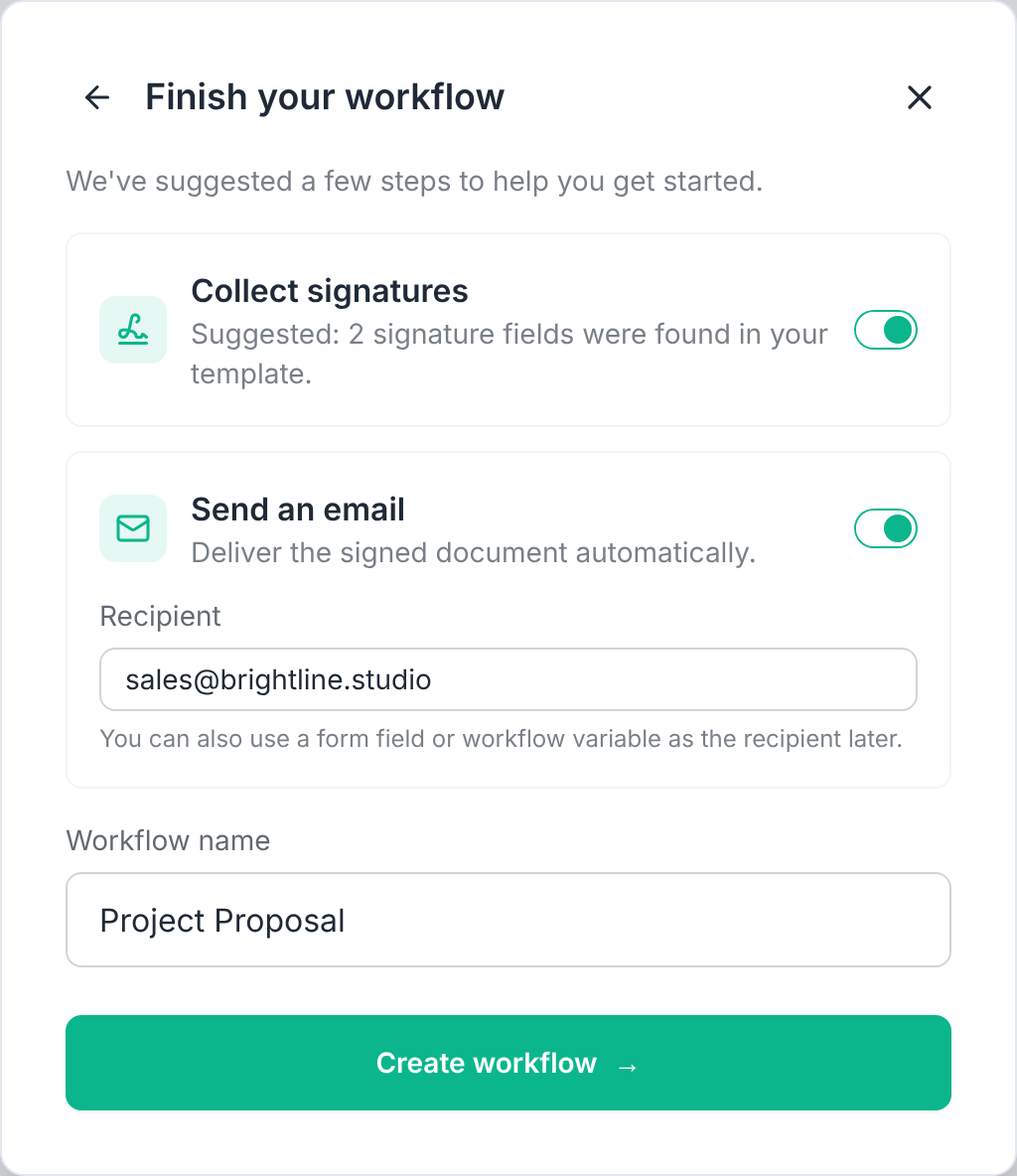
TemplateDocs creates a workflow with a form that has a field for every tag, including a Deliverables table and number fields for the amounts, a Document step that creates the PDF, a Sign step with the signature fields already placed, and an Email step. The form designer opens with the Data Sources panel, ready to connect Attio.
2. Connect your Attio deals
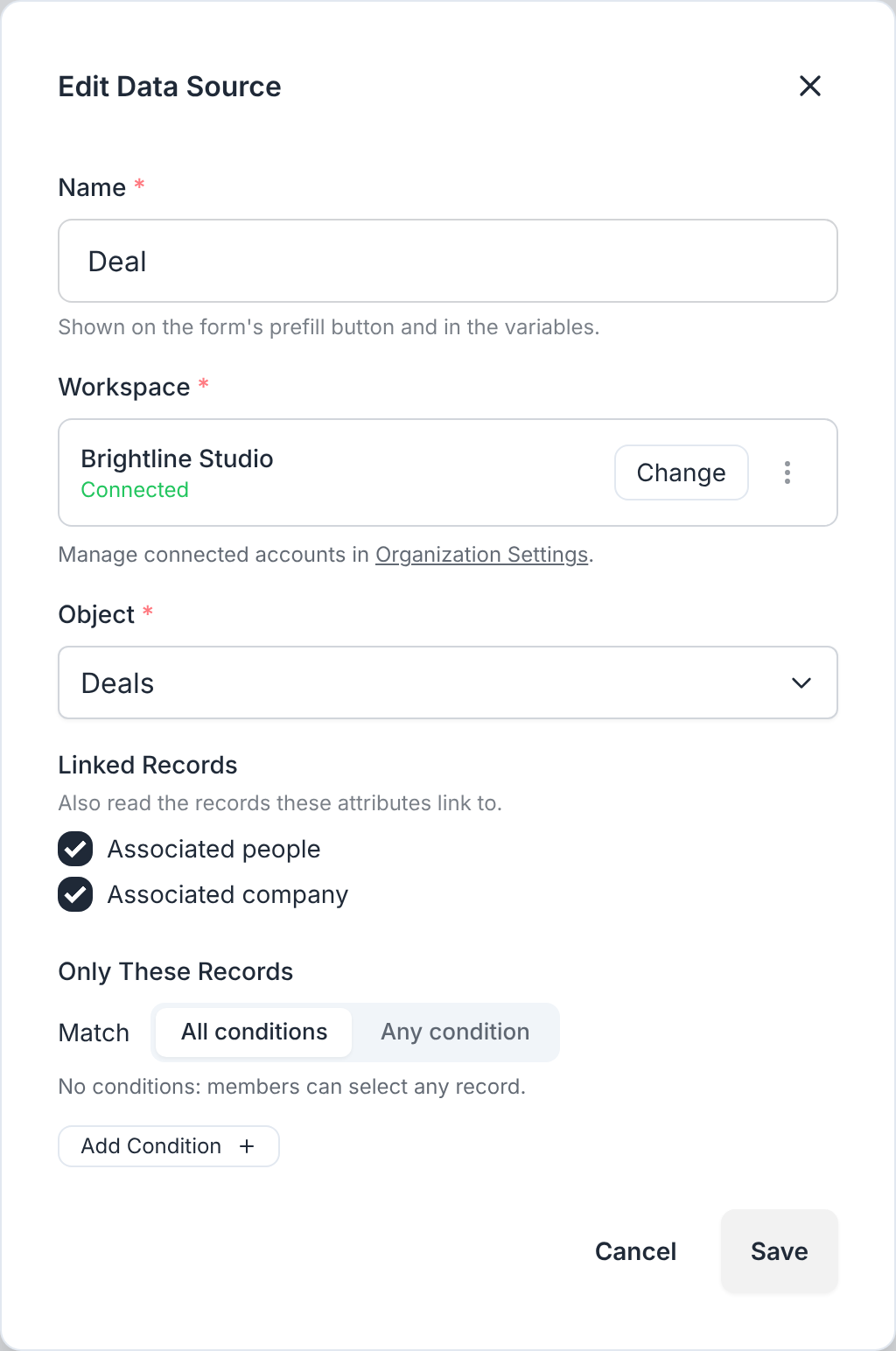
- In the Data Sources panel, open the Attio source.
- Name it
Deal, so it is easy to find later. - Click Sign in under Workspace and approve the access in Attio.
- Choose the Deals object.
- Under Linked Records, select Associated company and Associated people. The form can then read the client's company and contact details along with the deal.
- Optionally, use Only These Records to list only open deals, for example with a condition on the Deal stage.
- Click Save.
3. Auto-populate the form fields
Select each form field and set its Prefill value. Type @ and select the
deal field under Source Records:
| Form field | Prefill from the deal |
|---|---|
| Client Name | Associated people > Name |
| Company Name | Associated company > Name |
| Project Name | Deal name |
| Amount | Deal value |
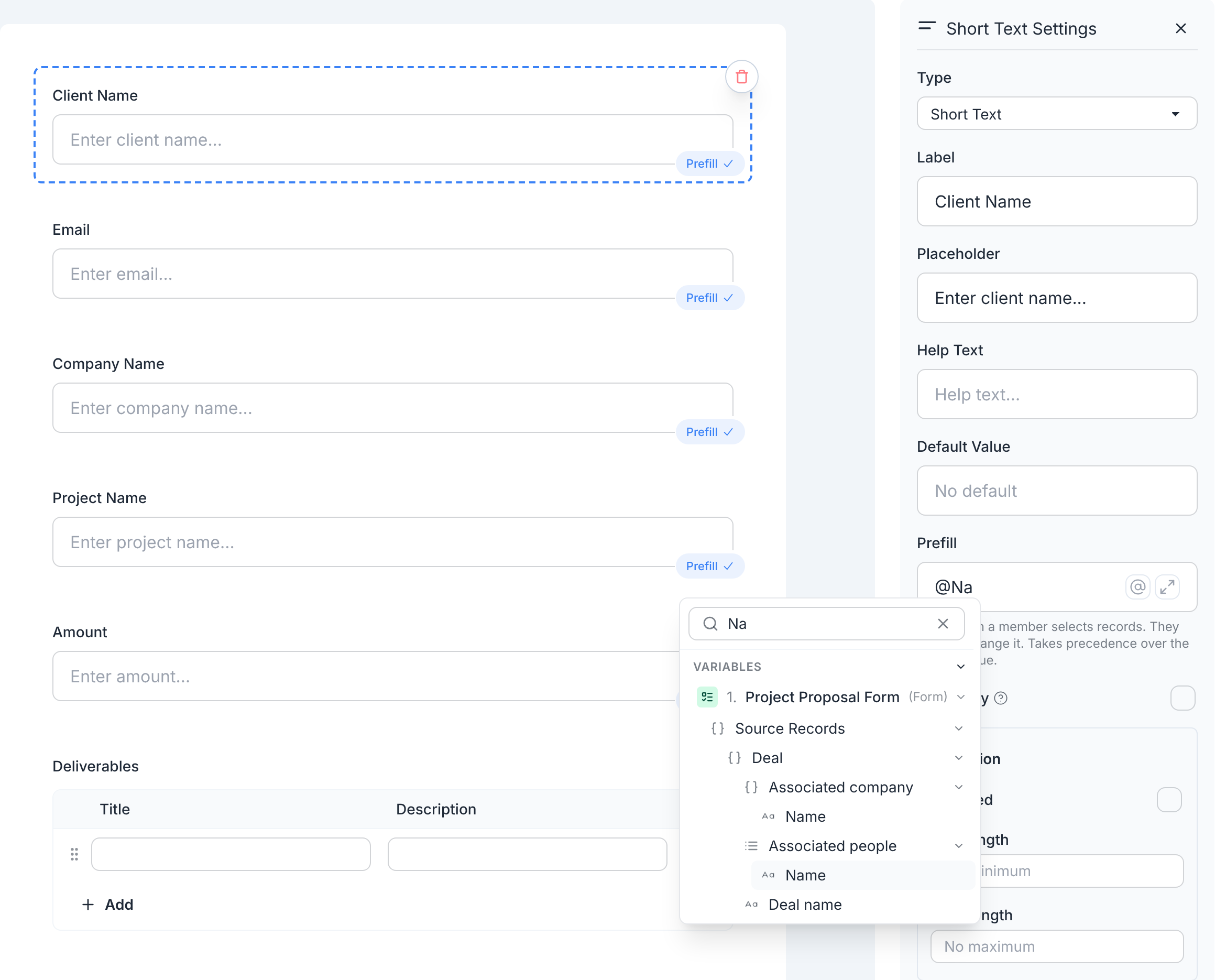
Then add an Email field for the client's address, and prefill it with Associated people > Email addresses.
Leave the Deliverables table without a prefill. The team member adds a row for each deliverable when they fill in the form.
4. Calculate the payments from the total
The three payments are derived from the total, so we use a formula to calculate them:
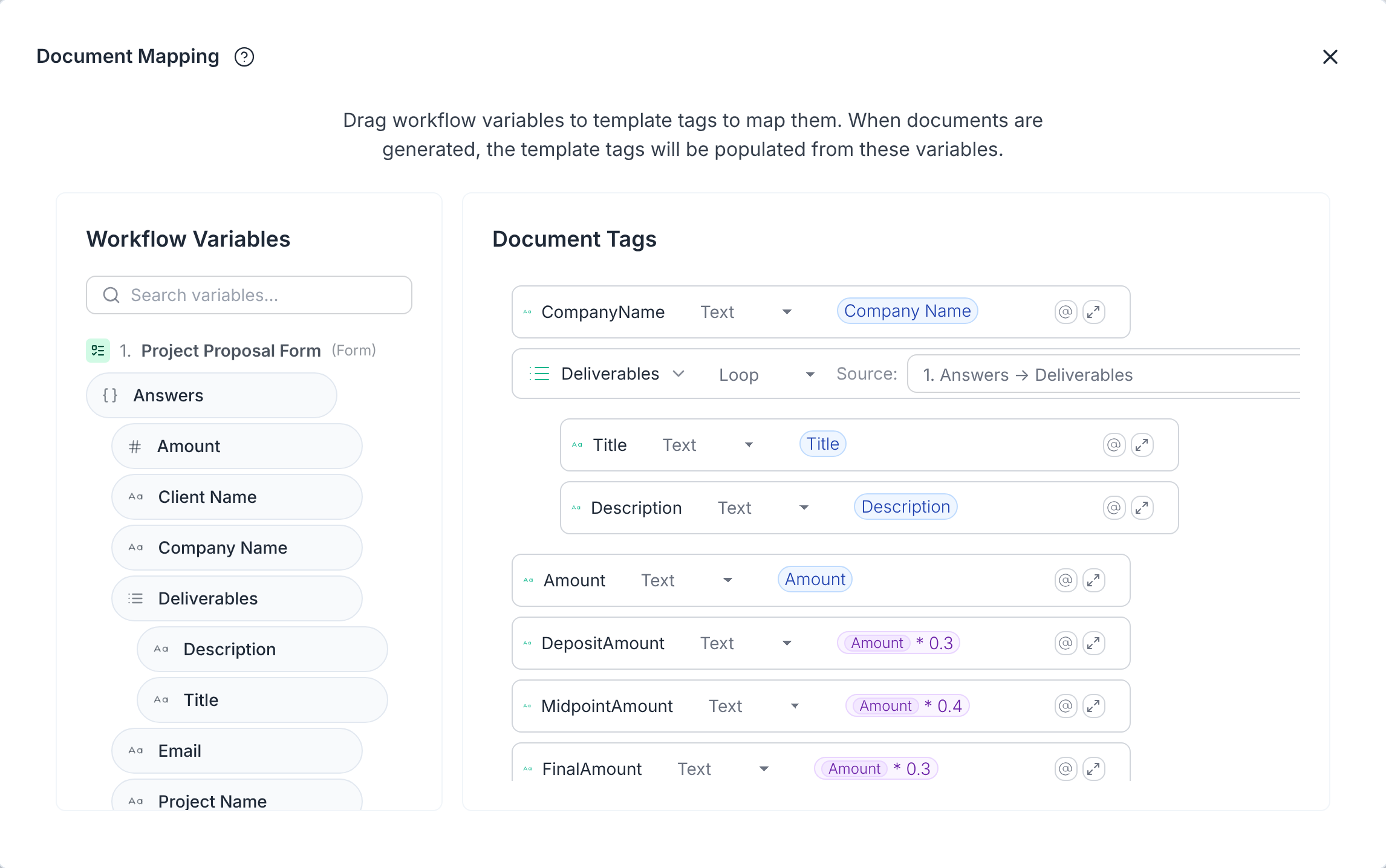
- In the Document step, open the Tag Mapping.
- In each payment tag's field, type
@, choose Insert Formula and enter the formula below. Insert the Amount form field with@. - In the form designer, delete the Deposit Amount, Midpoint Amount and Final Amount fields. They are no longer needed.
| Tag | Formula |
|---|---|
| DepositAmount | Amount * 0.3 |
| MidpointAmount | Amount * 0.4 |
| FinalAmount | Amount * 0.3 |
5. Send the proposal for e-signature
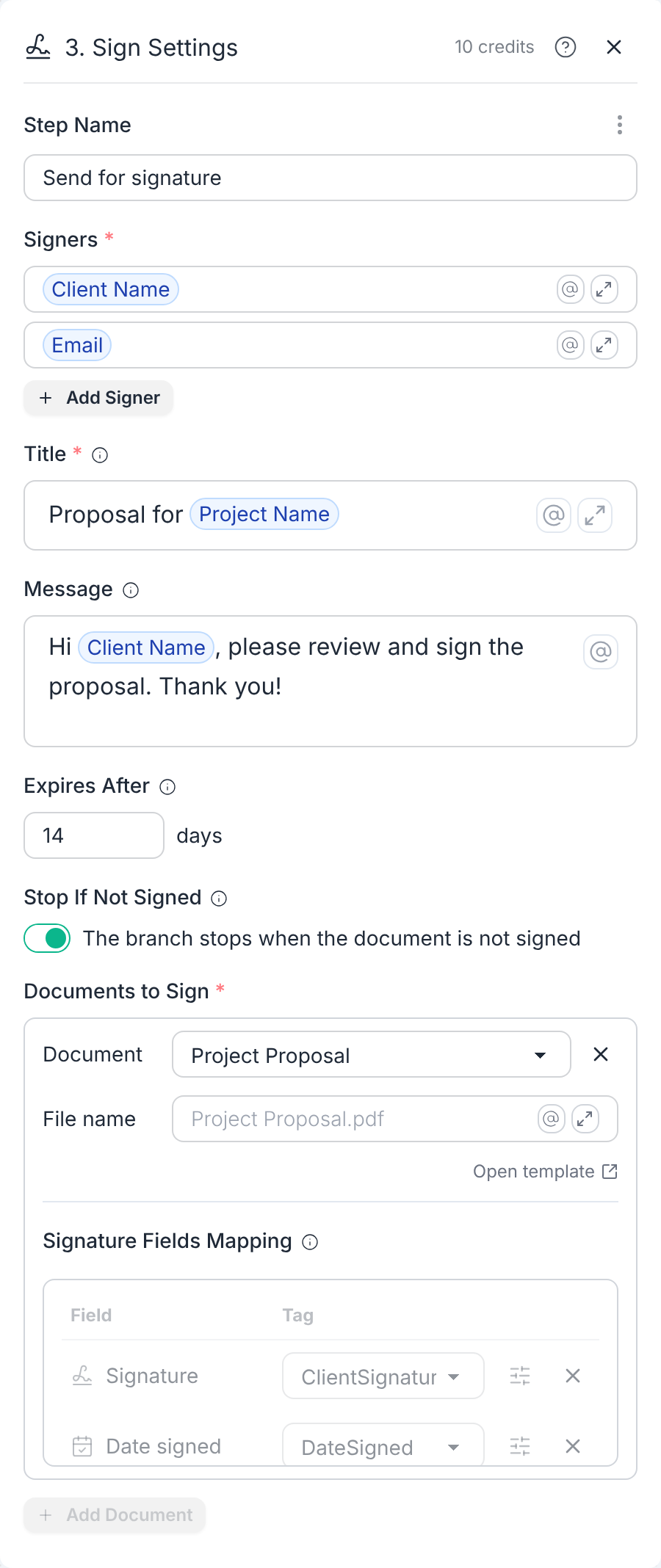
The wizard has already made most of the configuration for you. Now, tell the Sign step who signs:
- Under Signers, set the signer's name to the Client Name form field
and the email to the Email form field. Type
@to insert them. - Set a Title and optionally add a Message.
- If needed, set the signature request expiration date. The default is 7 days from sending.
6. Save the signed proposal back to the deal (optional)
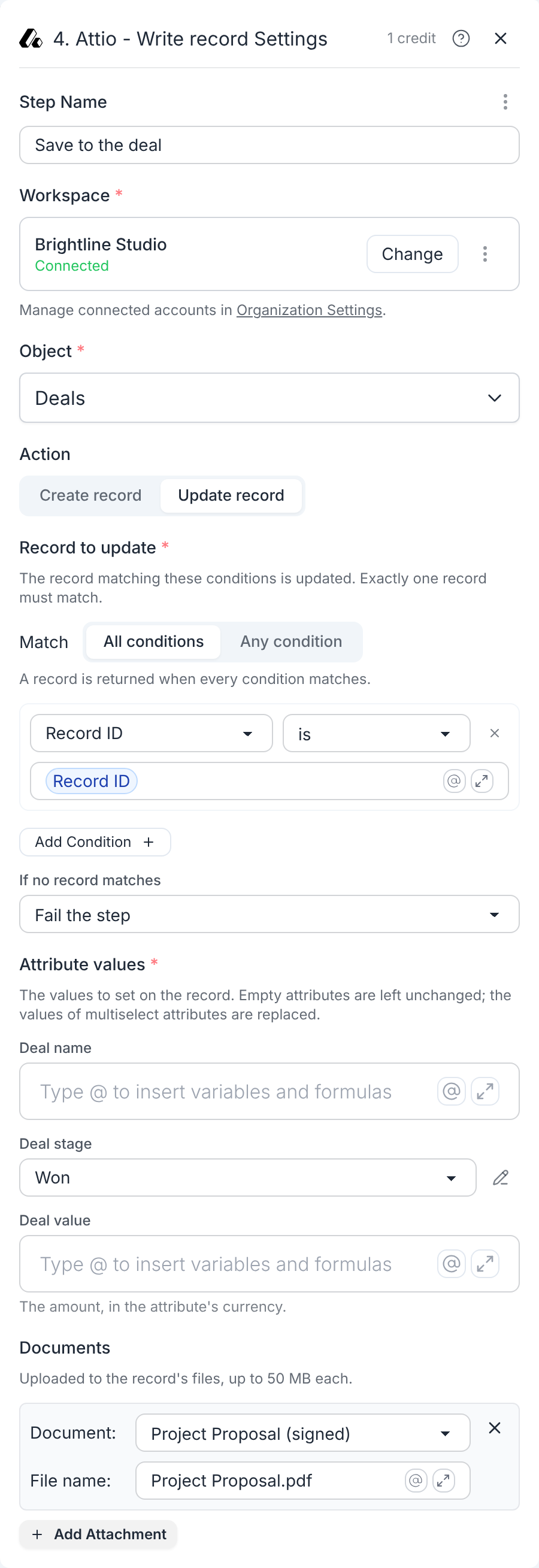
To save the signed proposal back to the deal, add an Attio - Write record step after the Sign step:
- Choose the Deals object and the Update record action.
- Under Record to update, set a condition so the right deal is updated:
Select "Record ID is", then in the input field below type@to select the deal's Record ID from the form's Source Records (see screenshot below). - Under Documents, add the signed document. The signed PDF will be uploaded to the deal's files.
- Optionally, set the Deal stage to your won stage so it reflects the deal's progress.
7. Generate your first proposal
- Click Test in the workflow editor to open the form.
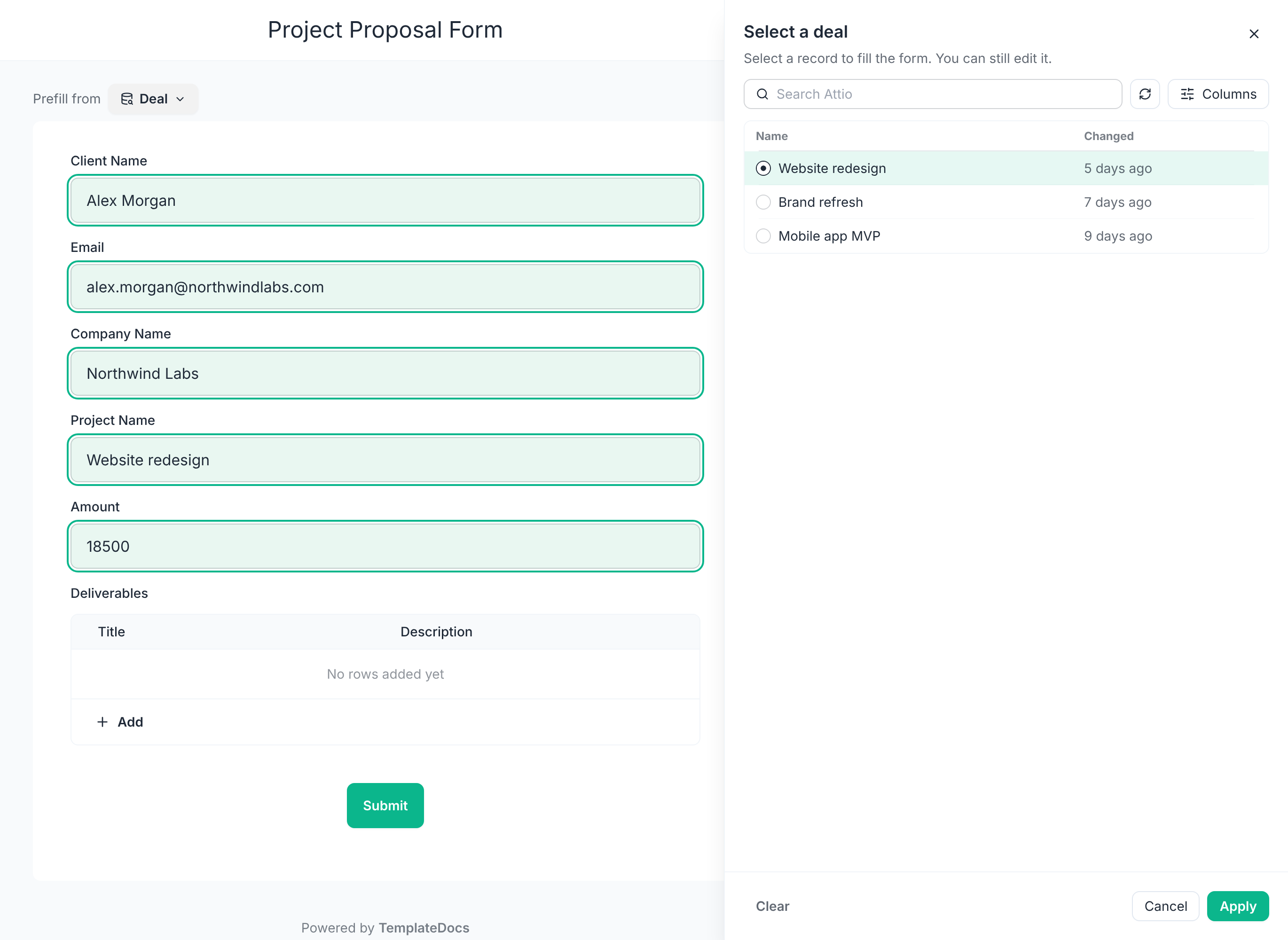
- Click the Deal button next to Prefill from, select a deal and click Apply. The fields fill in with the deal's details.
- Add the deliverables to the Deliverables table.
- Check the values, change anything you need, and submit.
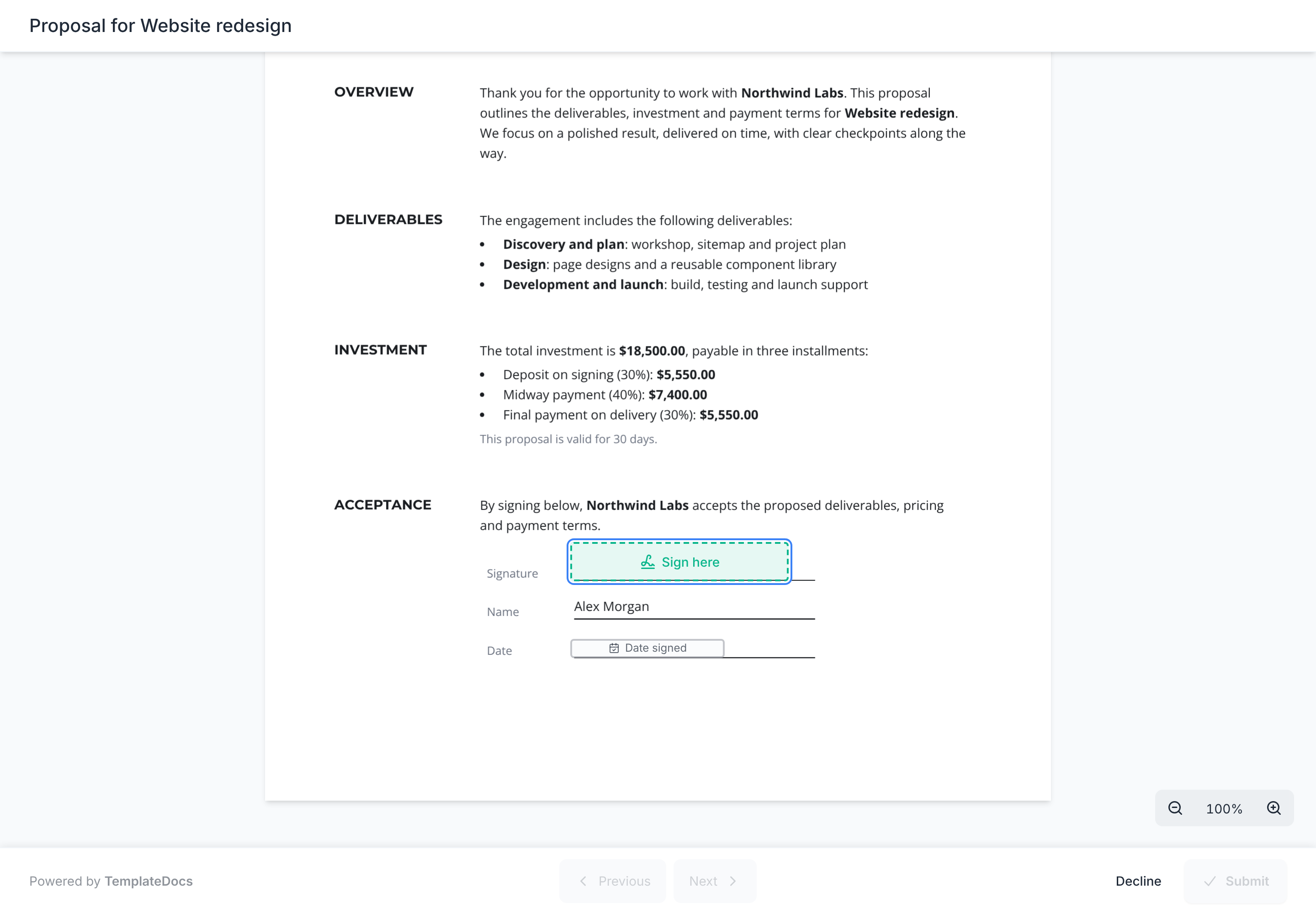
The client gets an email with a link to review and sign the proposal. When they sign, the client and you get the signed PDF by email, and the signed copy is saved to the deal.
Once you've tested the workflow and are happy with the results, click Publish. Members of your TemplateDocs organization can then use the form to trigger the workflow.
Test with a deal that has your own email address before you send a proposal to a real client.
Option B: Generate a proposal when a deal changes stage
Instead of opening a form for every deal, let a workflow watch your pipeline. When a deal moves to a stage such as Proposal, the workflow generates the proposal and sends it to the client to sign.
1. Create the workflow from the template
- Open the proposal template. On the Overview tab, choose Trigger from an event.
- Choose Attio (or HubSpot and others) and click Continue.
- Keep Collect signatures and Send an email on, name the workflow, and click Create workflow.
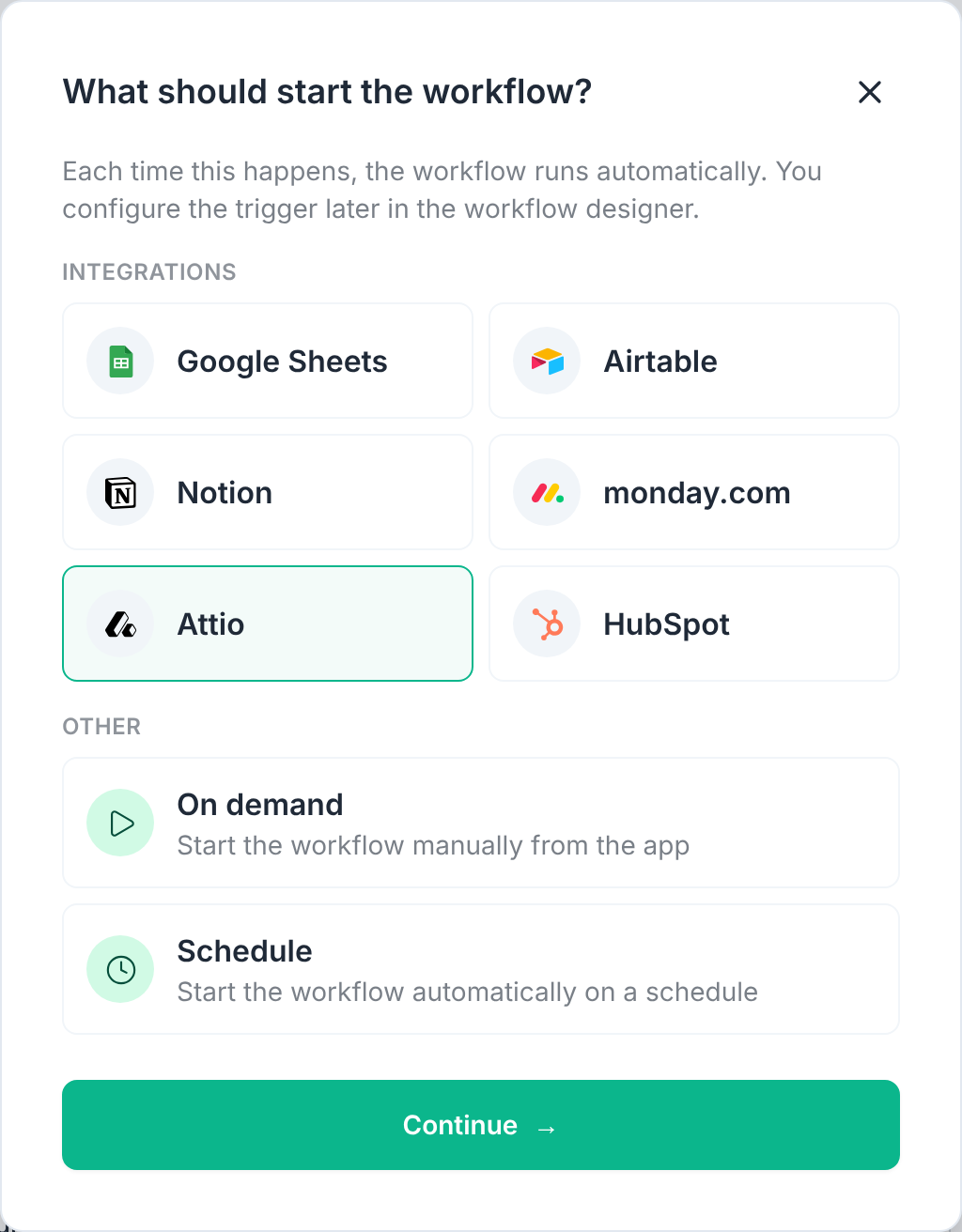
The workflow opens with the trigger selected.
2. Choose the deal stage and the client
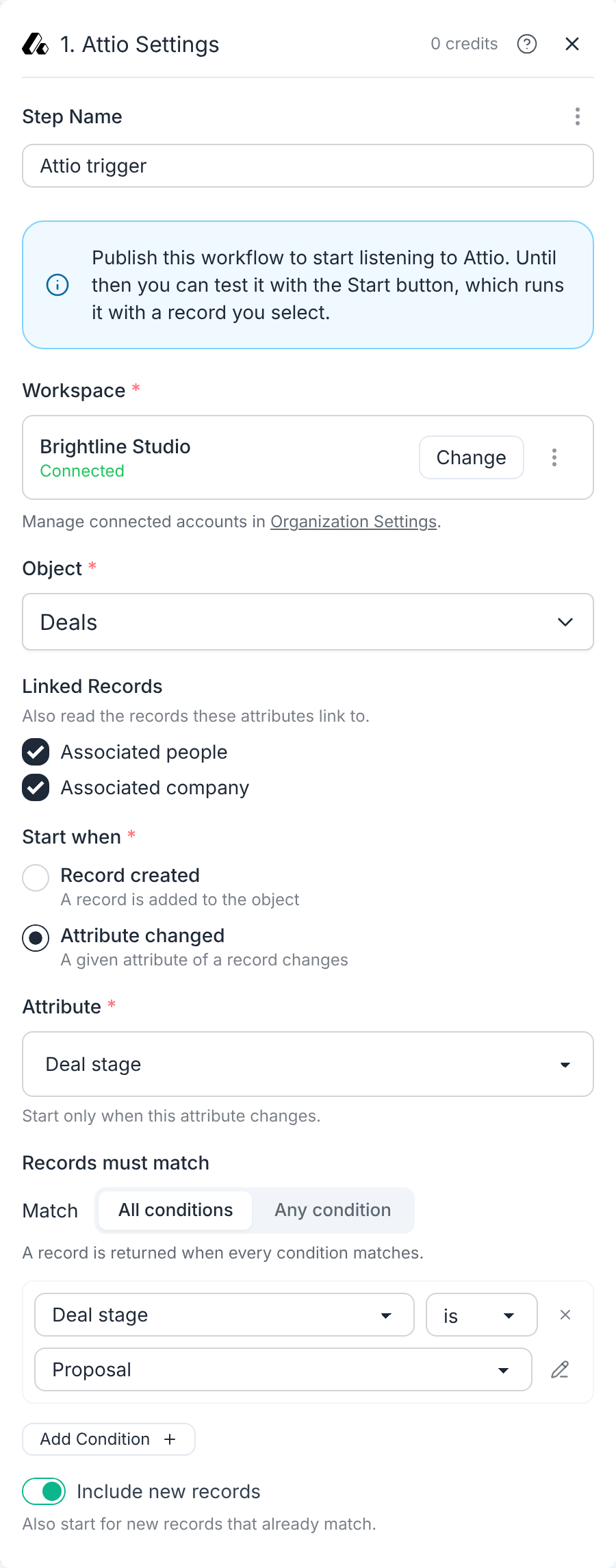
- Click Sign in under Workspace and choose the Deals object.
- Under Linked Records, select Associated people and Associated company. The trigger then reads the client's contact and company details along with the deal.
- Under Start when, choose Attribute changed and the Deal stage attribute.
- Under Records must match, add a condition: Deal stage is the stage that should send a proposal, such as Proposal.
3. Review before sending (optional)
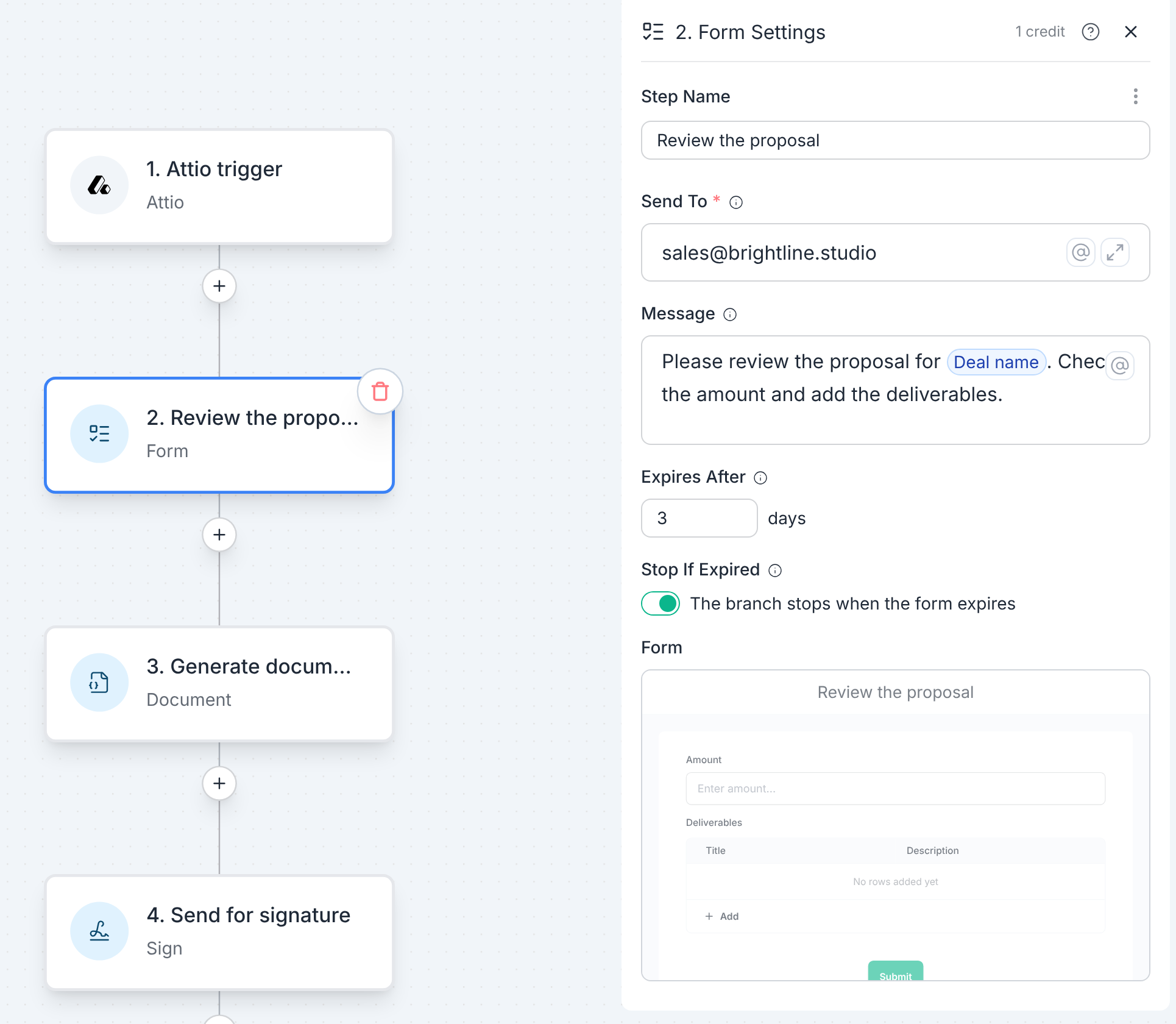
To check each proposal before it goes out, add a review form. The workflow emails the form to a teammate and waits. The proposal is created only after they submit it.
- Click the + below the trigger and add a Form step.
- Under Send To, enter the reviewer's email address.
- Optionally, add a Message, for example with the deal's Deal name.
- Click Edit form and add the fields to review, such as an Amount number field and a Deliverables table.
- Prefill the Amount field with the deal's Deal value, so the reviewer only changes it when needed.
- Use the form values in the Document step (next section).
4. Map the tags
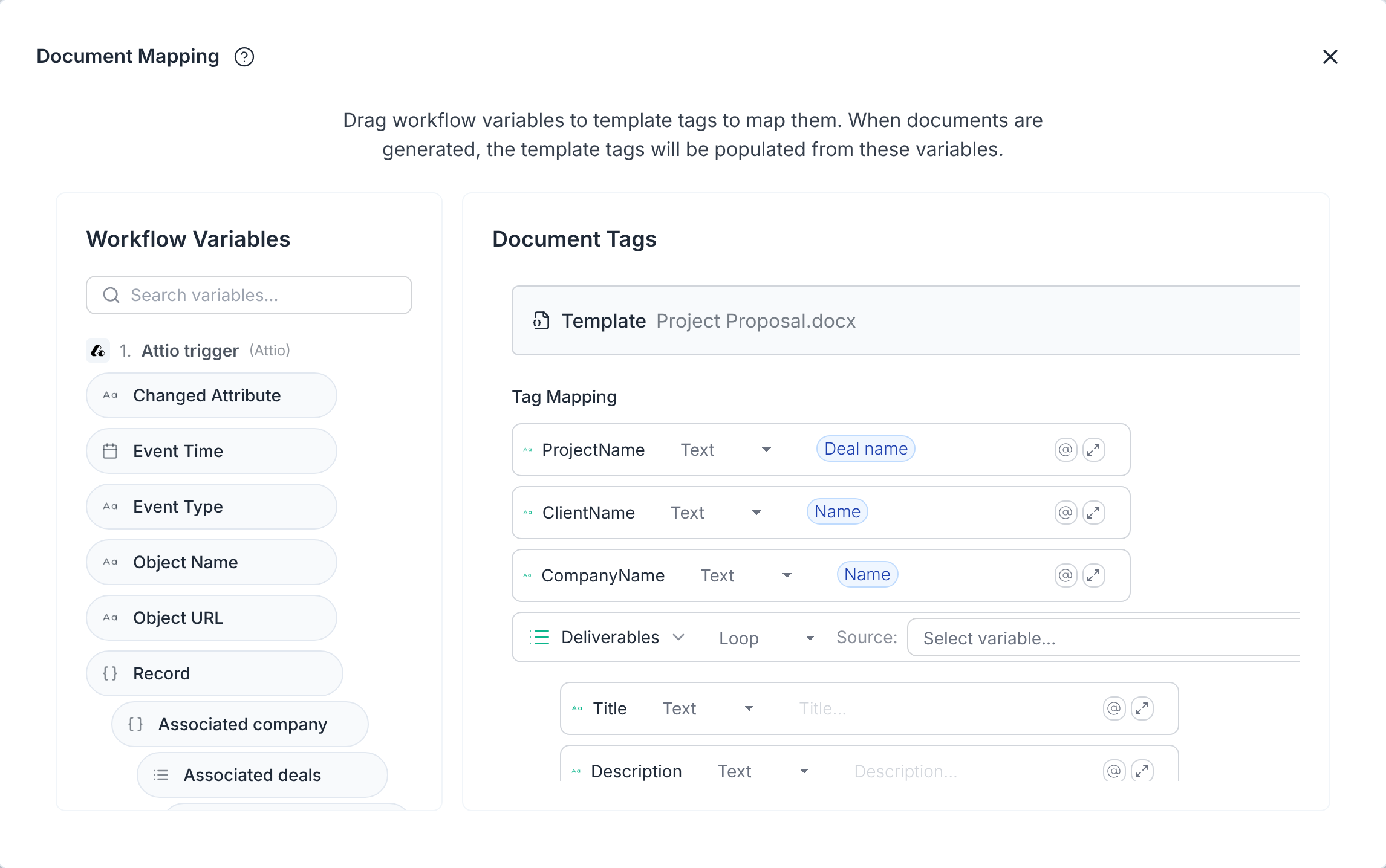
- In the Document step, open the Tag Mapping and map each tag. Drag and drop variables from the menu on the left, or click Get suggestions to let TemplateDocs automatically map the tags for you.
- You can also map the payment tags to formulas. See how we did it in Option A part of the guide.
5. Configure the other steps
Follow the same steps as in Option A above to configure the rest of the workflow:
6. Test and publish
- Click Test in the workflow editor and select a deal to try the workflow with it.
- When the proposal looks right, click Publish. The trigger only listens while the workflow is published.
Other CRMs
Attio is only one of the CRMs that can fill in your proposals. The same is supported using other integrations:
- Our native integrations for HubSpot, monday.com, Airtable, Notion and more.
- Additional CRMs, such as Salesforce, Pipedrive or Zoho CRM, through a webhook, Zapier or Make.
See our full list of options for connecting your CRM and other systems.
Frequently asked questions
Which CRMs can auto-populate a proposal template?
TemplateDocs connects directly to Attio, HubSpot, monday.com, Airtable, Notion and more. Other CRMs, such as Salesforce, Pipedrive or Zoho CRM, can start a proposal workflow through a webhook, Zapier or Make.
Can clients e-sign the proposal?
Yes. Add a Sign step to your workflow. The client gets an email with a link, reviews the PDF and signs it in the browser, on any device. When everyone has signed, each signer gets a signed copy by email, and the workflow continues, for example to save the signed proposal back to the deal in your CRM.
Are the e-signatures legally binding?
Electronic signatures are legally recognized under the US ESIGN Act and UETA, and the EU's eIDAS regulation, subject to applicable legal requirements. Every signed proposal includes a signature certificate and an audit trail. See E-Signature Compliance.
Can I send the proposal as a PDF without e-signature?
Yes. Turn off Collect signatures when you create the workflow, and set the Email step's To Address to the client's email. The client gets the proposal as a PDF or DOCX attachment, as you choose it.
Can each proposal list different deliverables or line items?
Yes. Use a loop in the template to repeat a bullet or a table row for each item, as the sample template does for its deliverables. Use formulas to calculate payments, discounts and taxes, and conditions to show sections only for some deals.
Will the PDF look exactly like my Word proposal?
Yes. Only the tags change. Fonts, logos, colors, tables, headers and footers are kept as they are in your Word document.
Can I generate proposals without a CRM?
Yes. Use a simple form to start a workflow, or keep your deals in Google Sheets, Airtable or Notion and generate a proposal for every new row.
What does it cost?
Each generated proposal uses credits, like any other document, and each signing request costs 10 credits. See Credits and the pricing page for details.
